
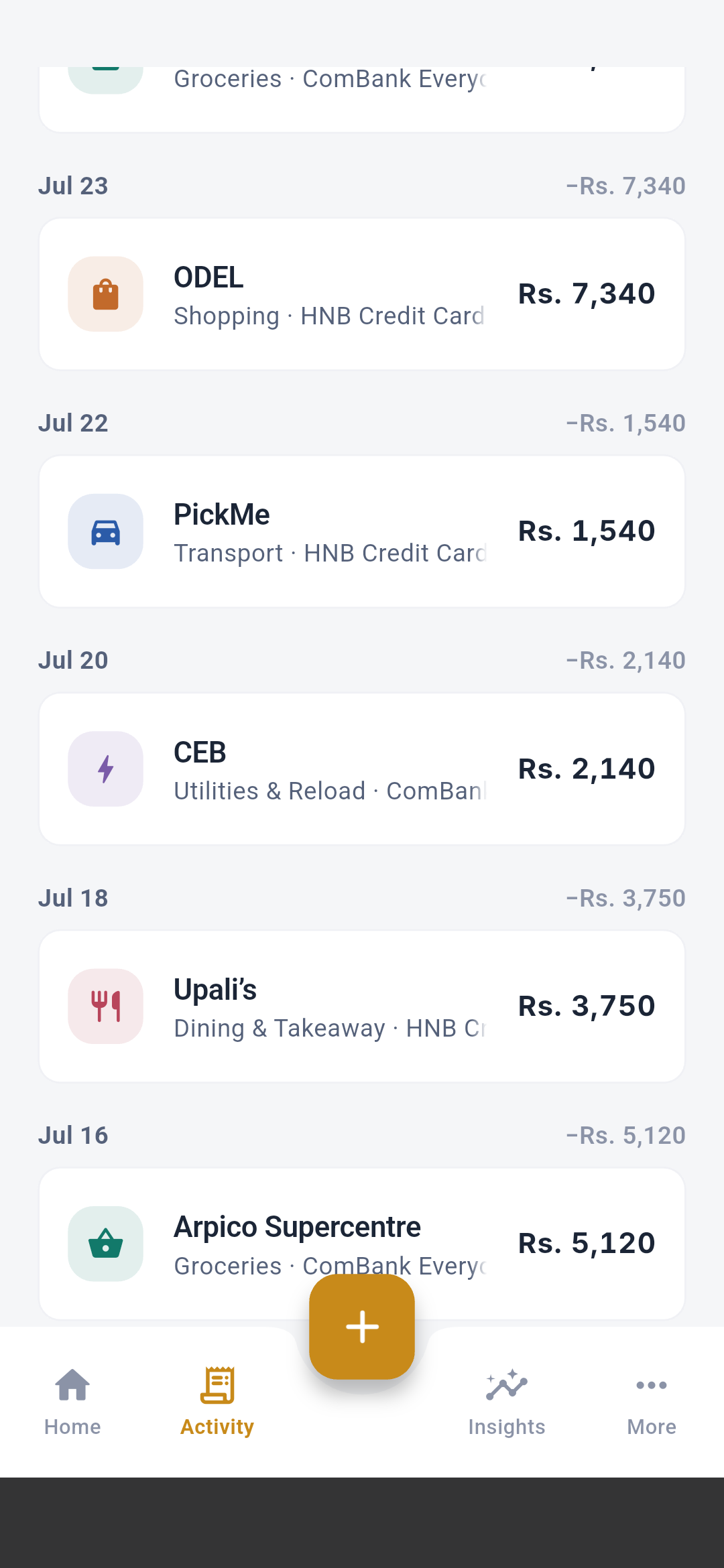
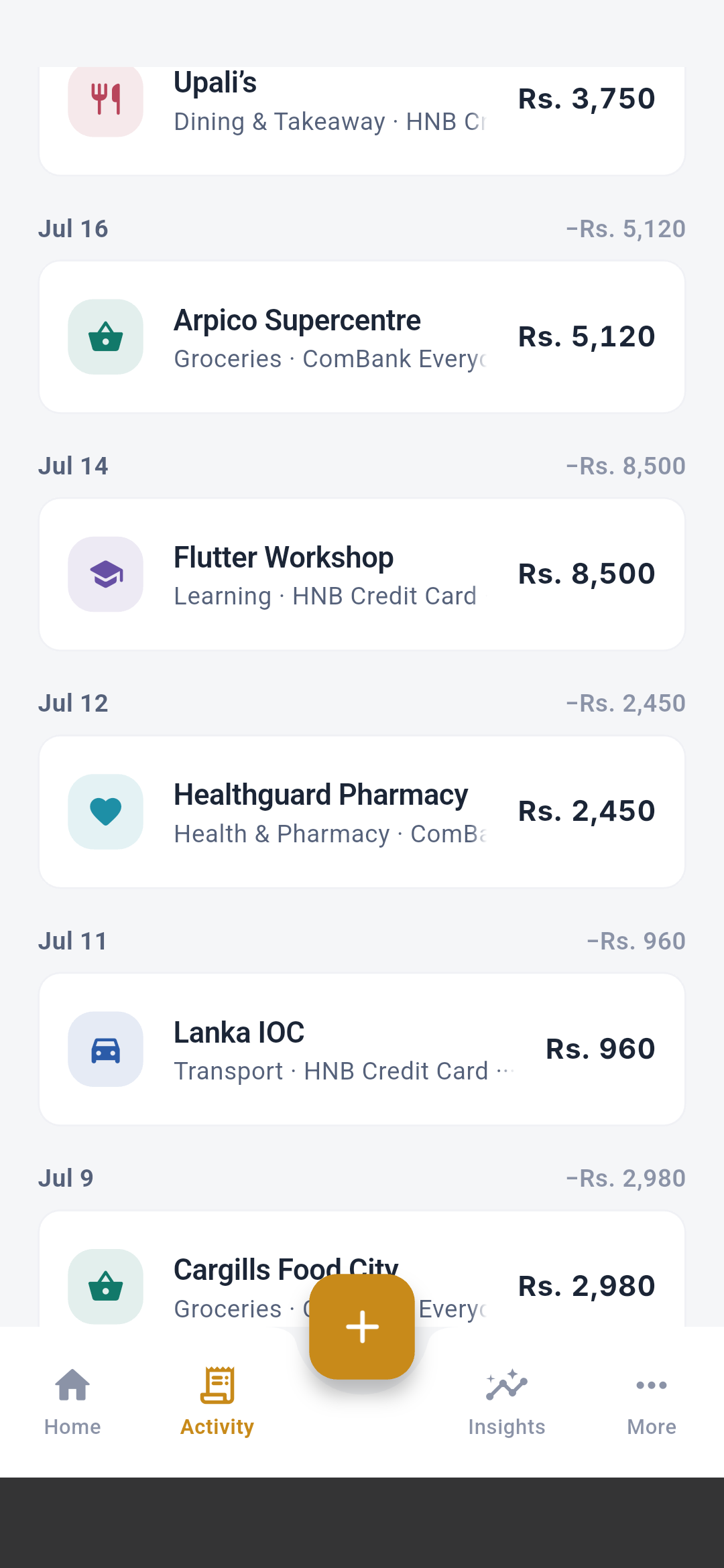
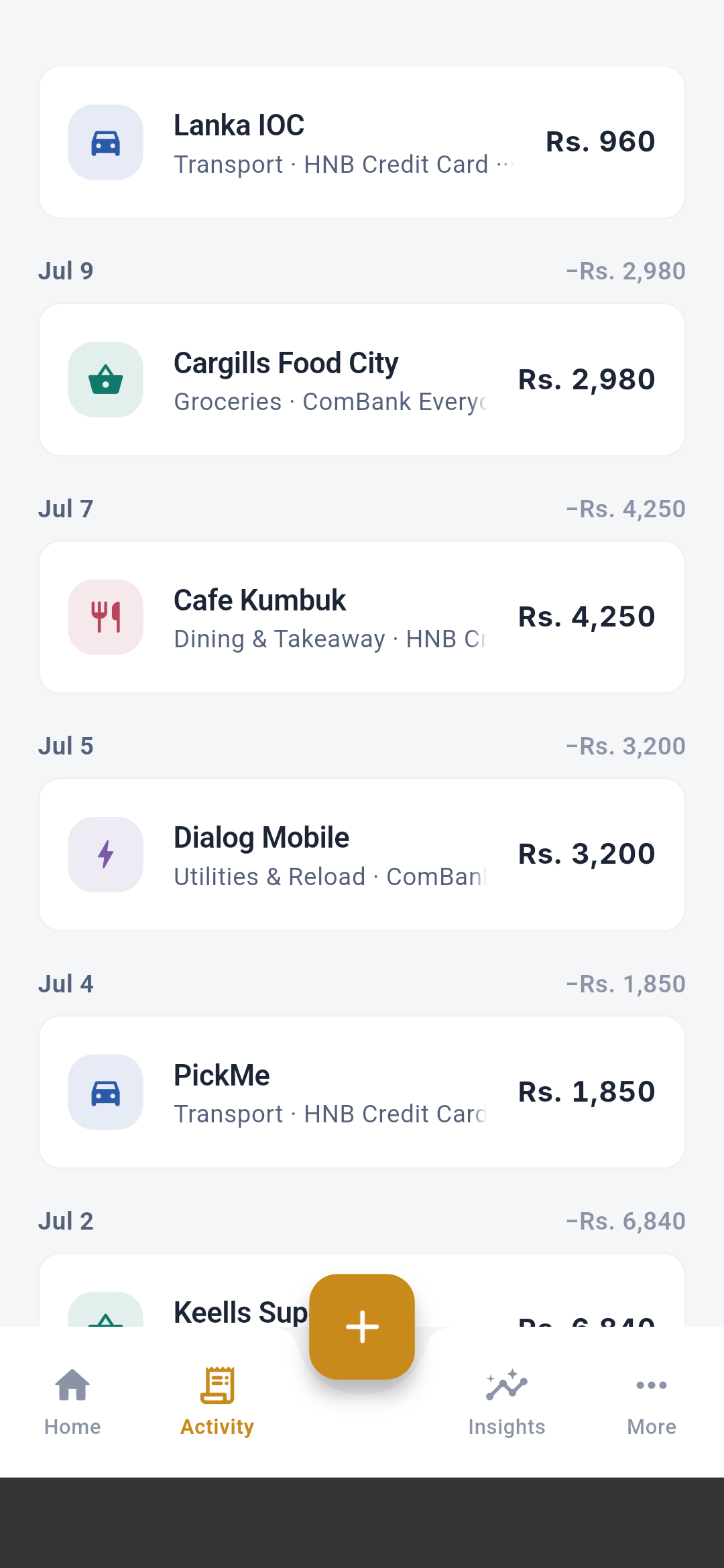
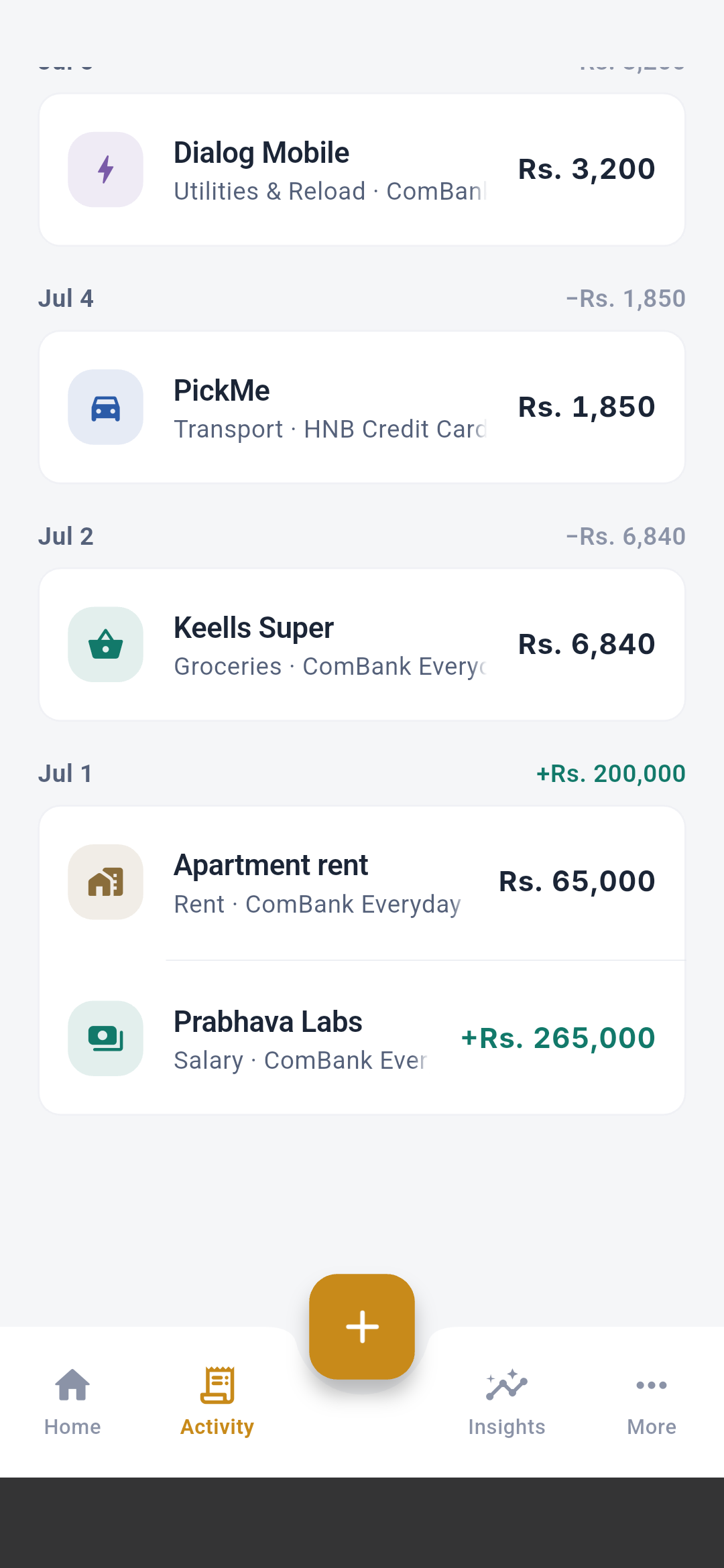
“Full screen” means the complete device viewport, including the app bar,
content, bottom navigation when present, and Android system areas. Long
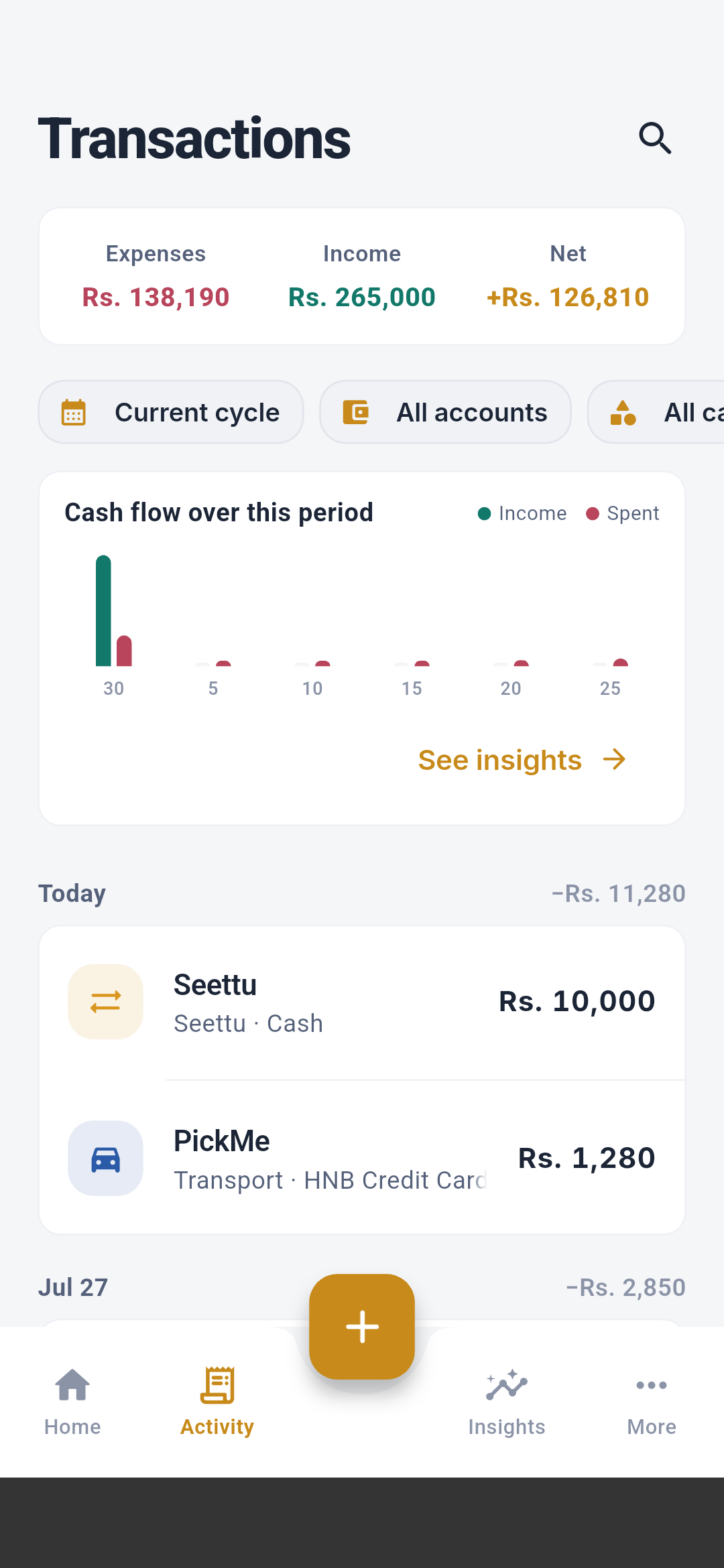
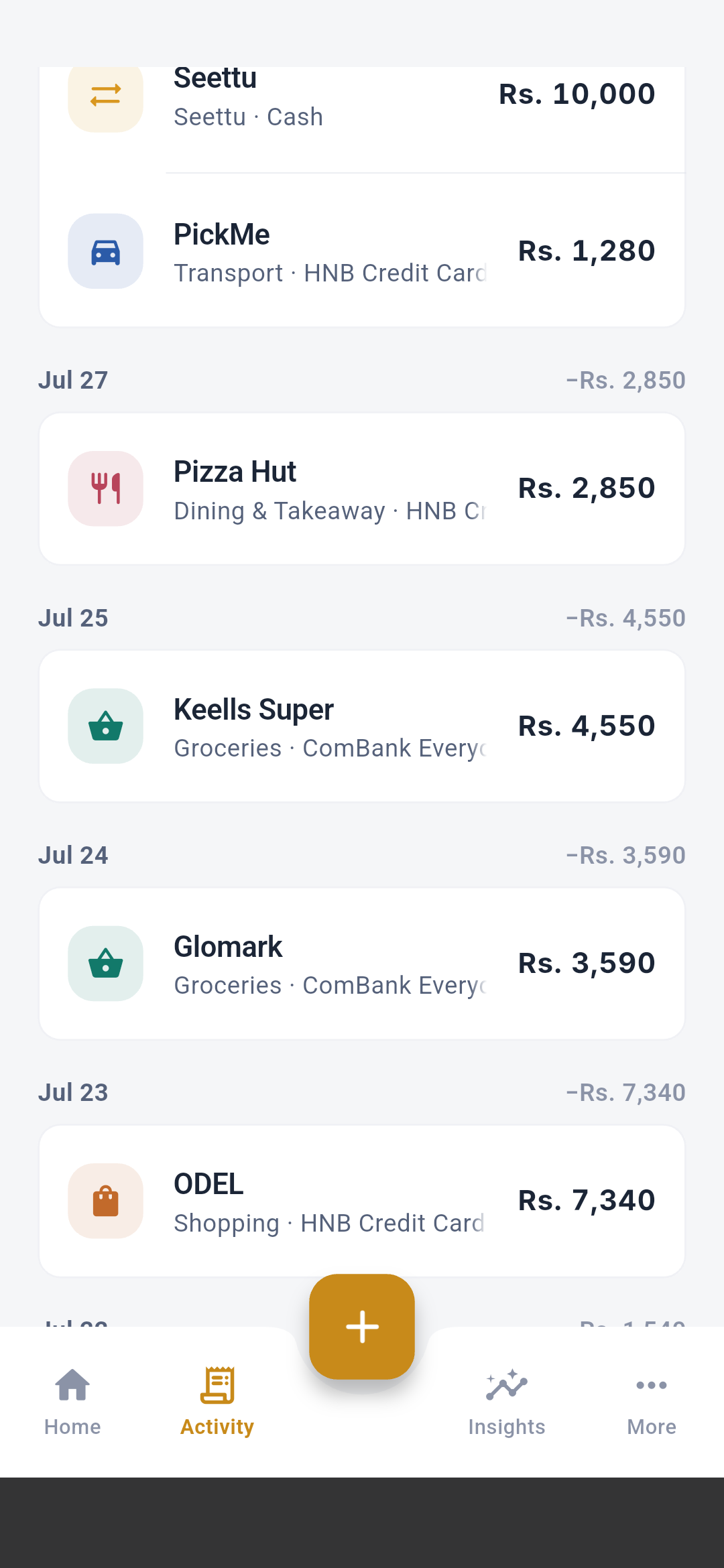
pages are shown as overlapping top-to-bottom viewports so no content is
omitted.
First launch and onboarding
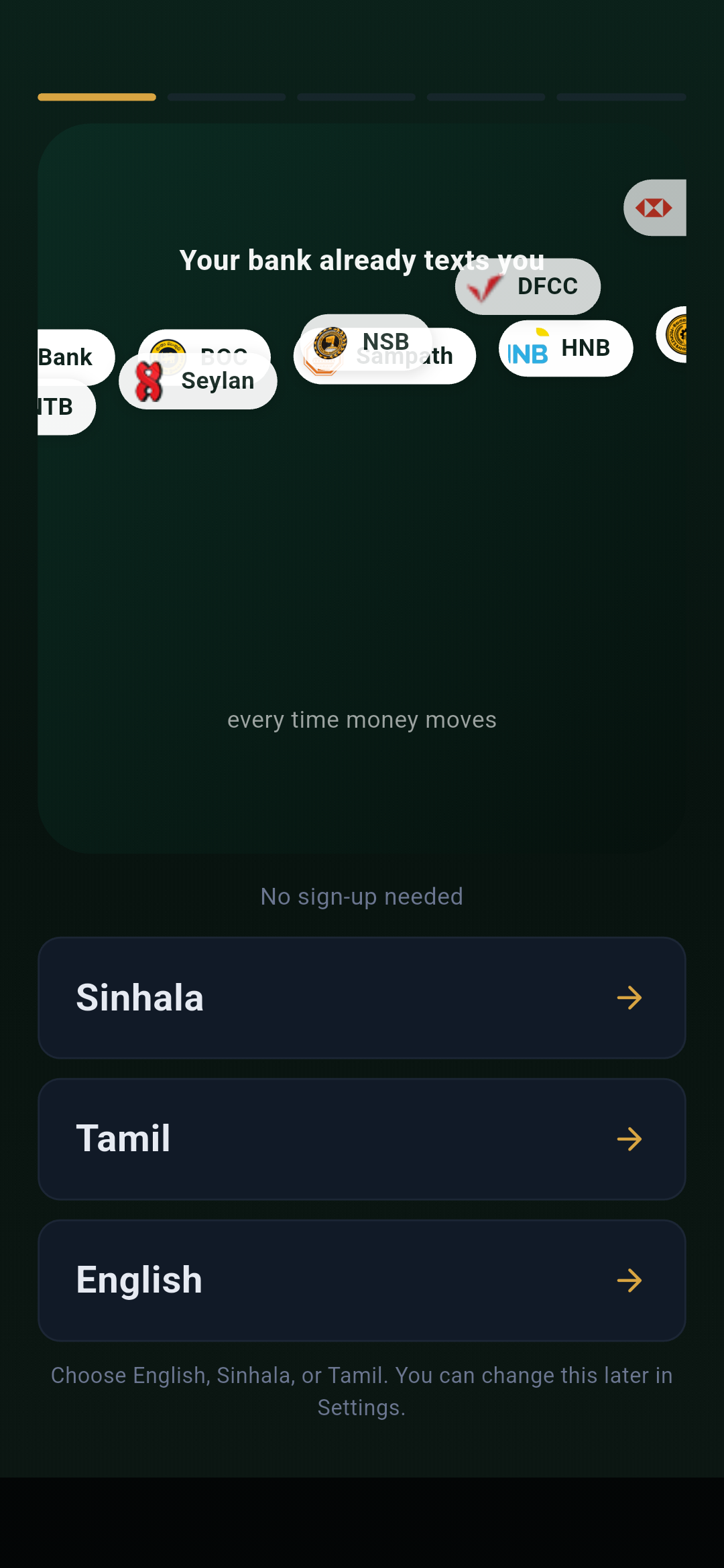
1. Language
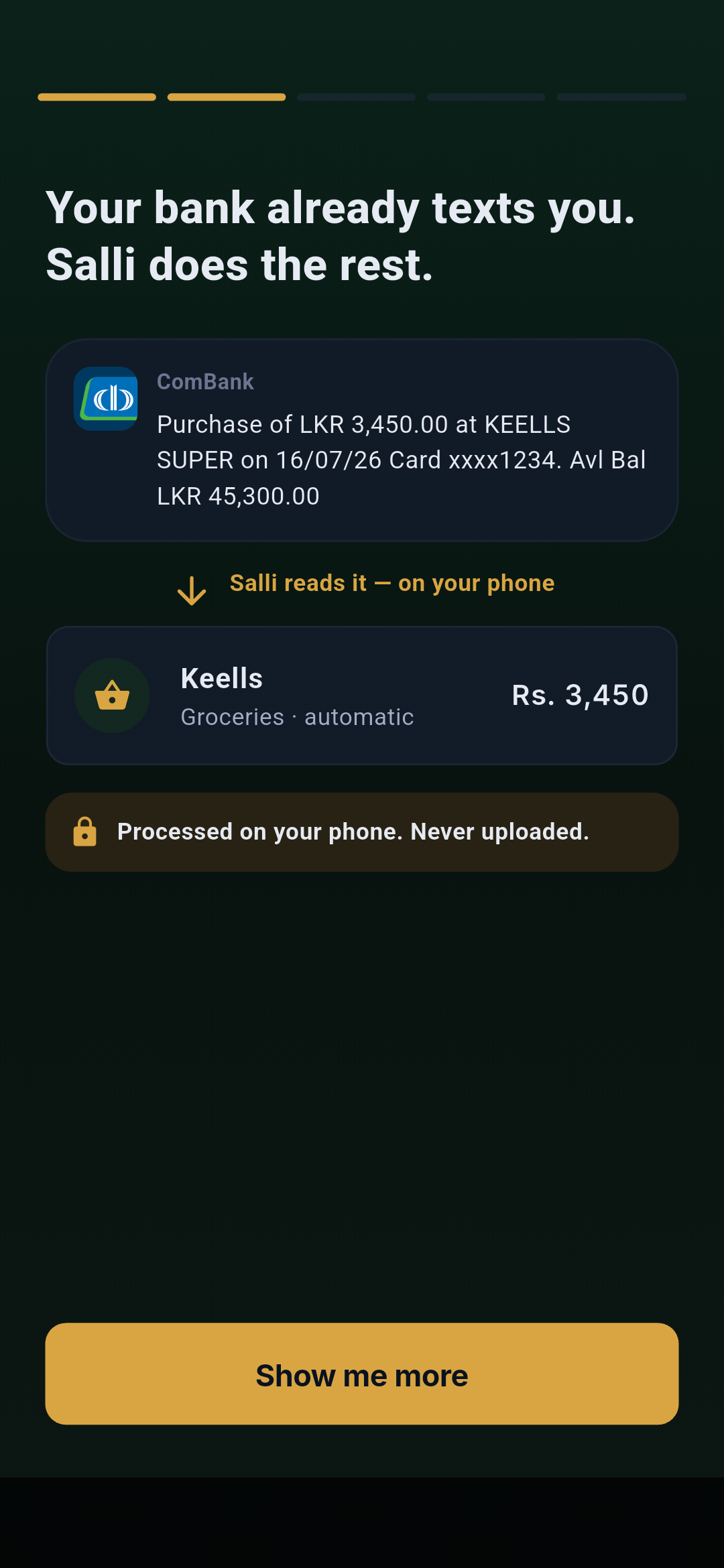
2. How bank alerts become transactions
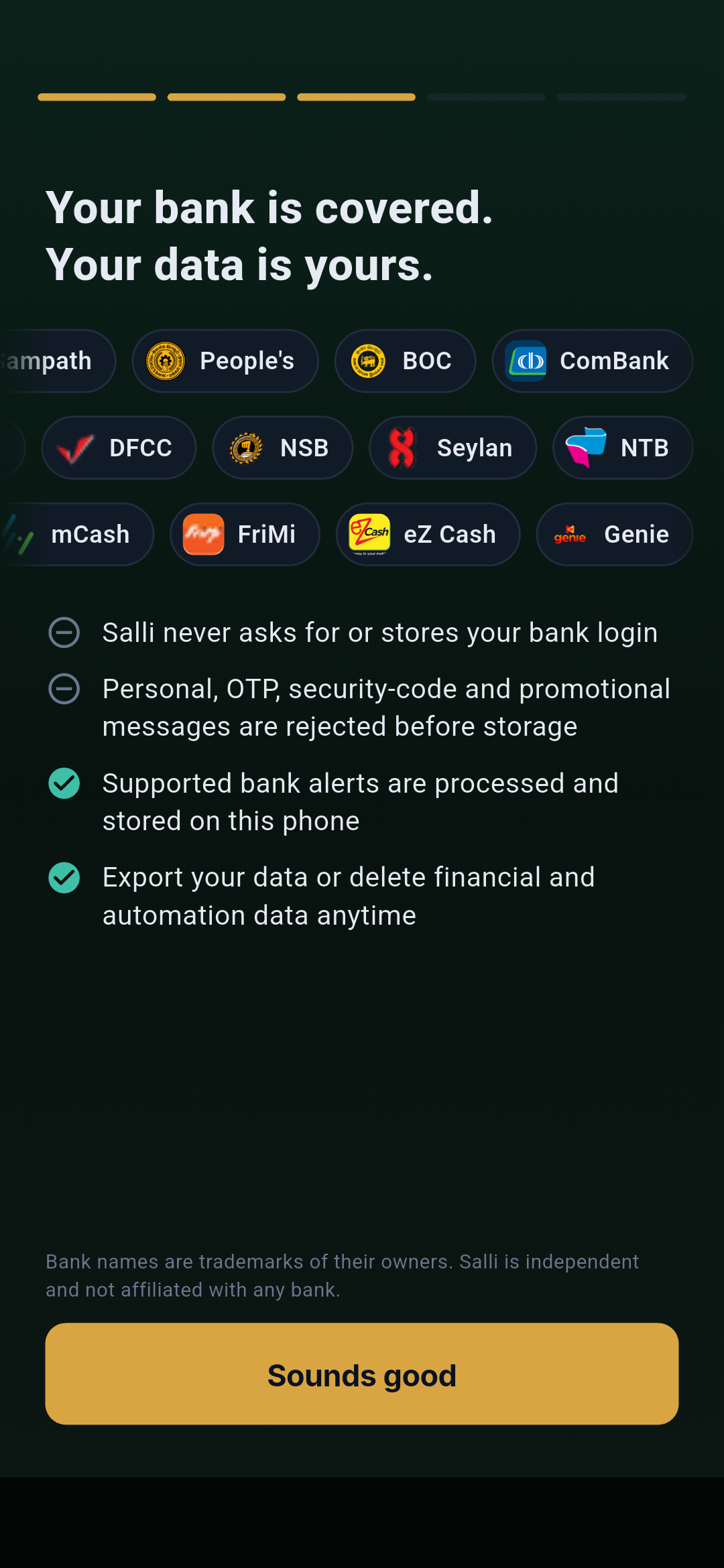
3. Privacy and supported data
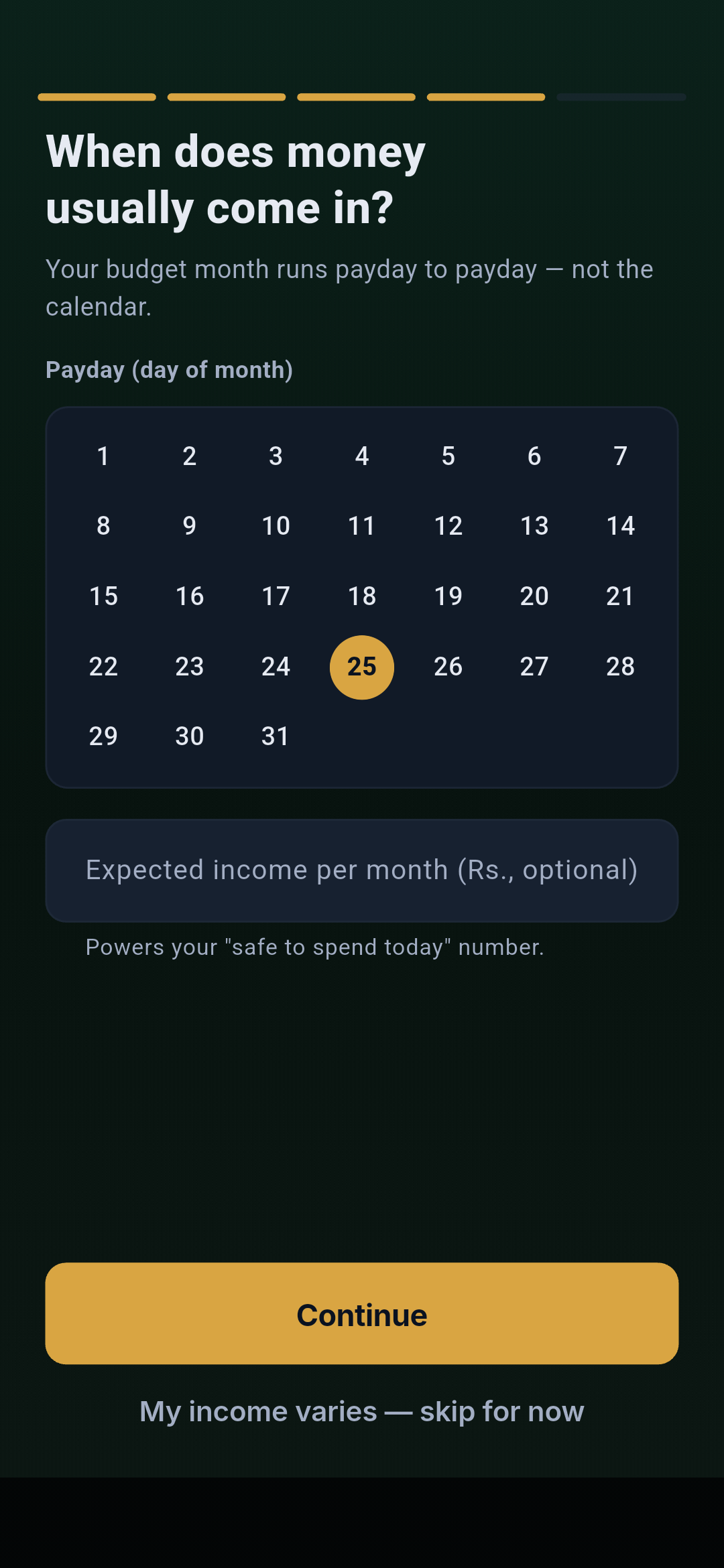
4. Payday and expected income
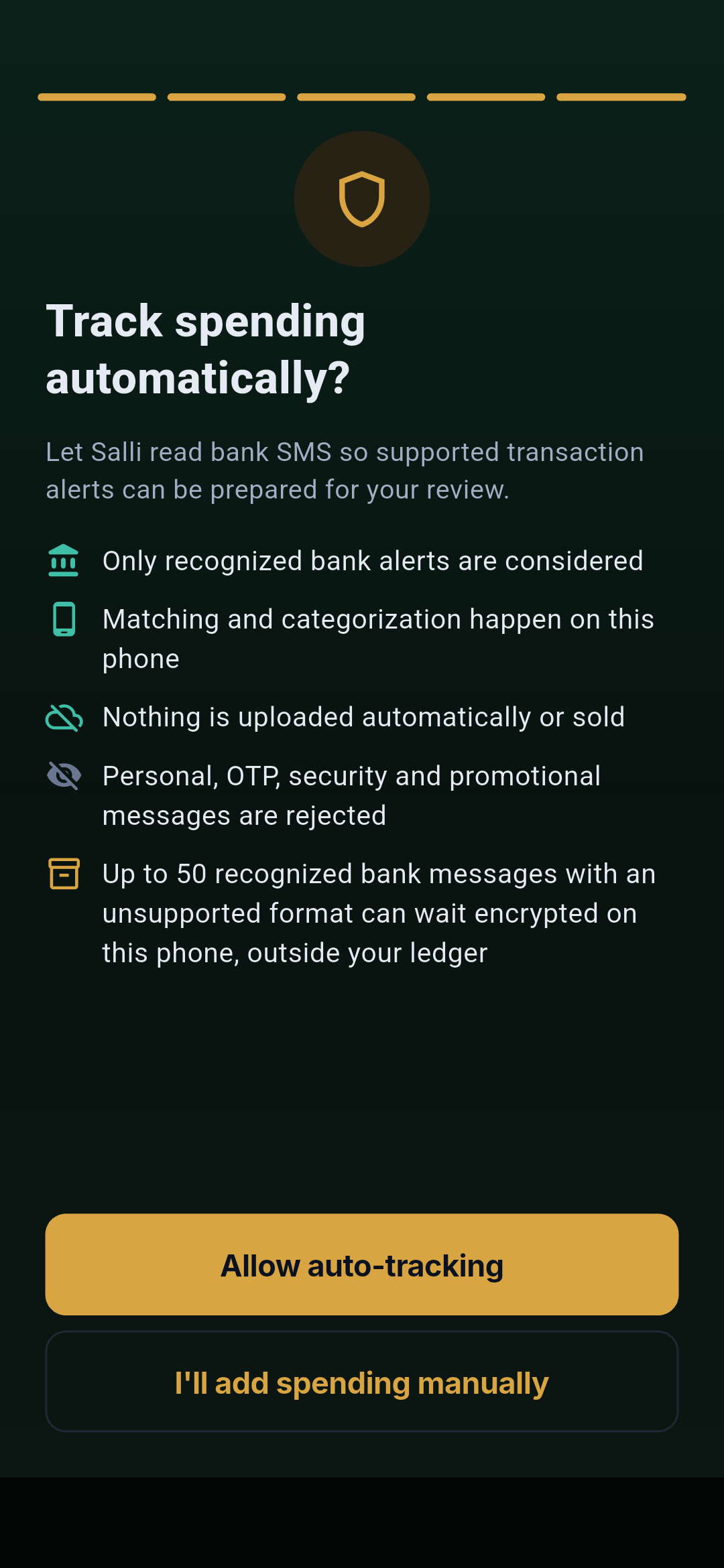
5. Auto-tracking choice
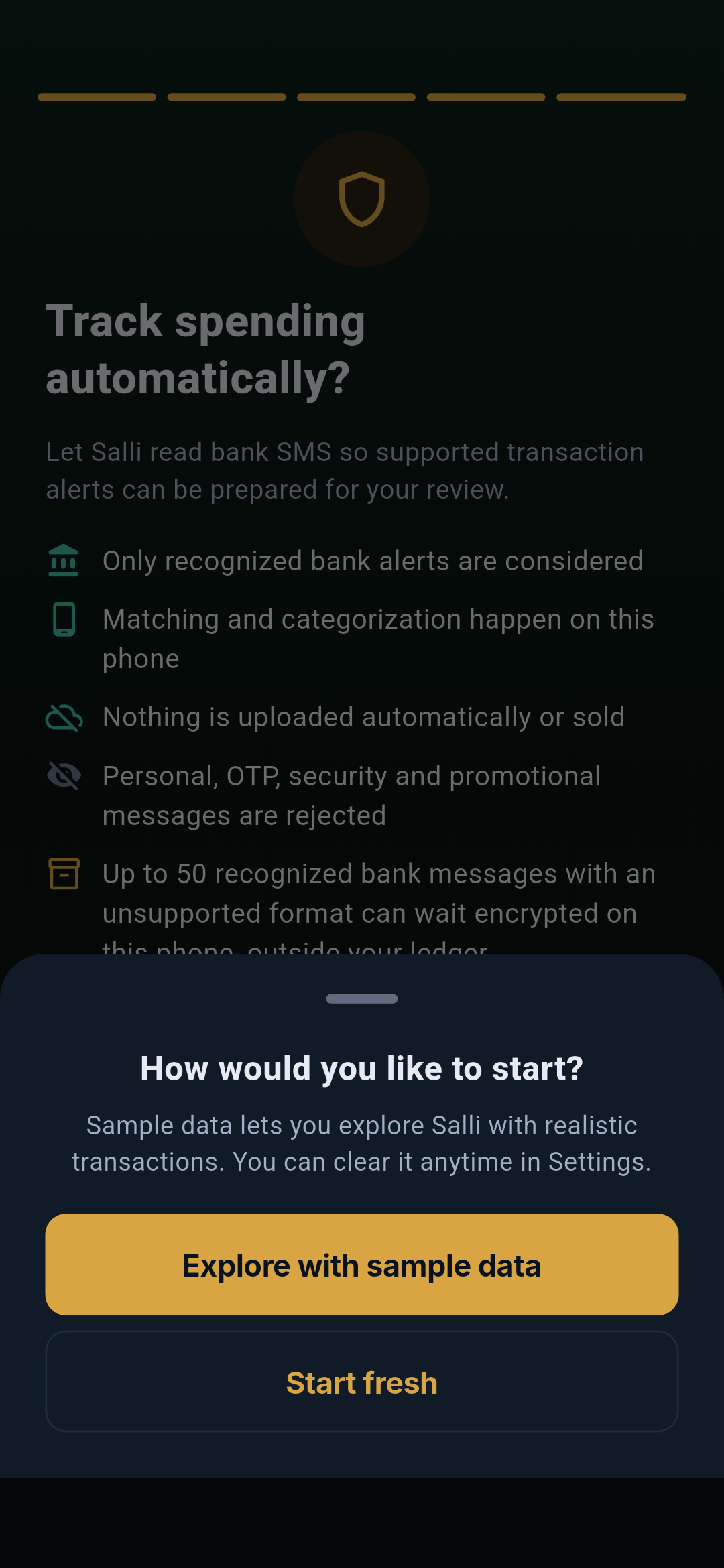
6. Start fresh or explore
Empty Home after Start fresh
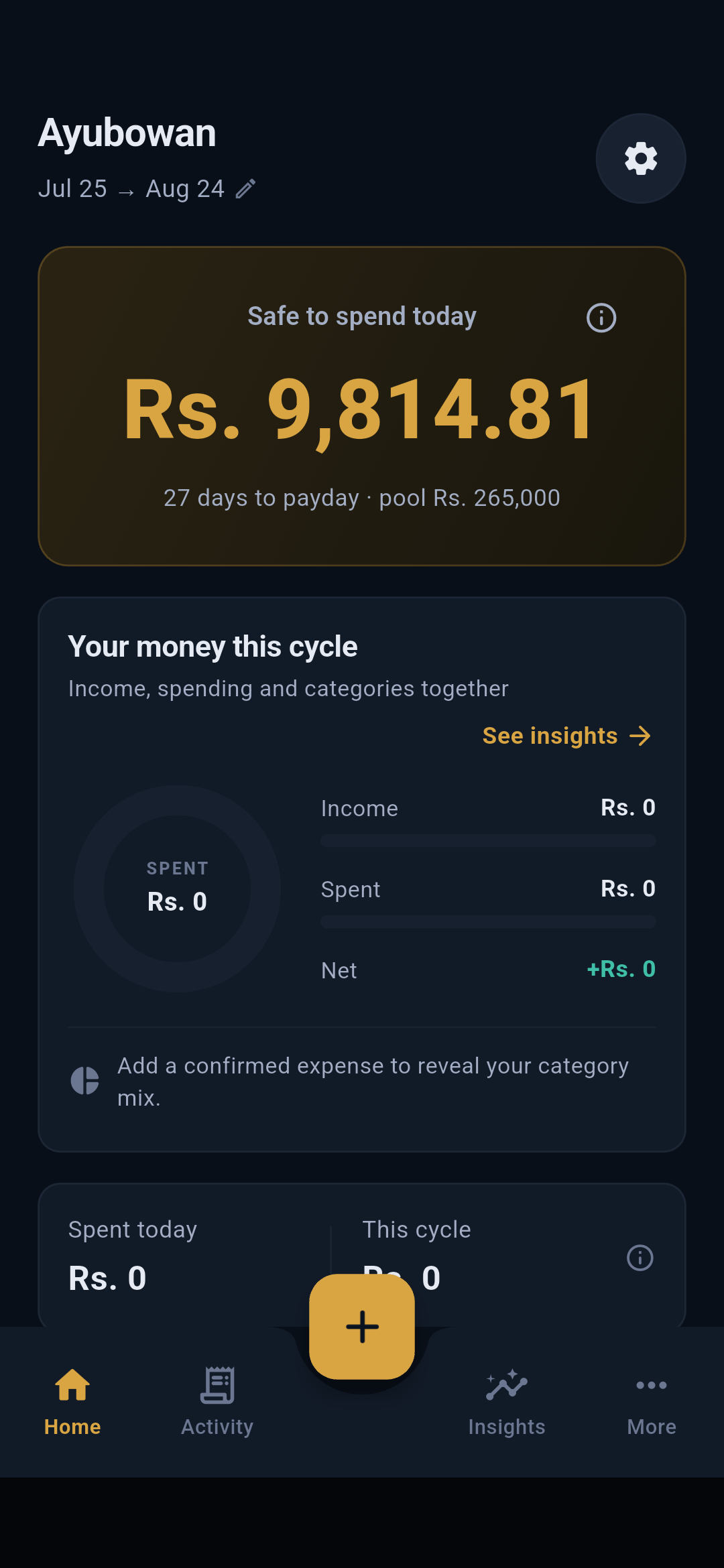 At this exact point the local store contains no transactions, budgets, goals,
scheduled payments, Seettu circles, or user-created wallets. The page presents
empty-state guidance and the gold + entry point. The walkthrough then adds
the documented month through the same application APIs used by the interface;
none of the populated screenshots rely on a copied production database.
At this exact point the local store contains no transactions, budgets, goals,
scheduled payments, Seettu circles, or user-created wallets. The page presents
empty-state guidance and the gold + entry point. The walkthrough then adds
the documented month through the same application APIs used by the interface;
none of the populated screenshots rely on a copied production database.
Home and the guided tour
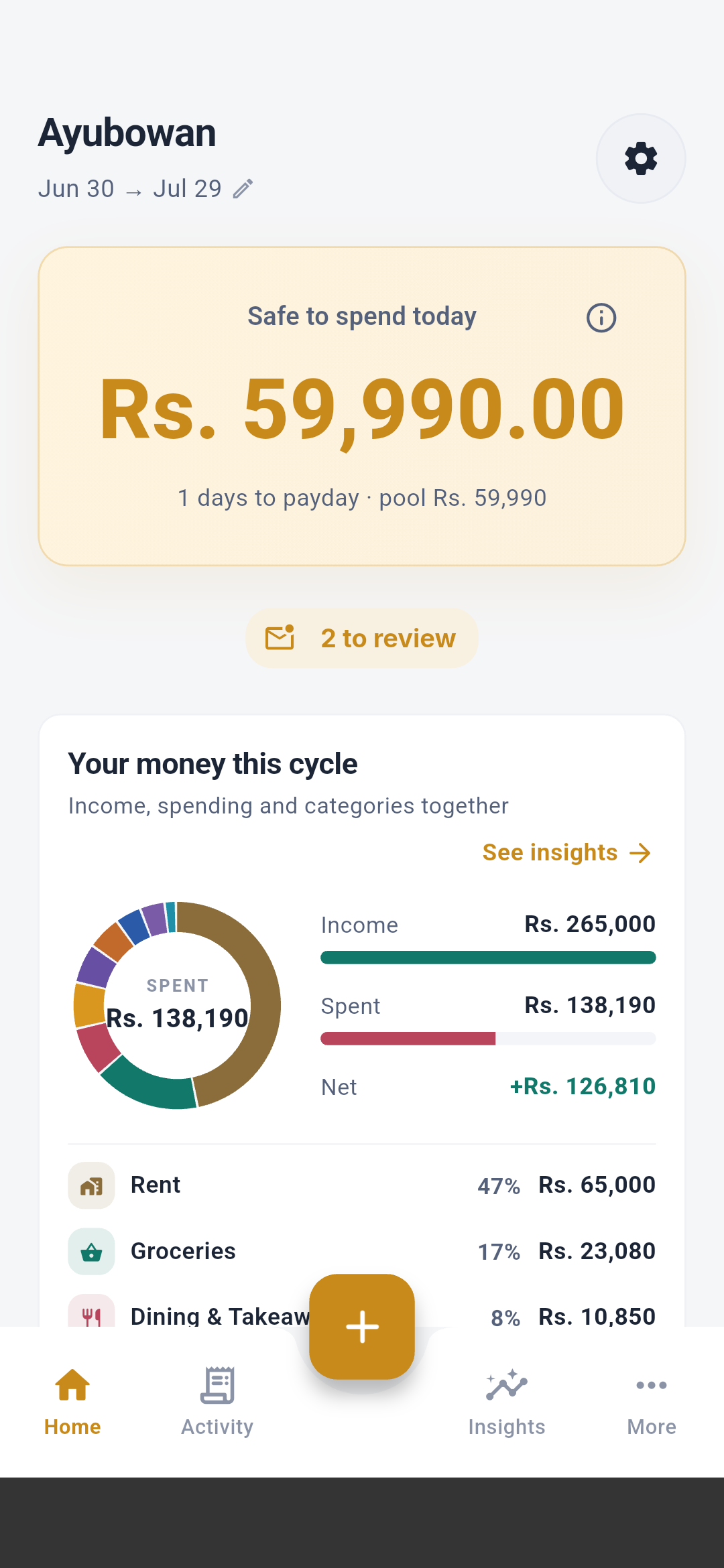
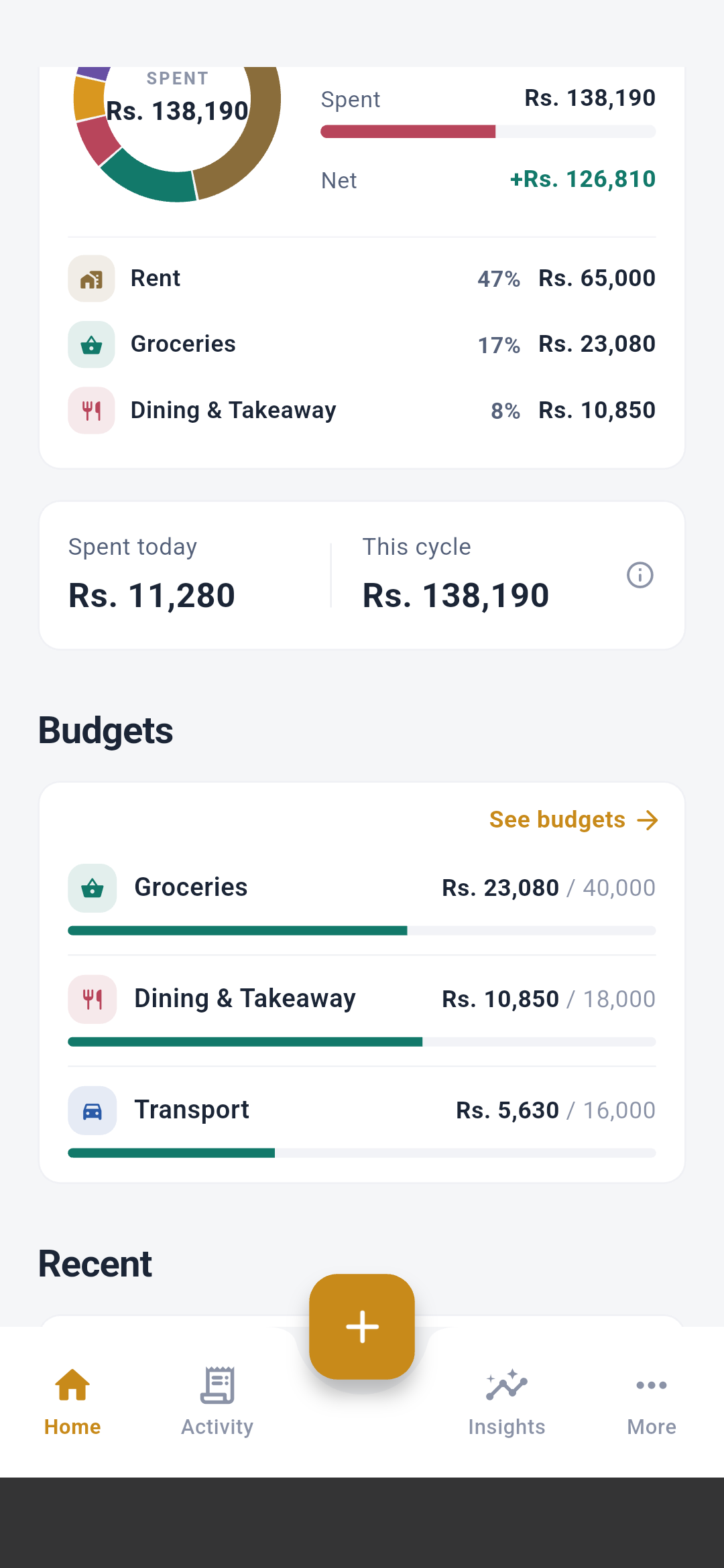
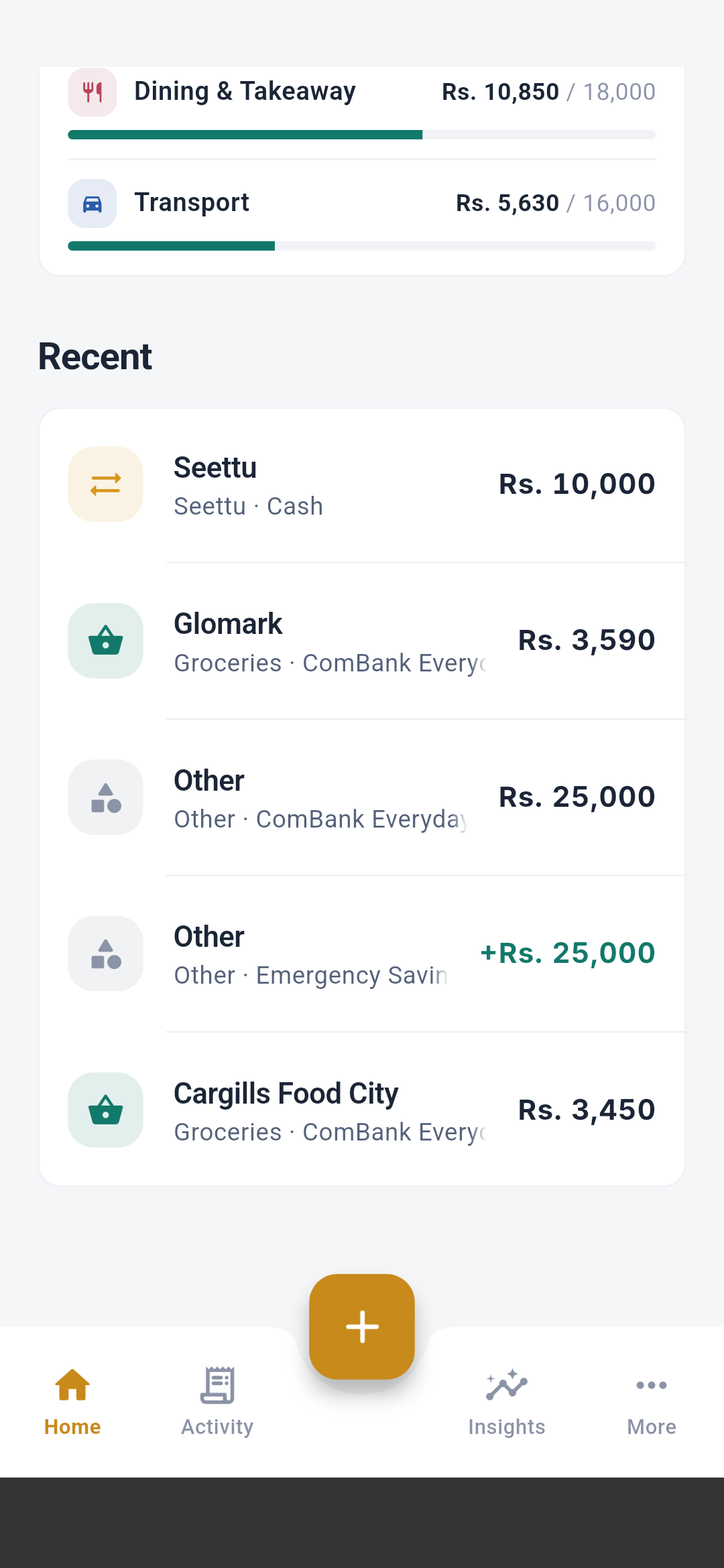
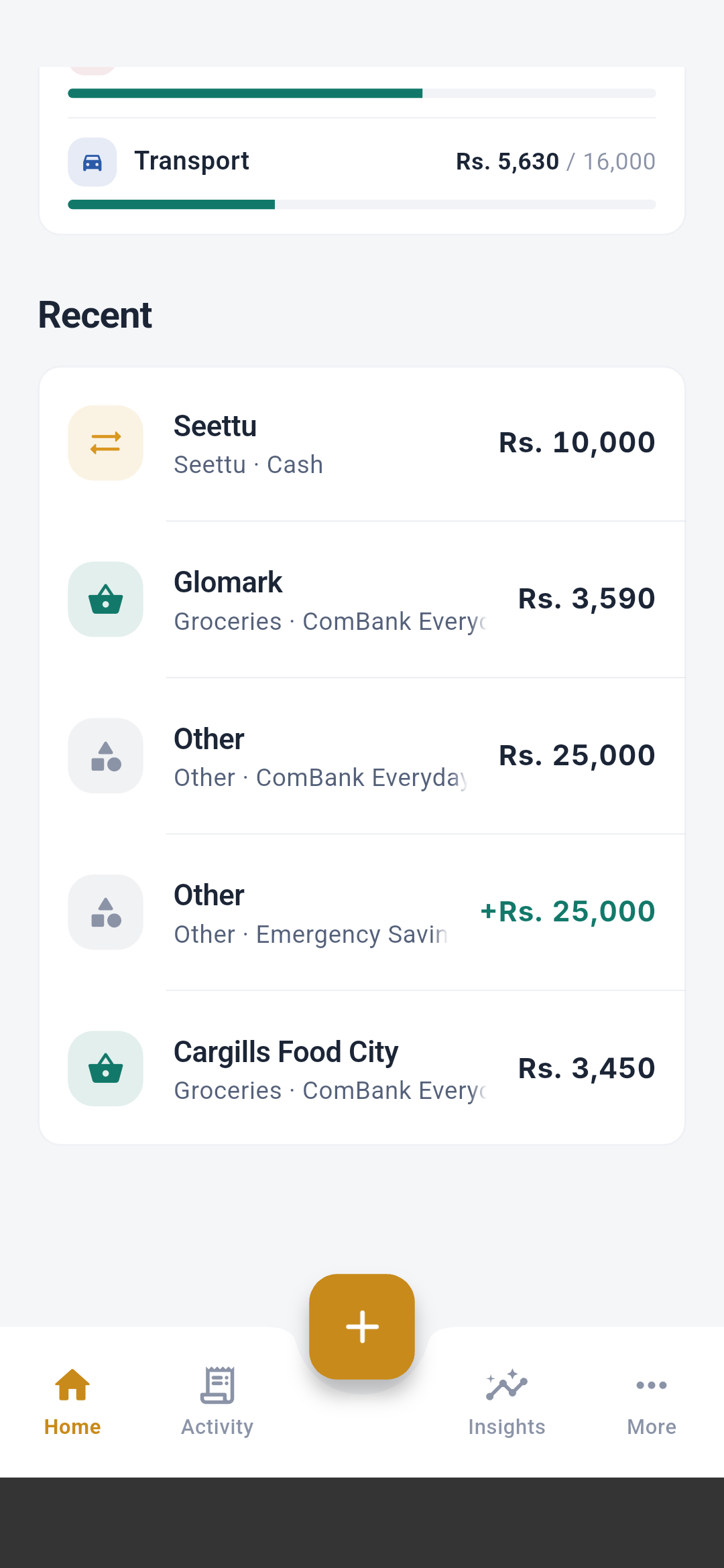
The first Home visit also displays seven spotlight steps. Each overlay points
to the actual control it describes:
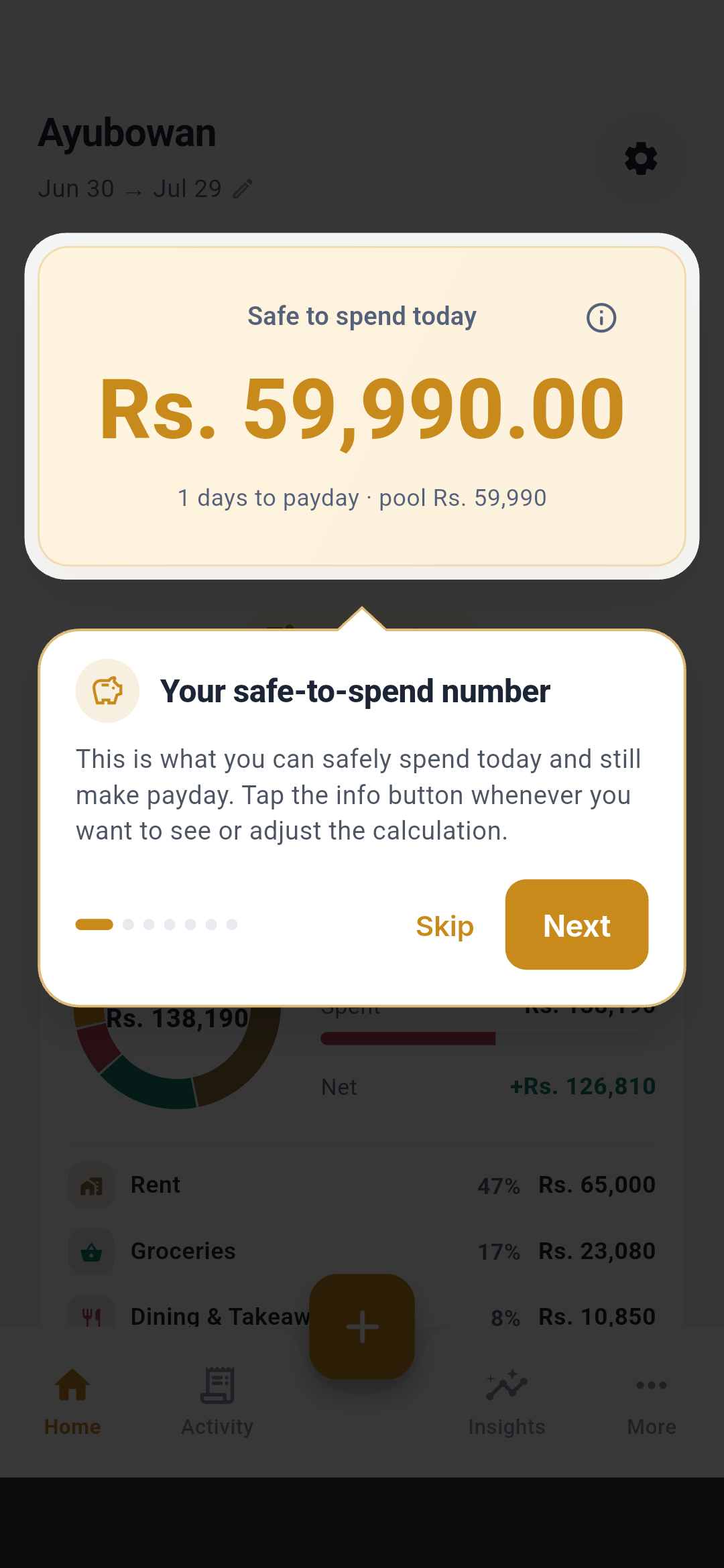
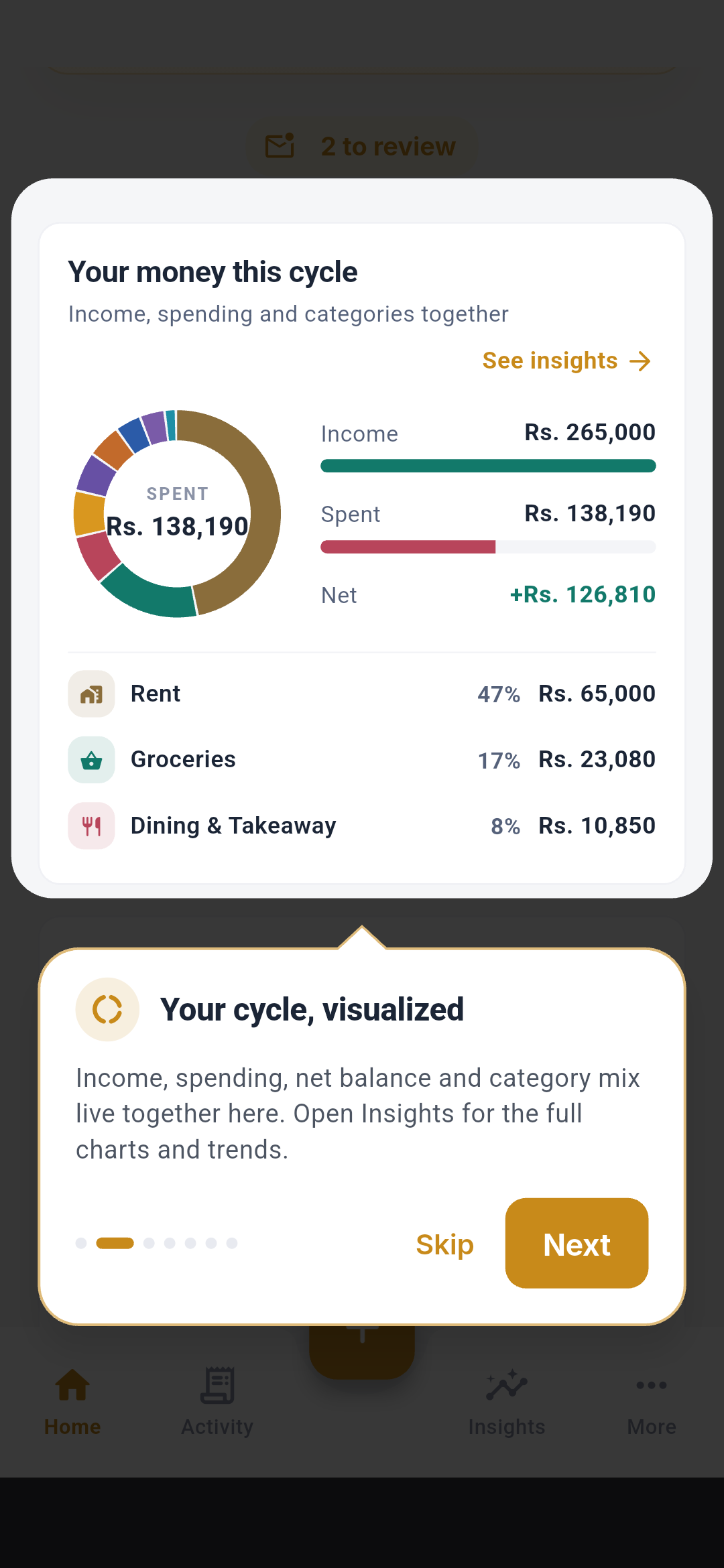
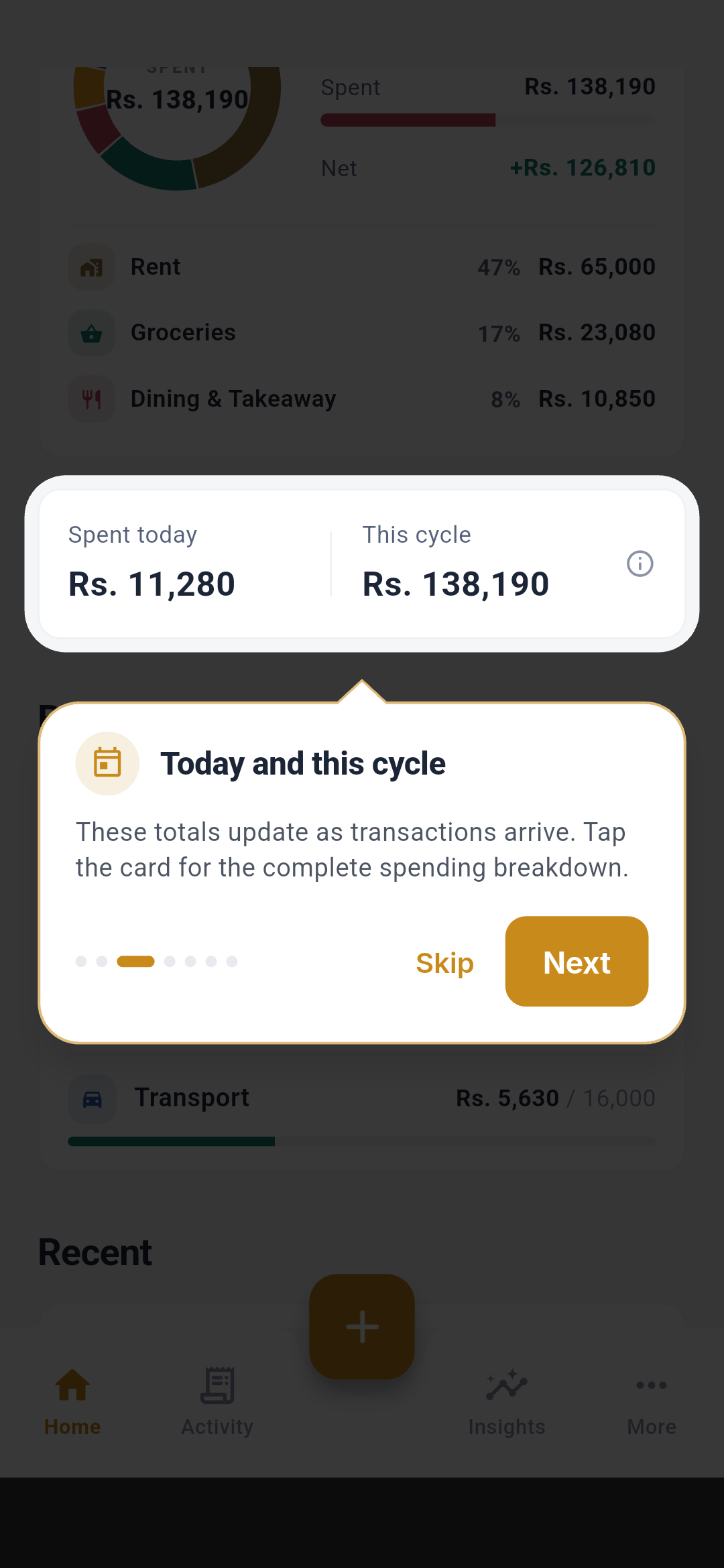
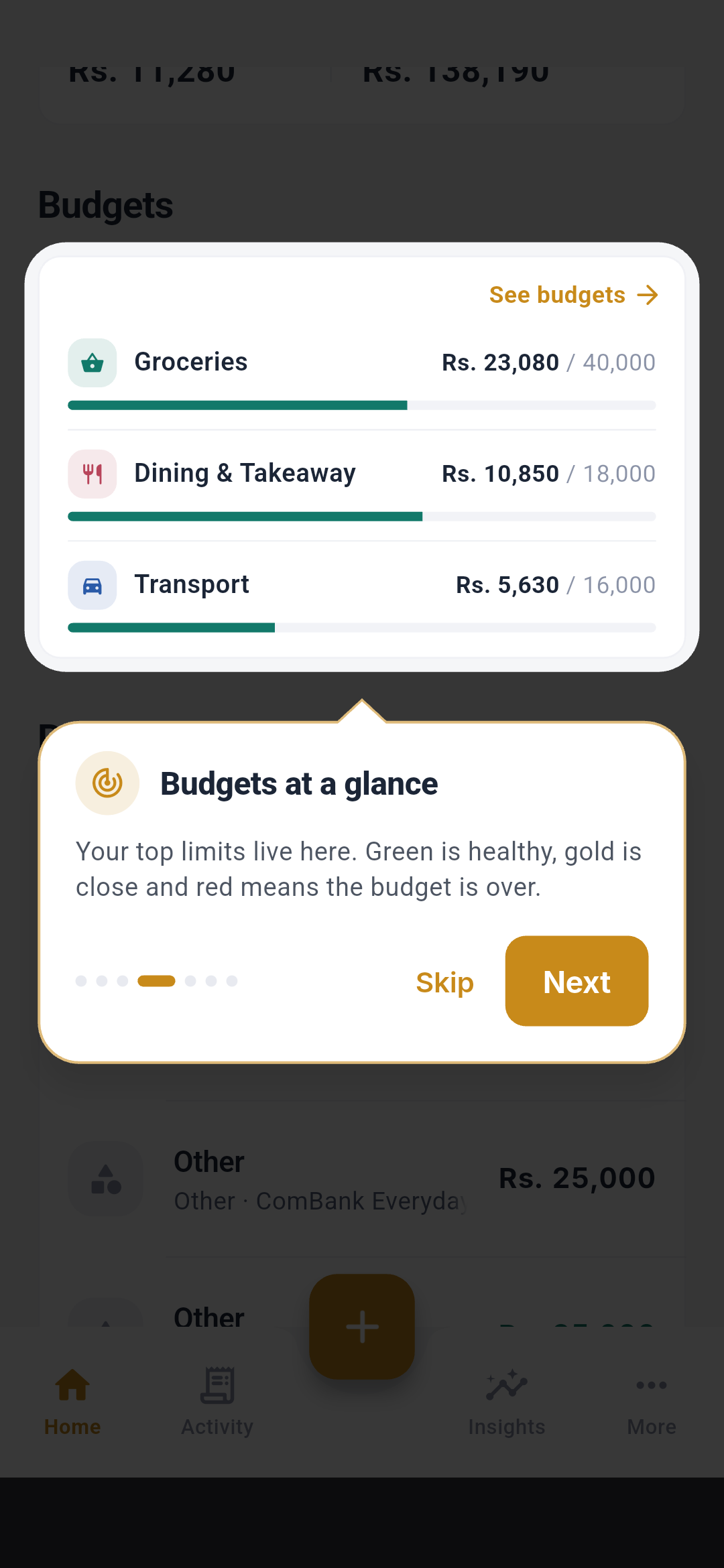
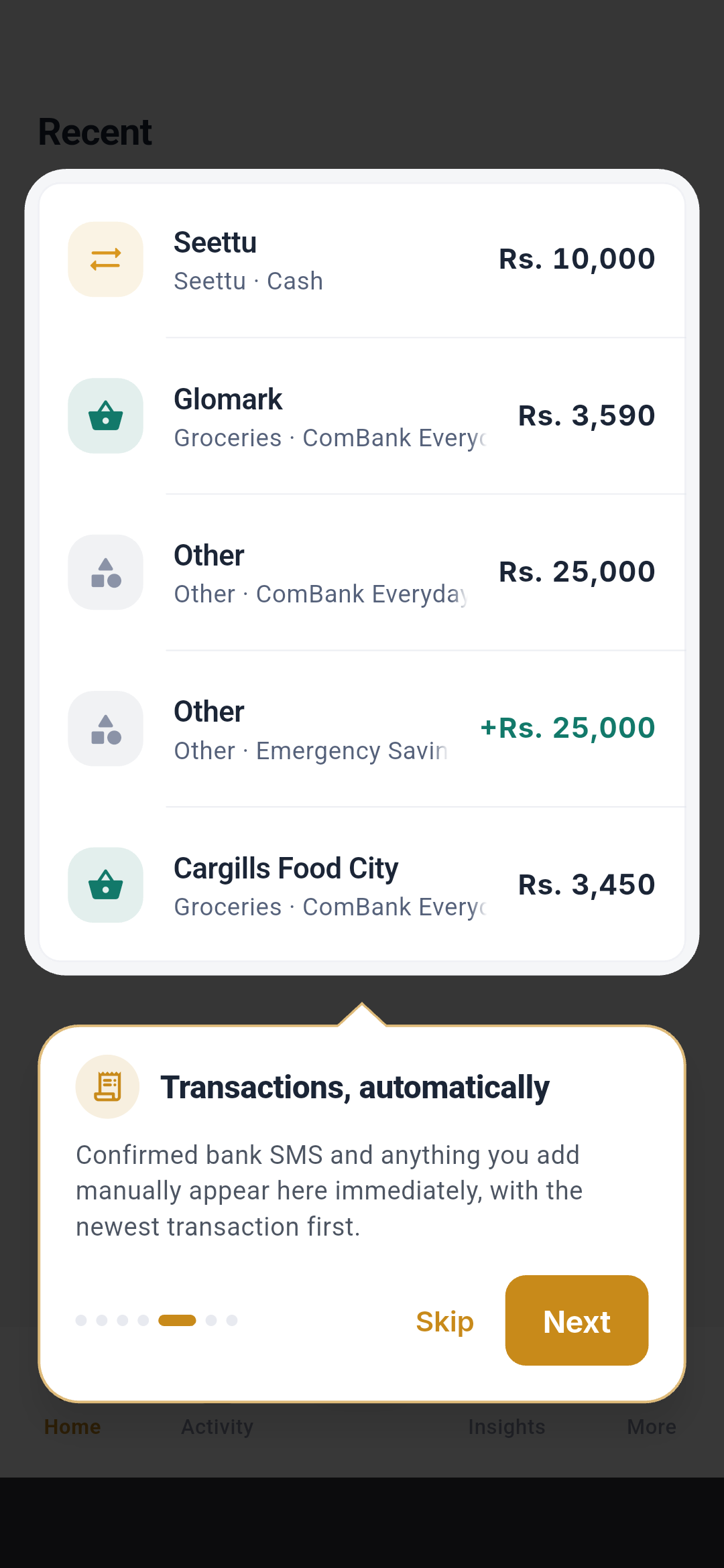
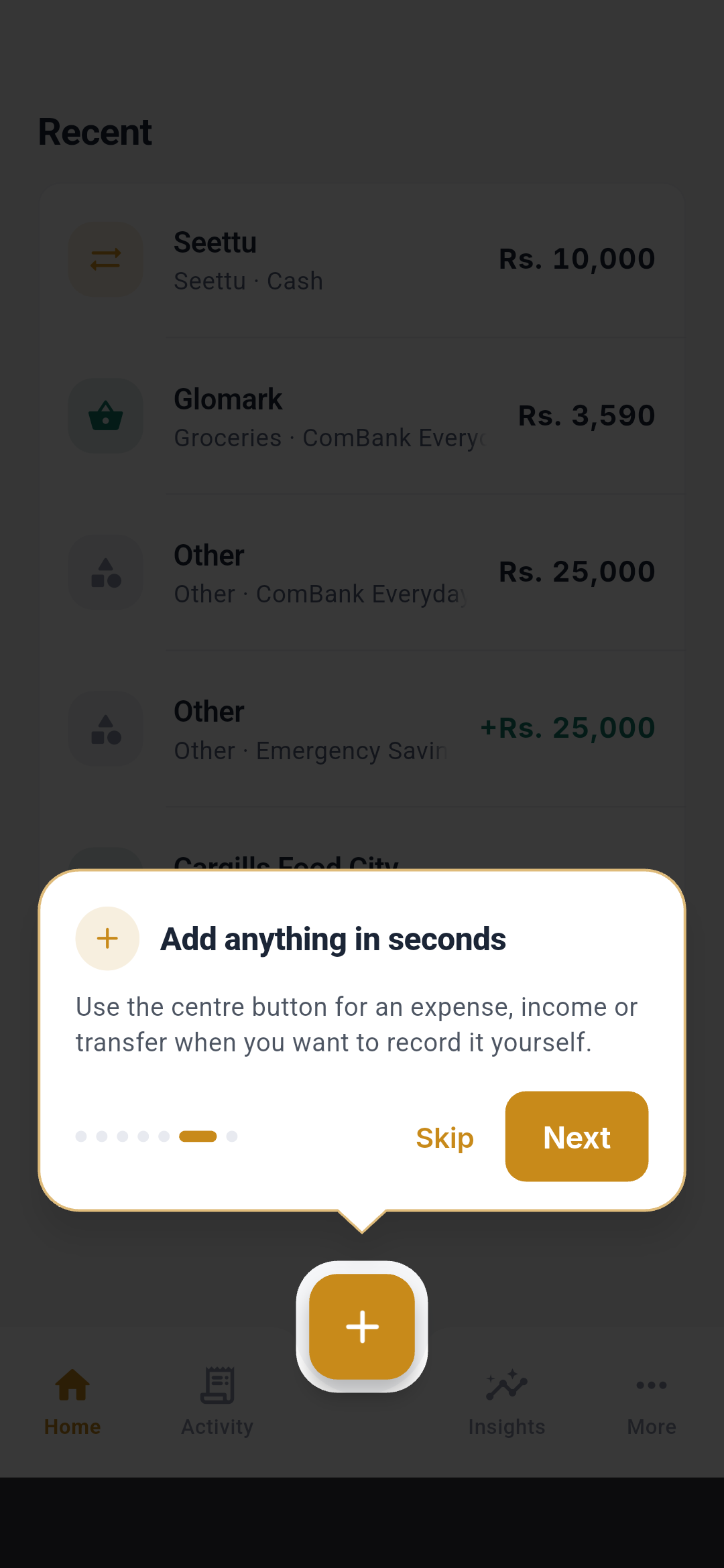
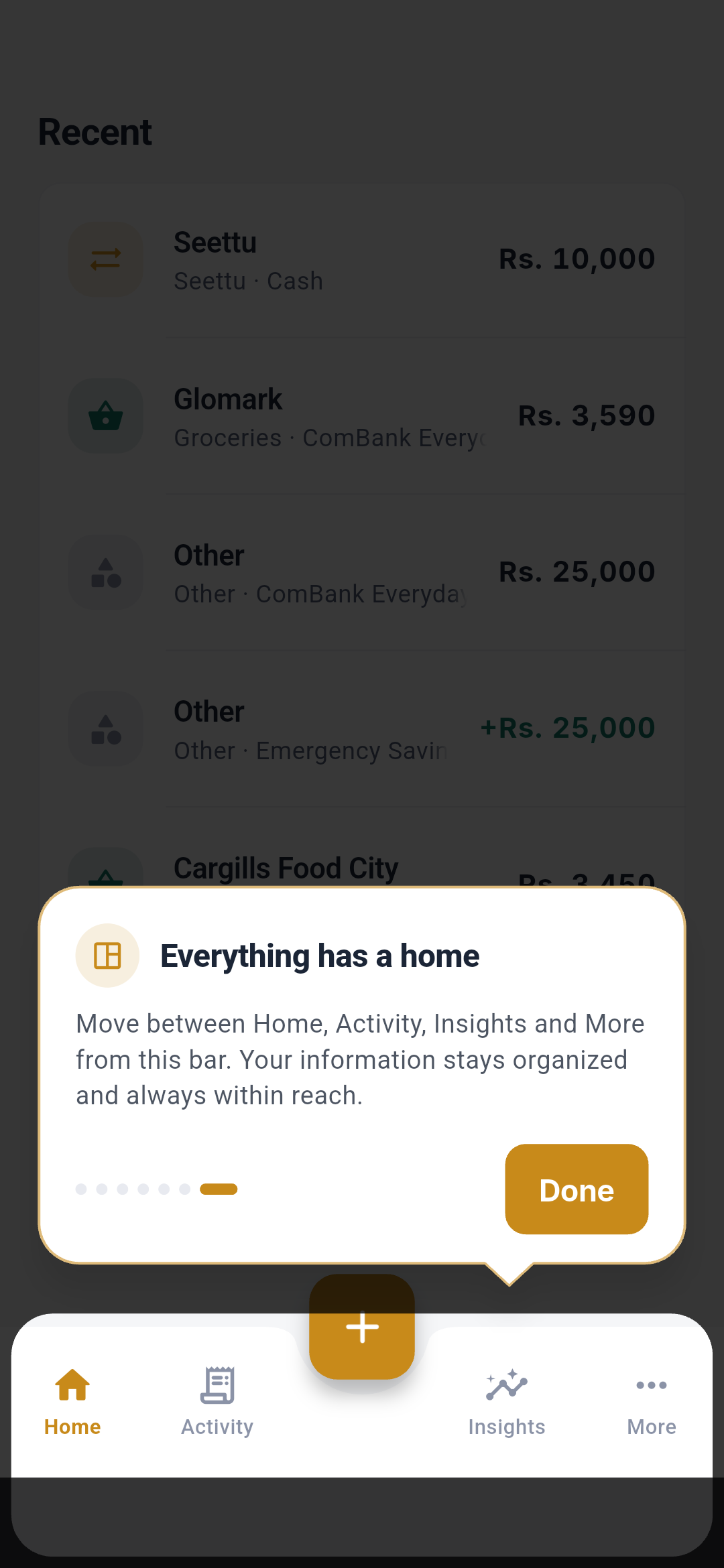 The tour covers Safe to Spend, the review queue, cycle summary, budgets,
recent activity, the add button, and primary navigation. Skip closes the
tour; Next advances; the last step marks it as seen on this device.
The tour covers Safe to Spend, the review queue, cycle summary, budgets,
recent activity, the add button, and primary navigation. Skip closes the
tour; Next advances; the last step marks it as seen on this device.
Activity
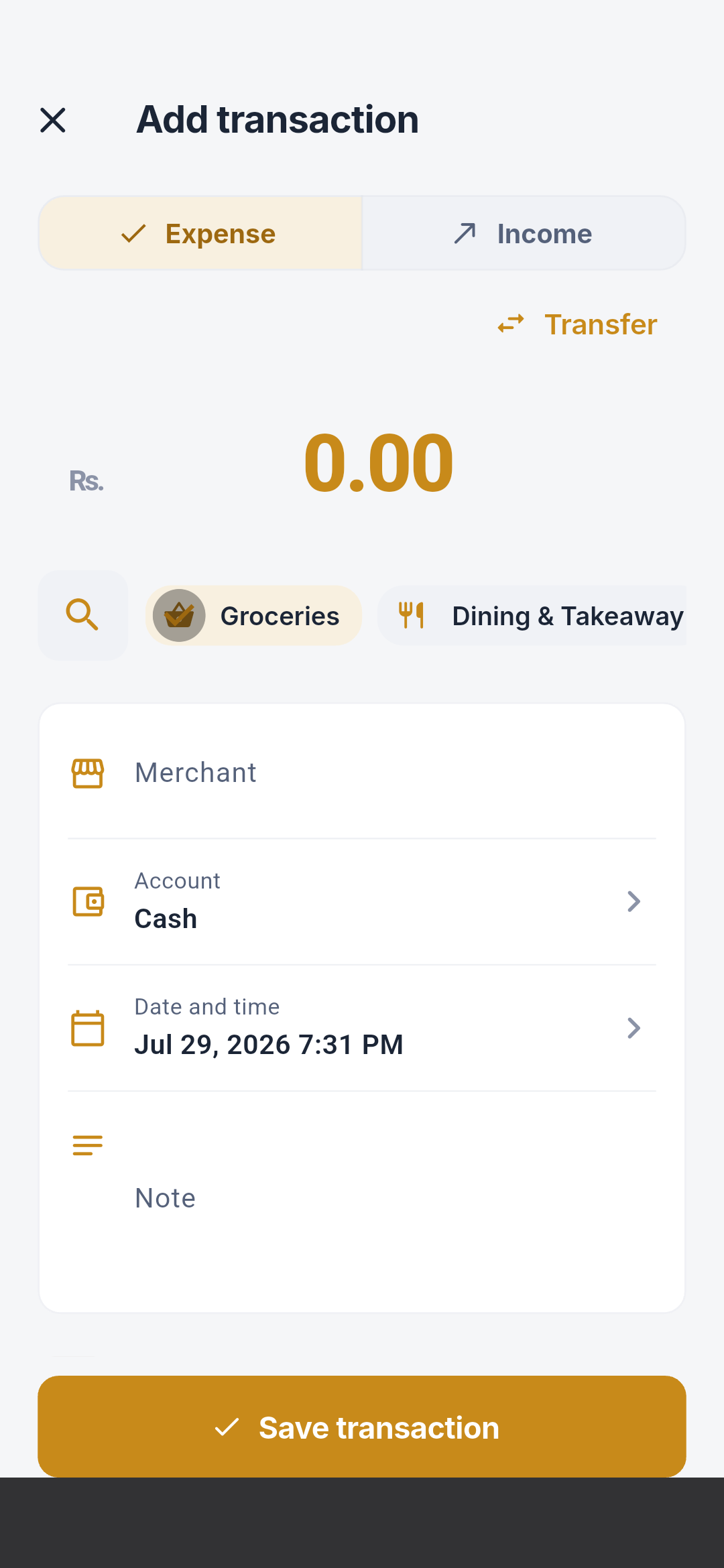
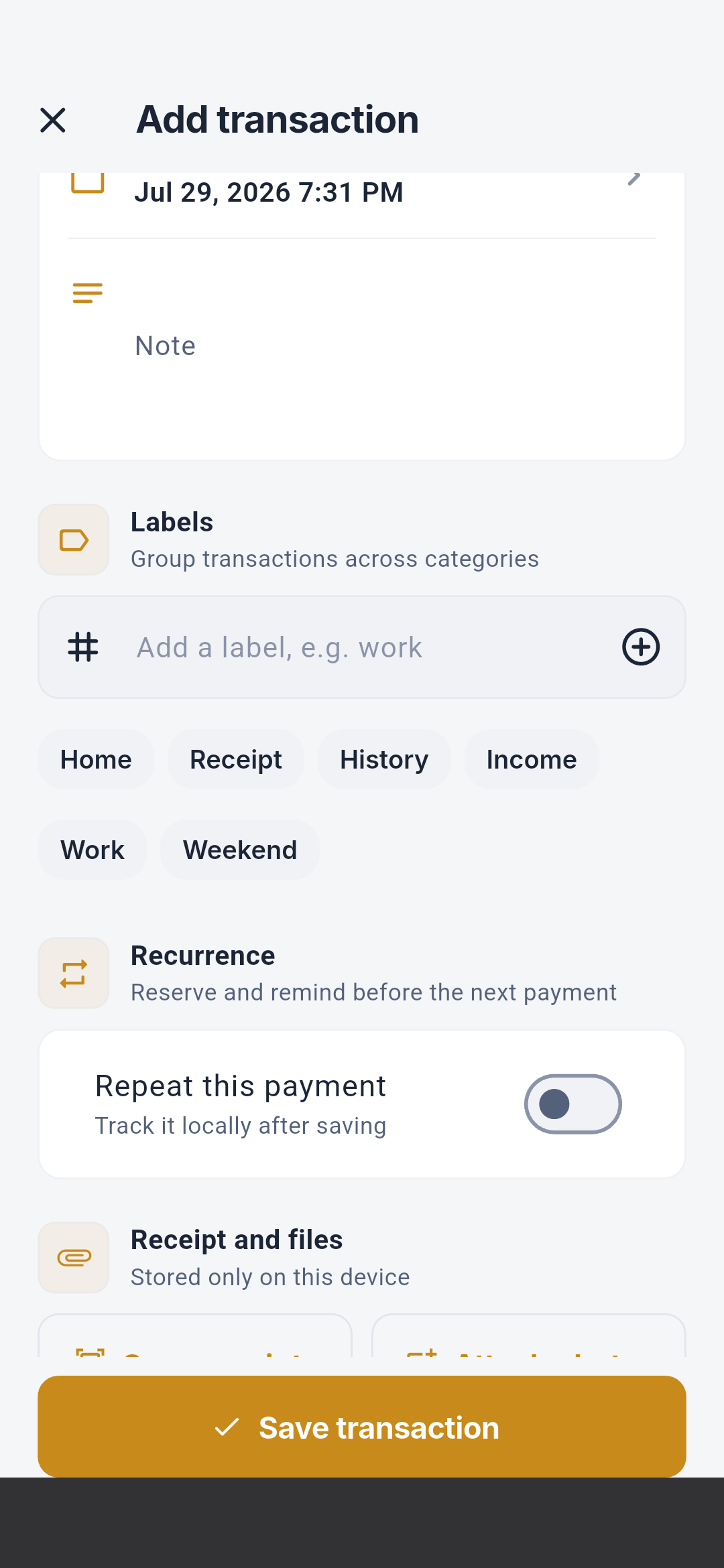
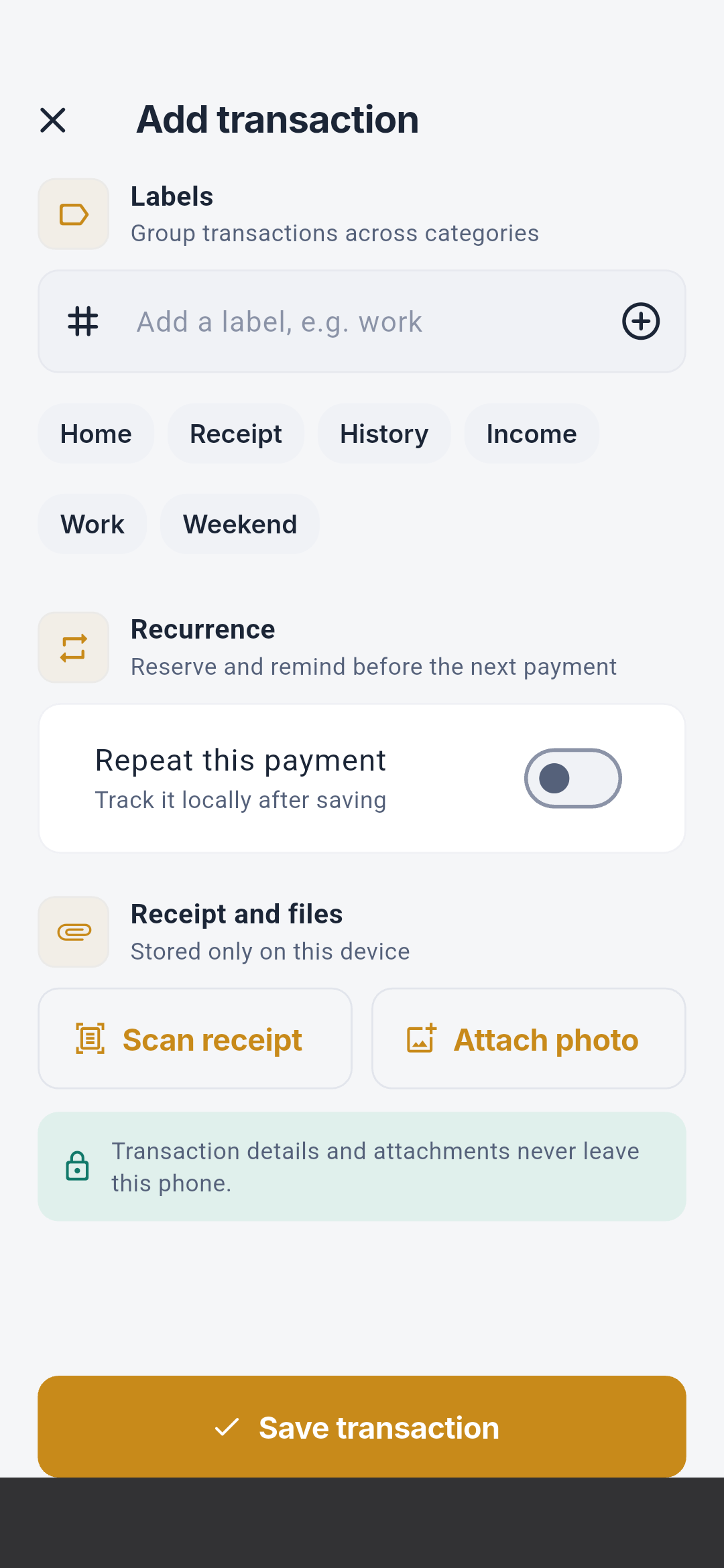
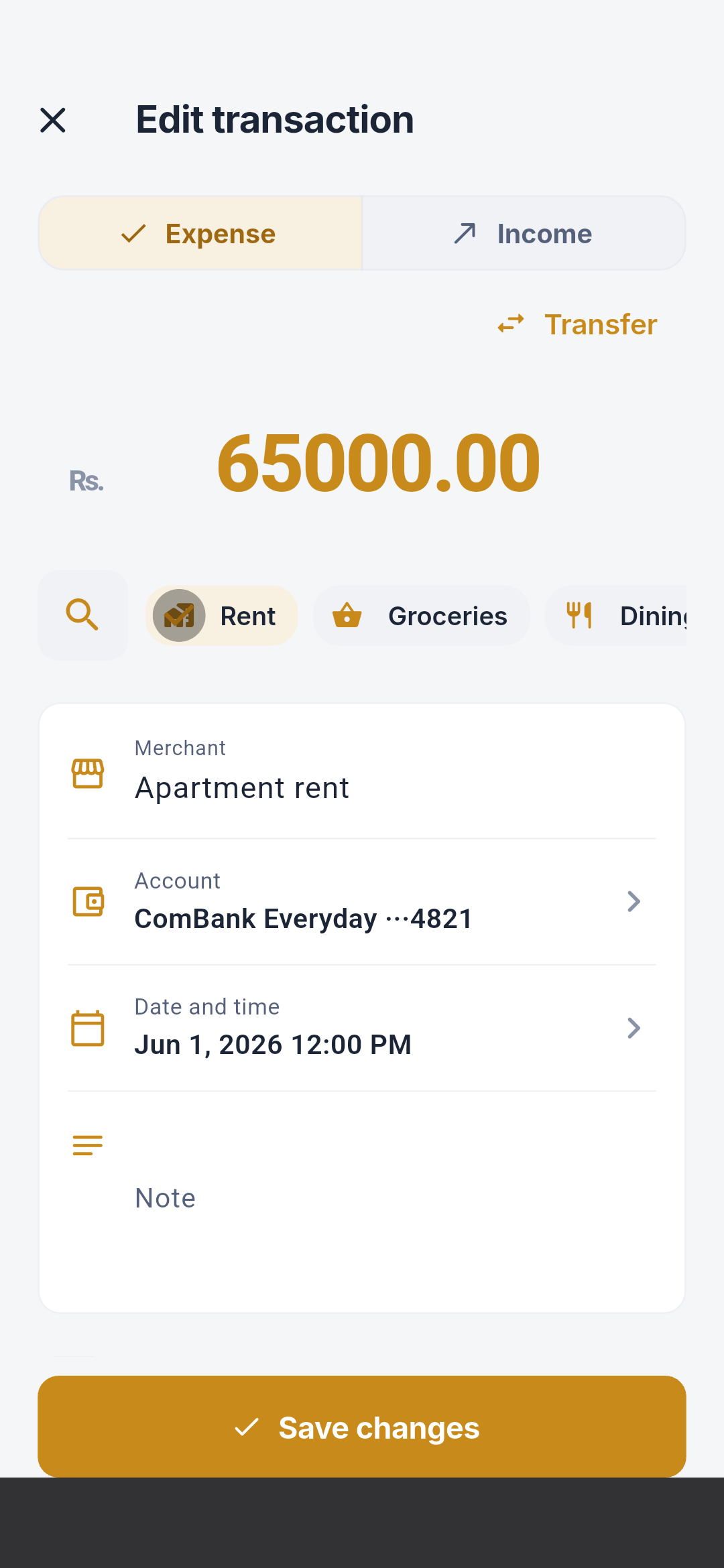
Add and edit a transaction
New transaction
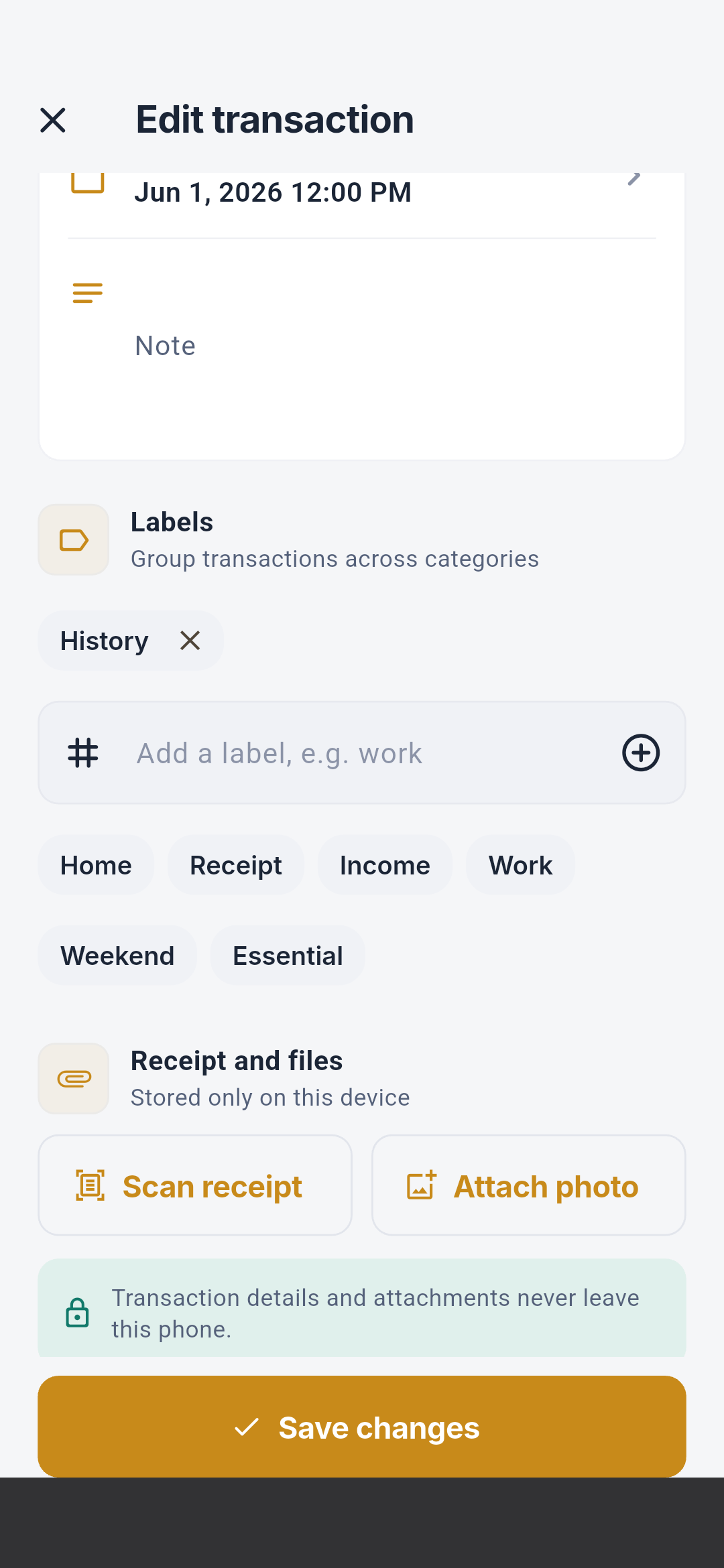
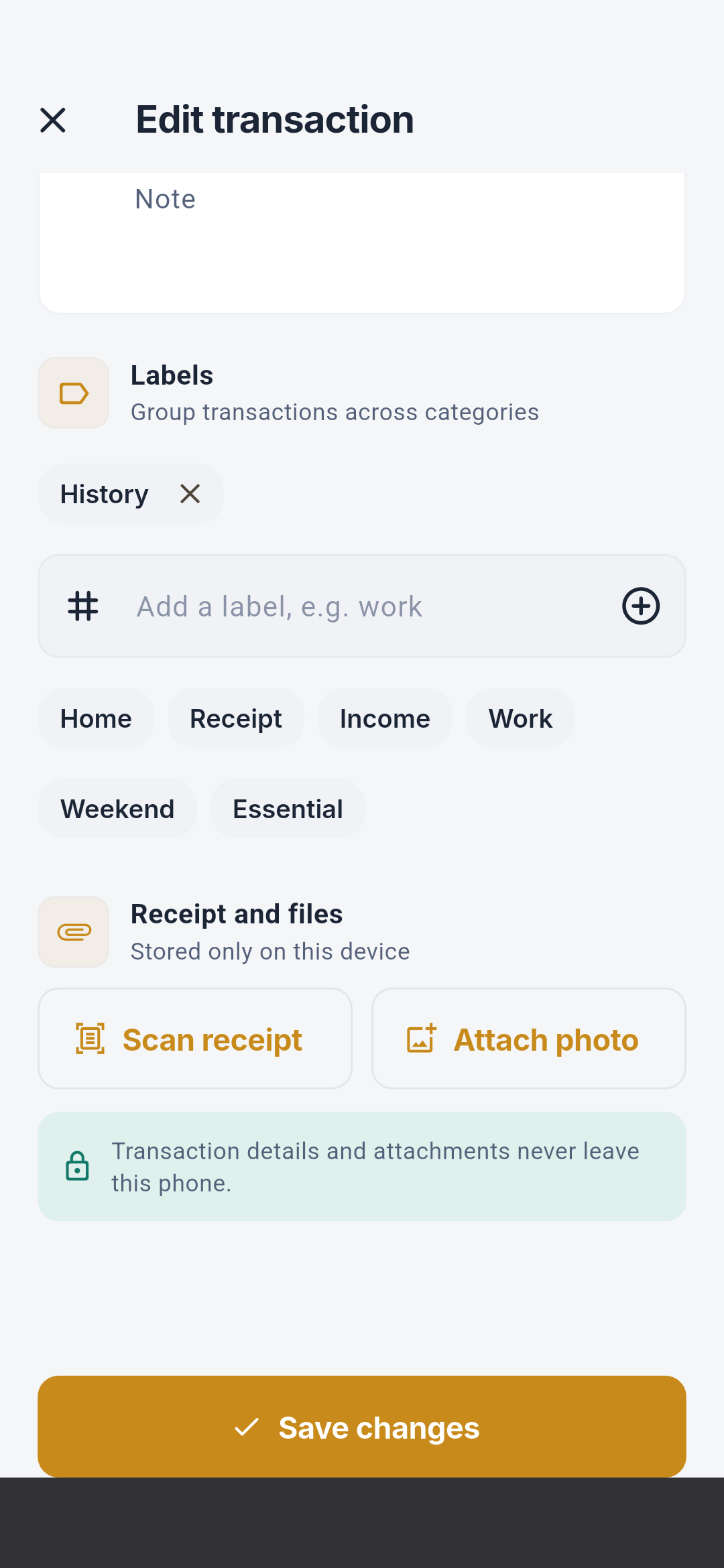
Edit an existing transaction
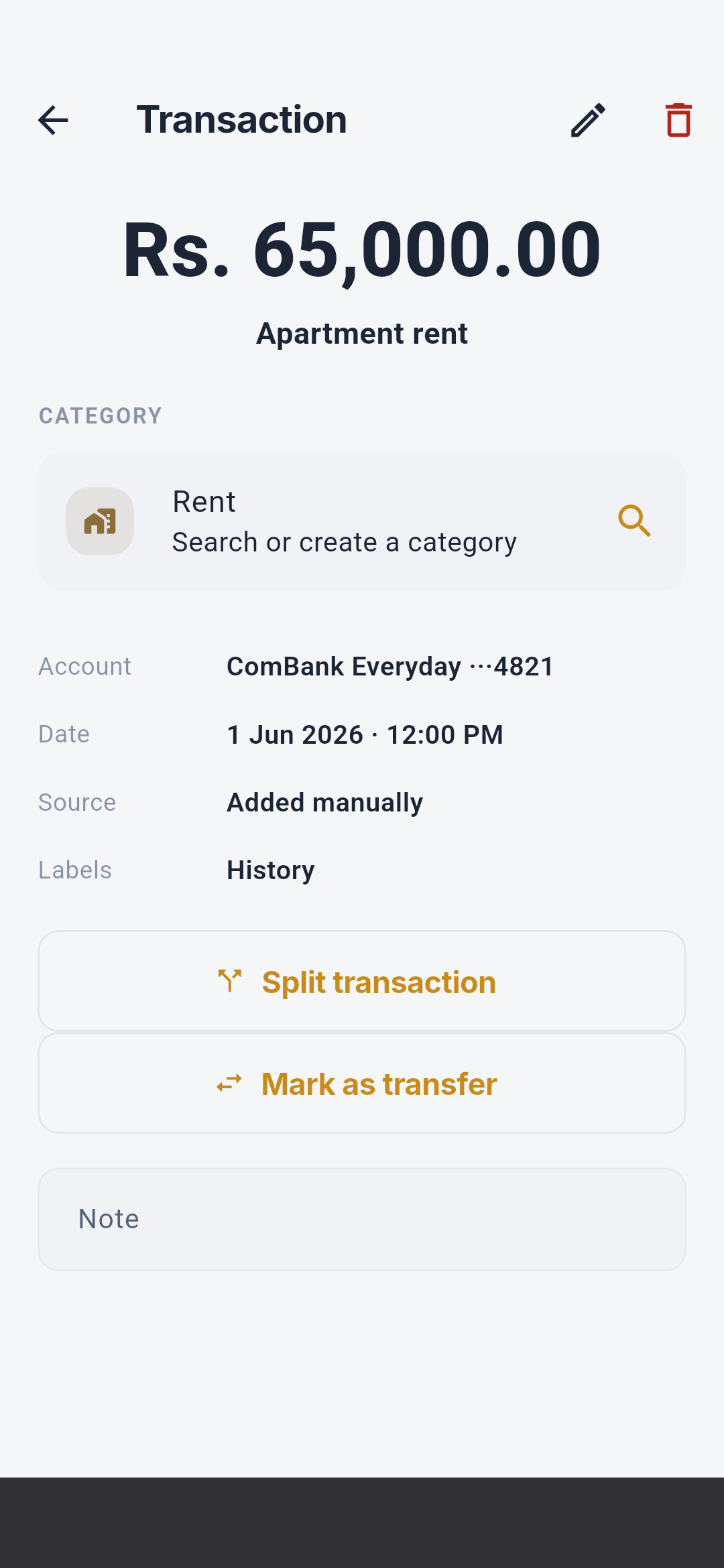
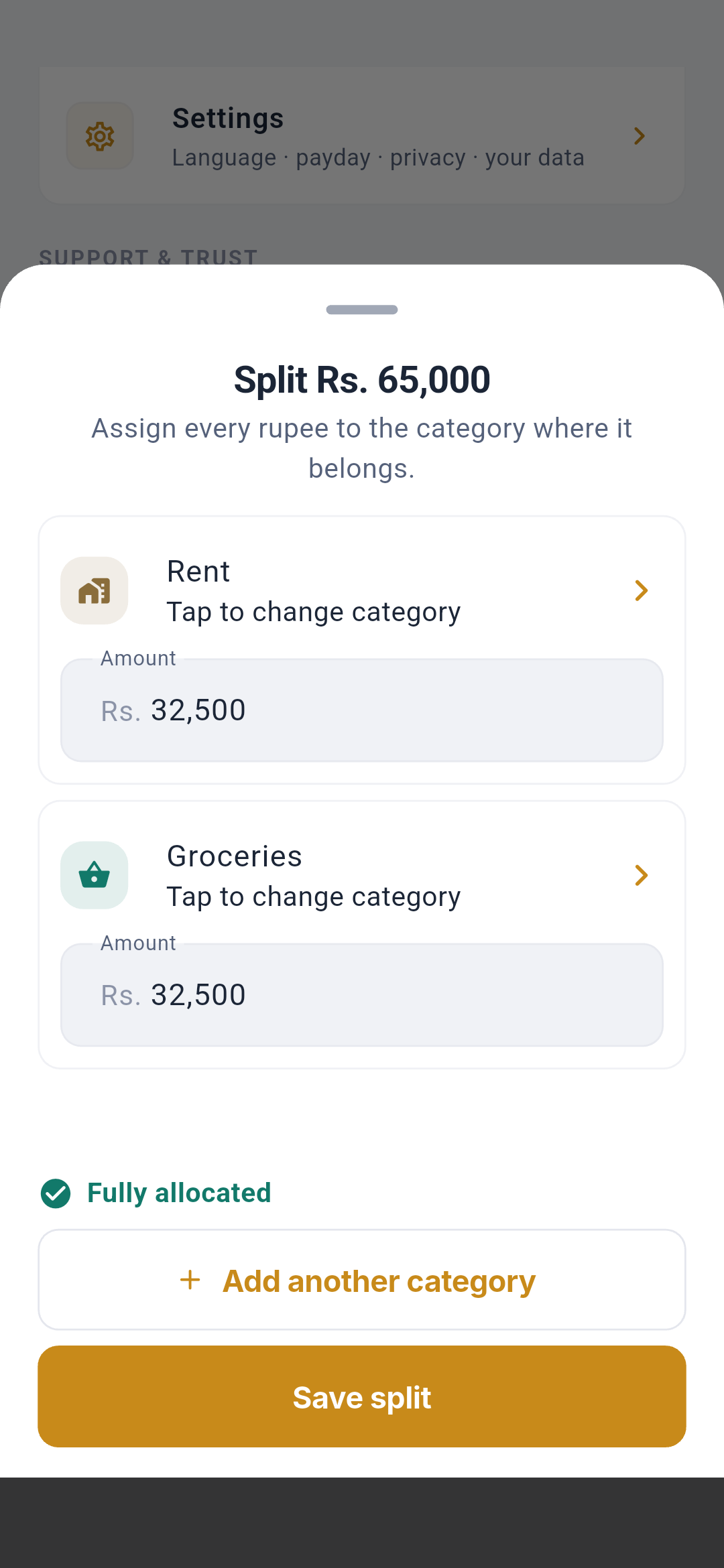
Transaction detail, split, and transfer
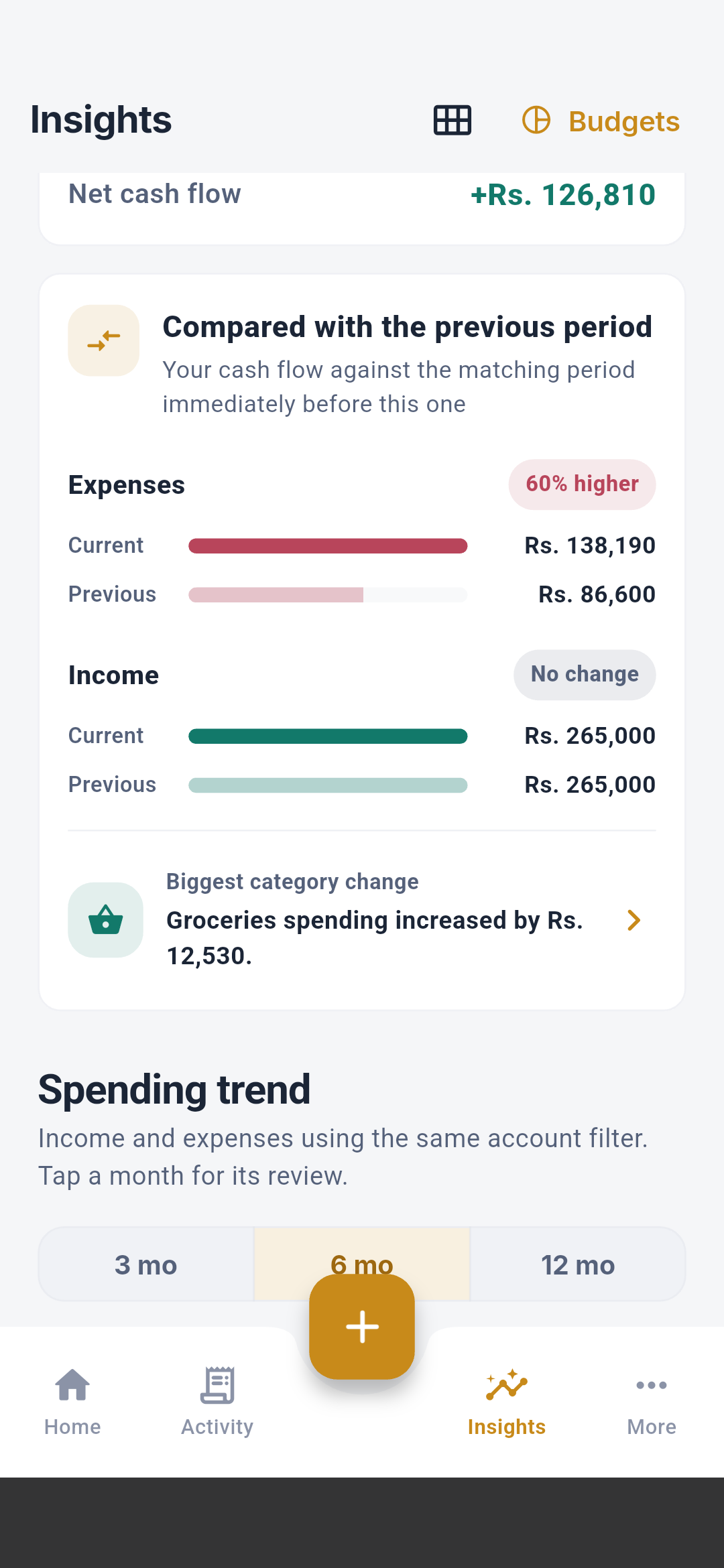
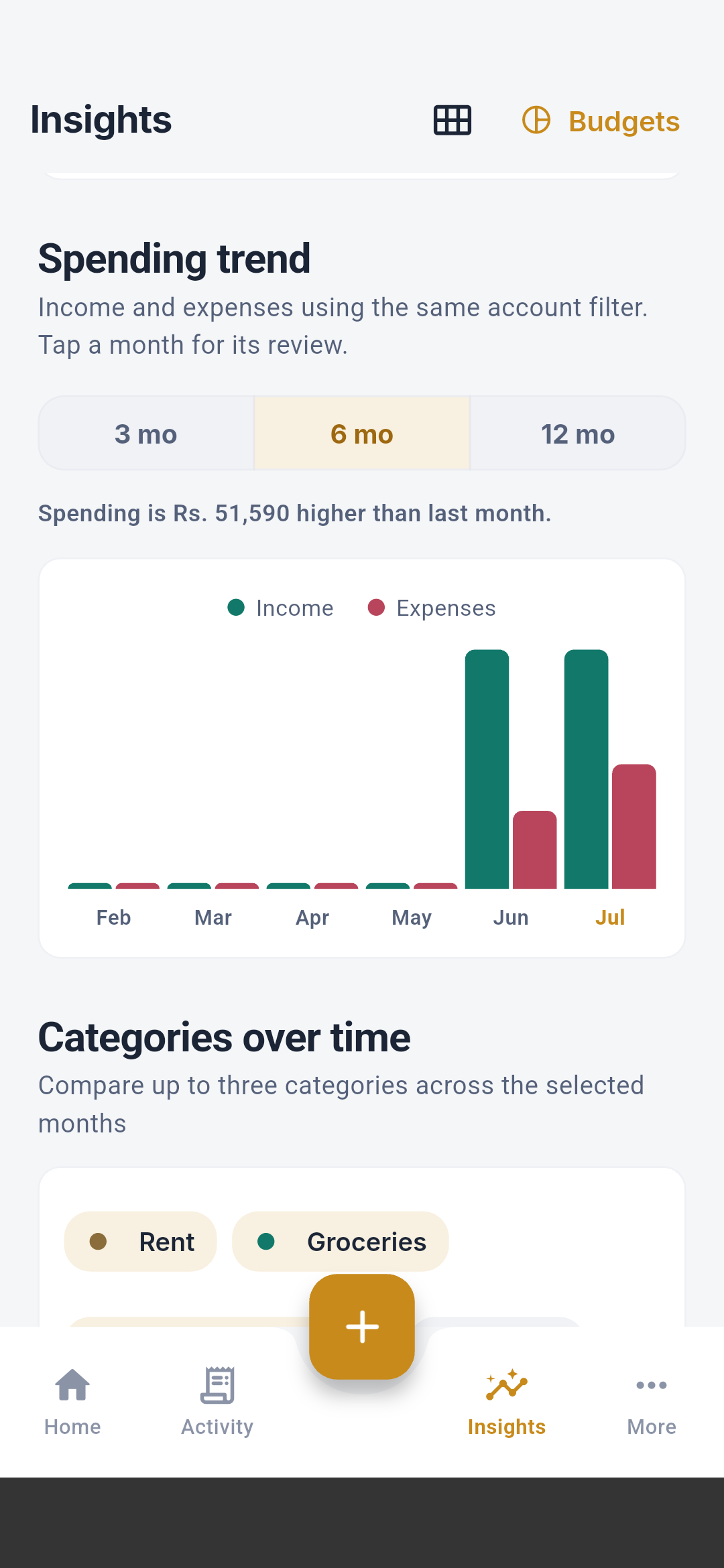
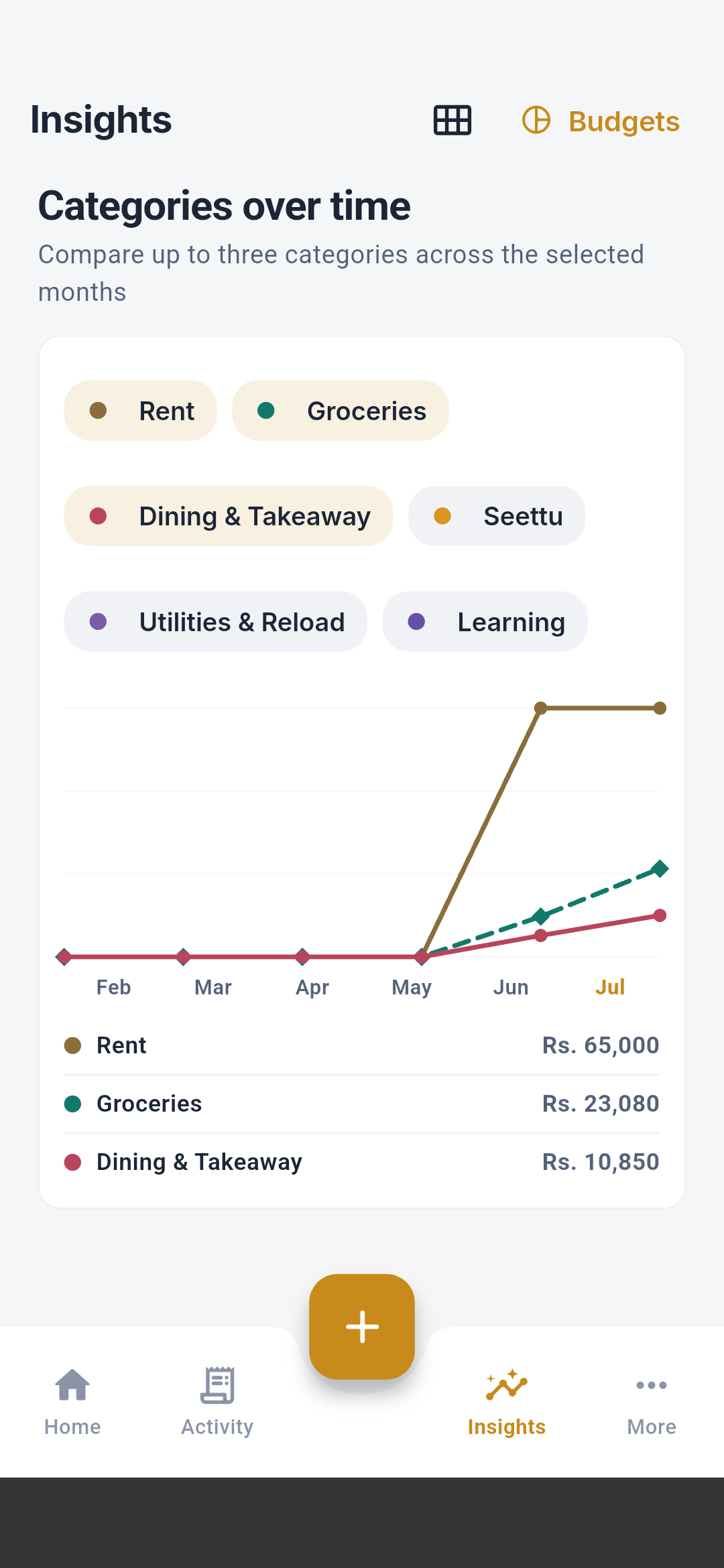
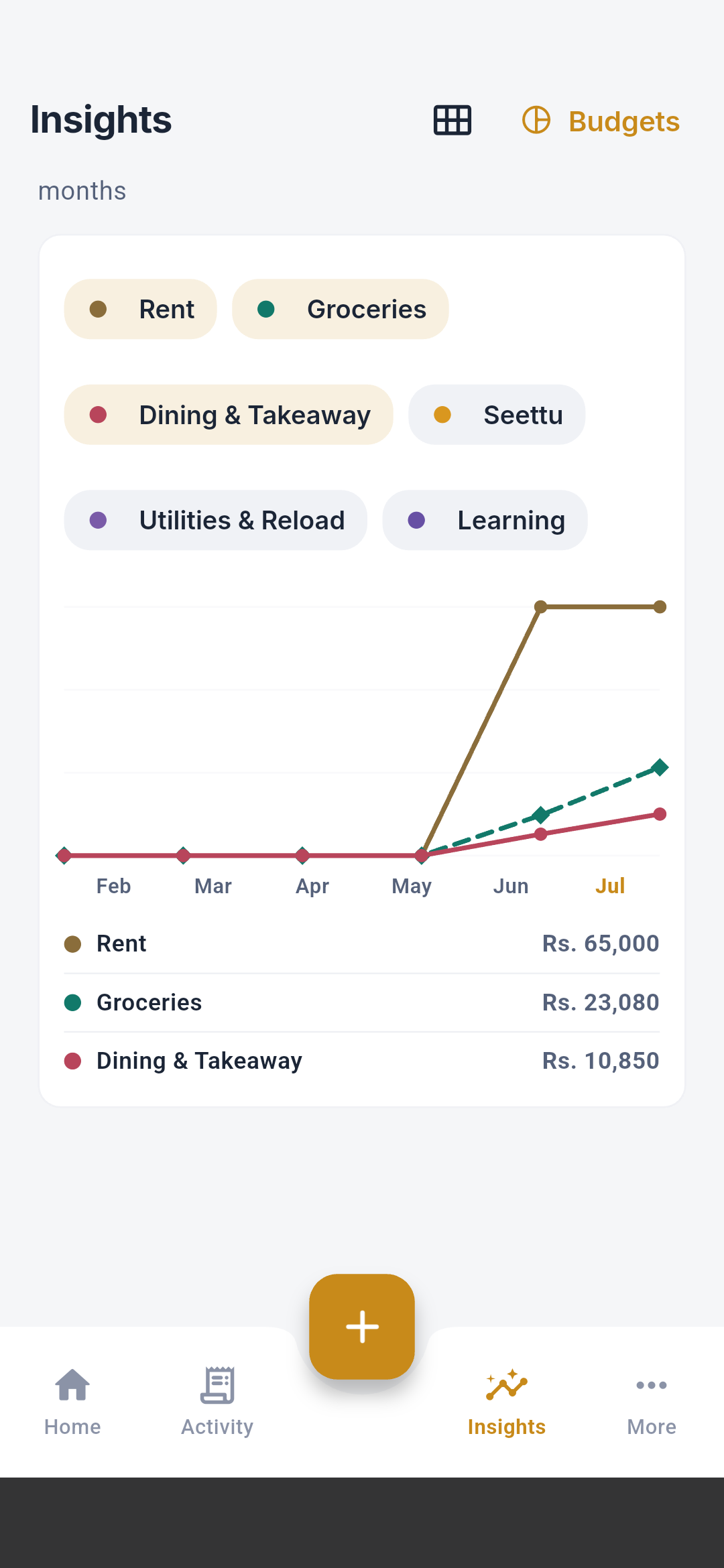
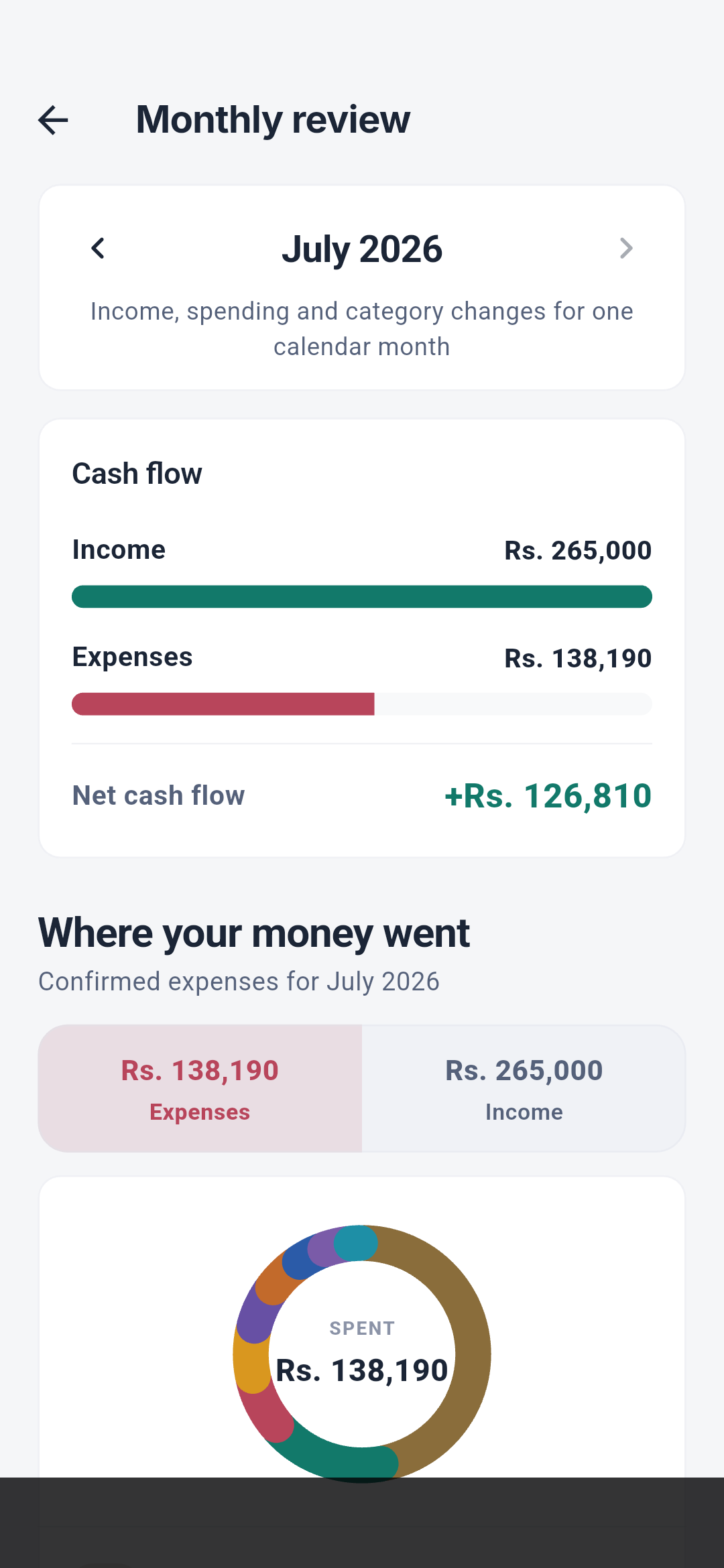
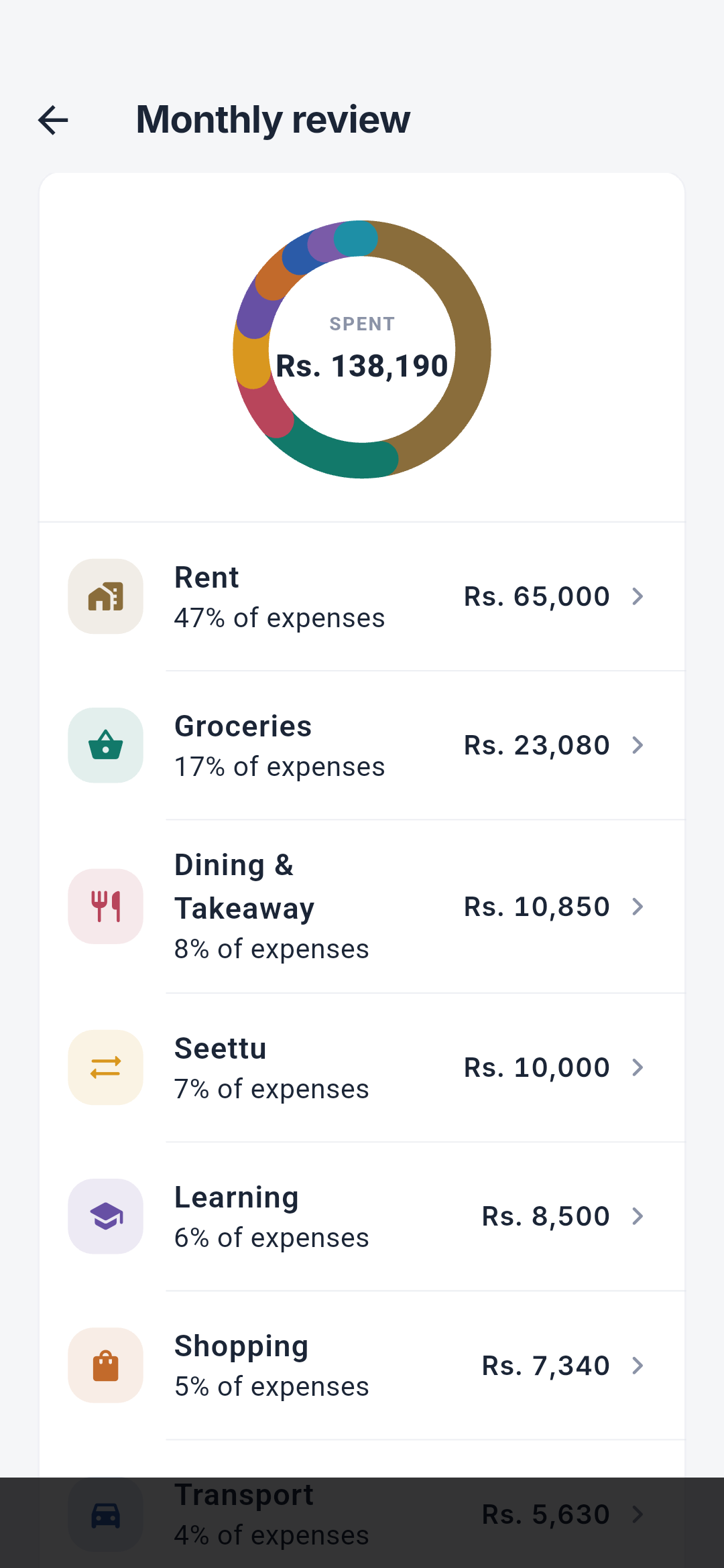
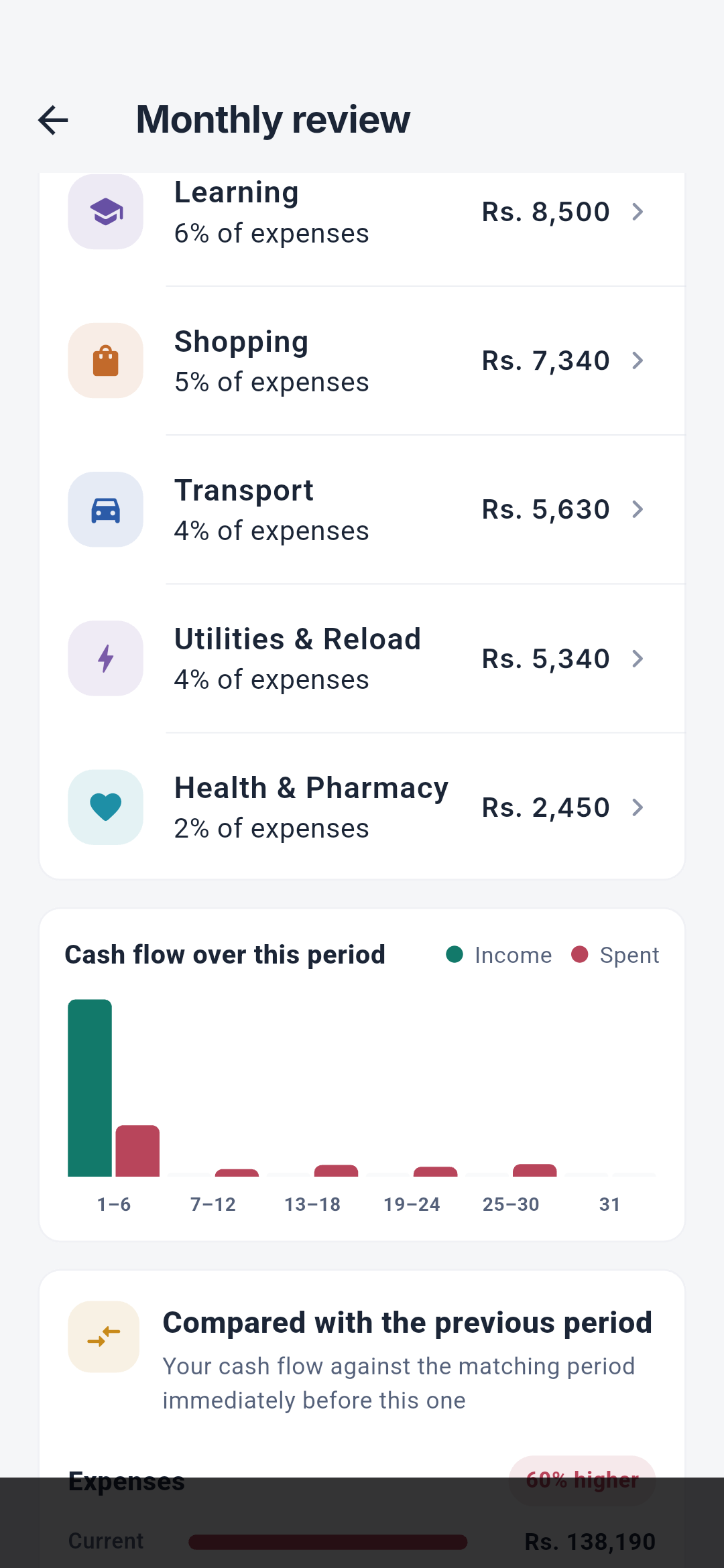
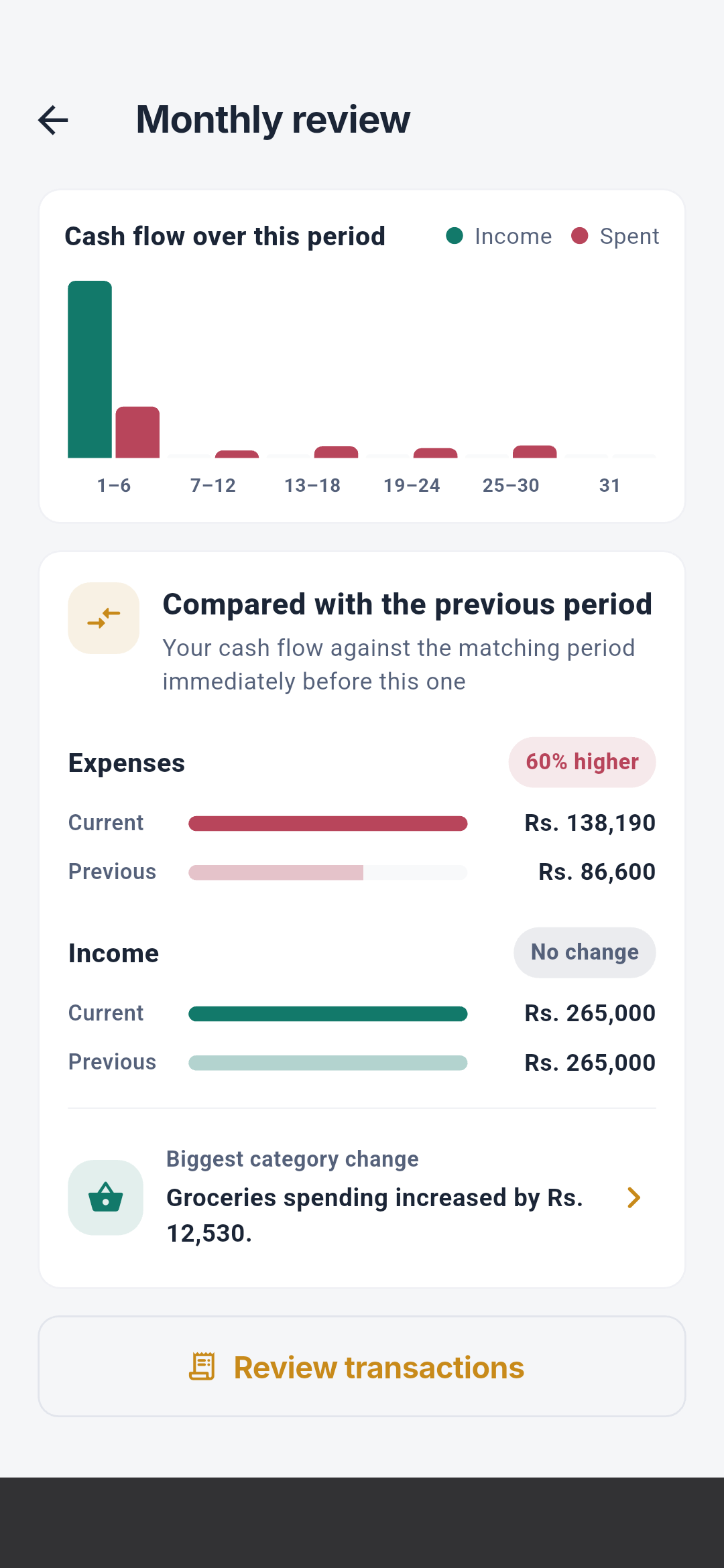
Insights and monthly review
Account and planning editors
Account detail and editors
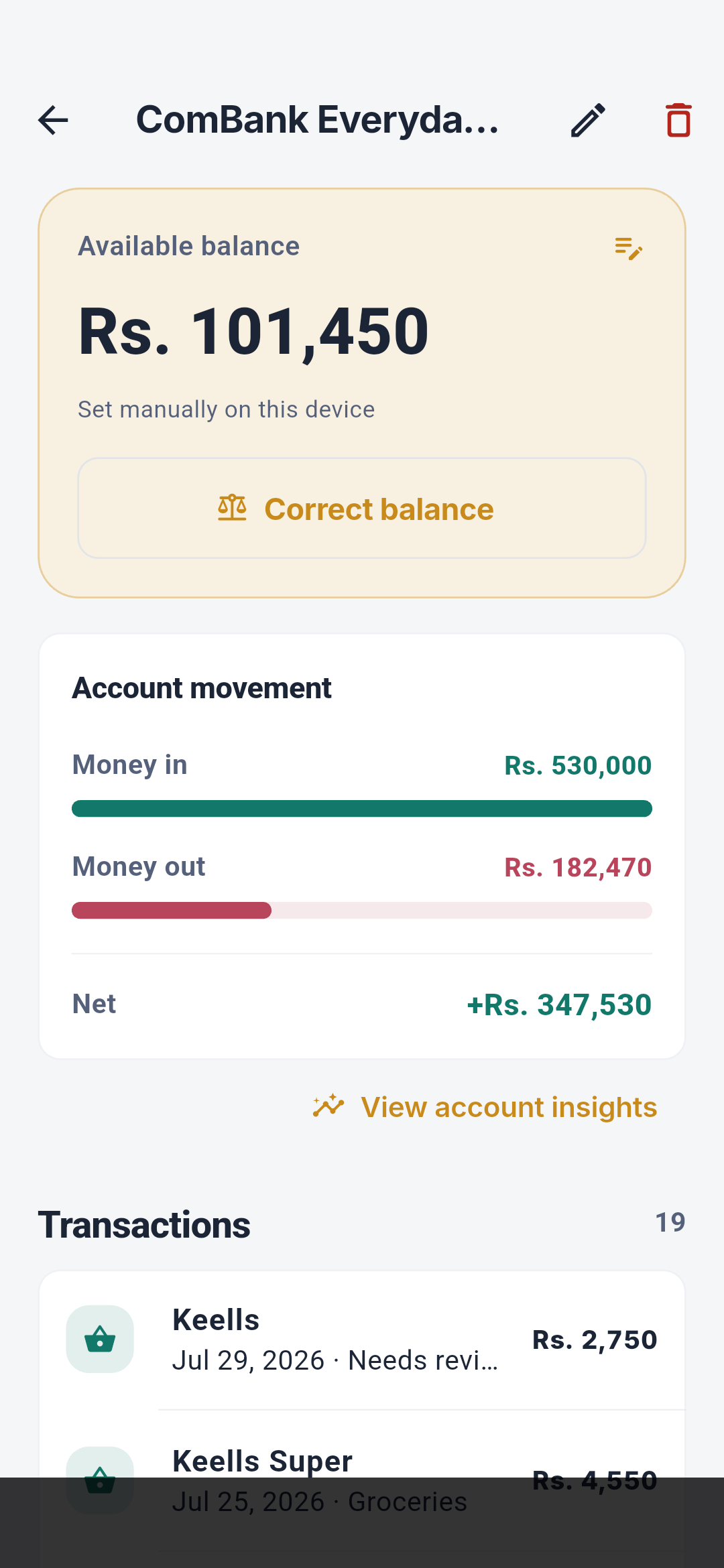
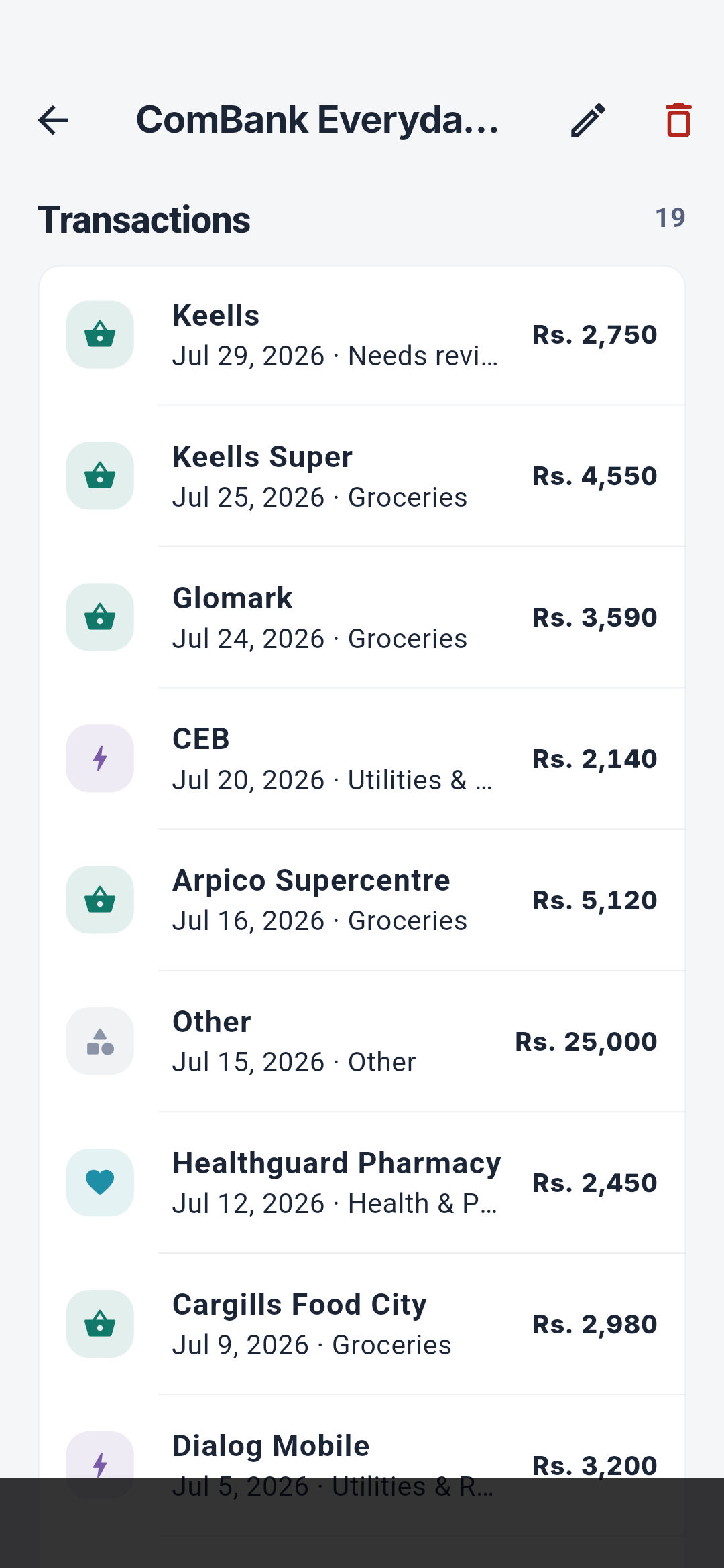
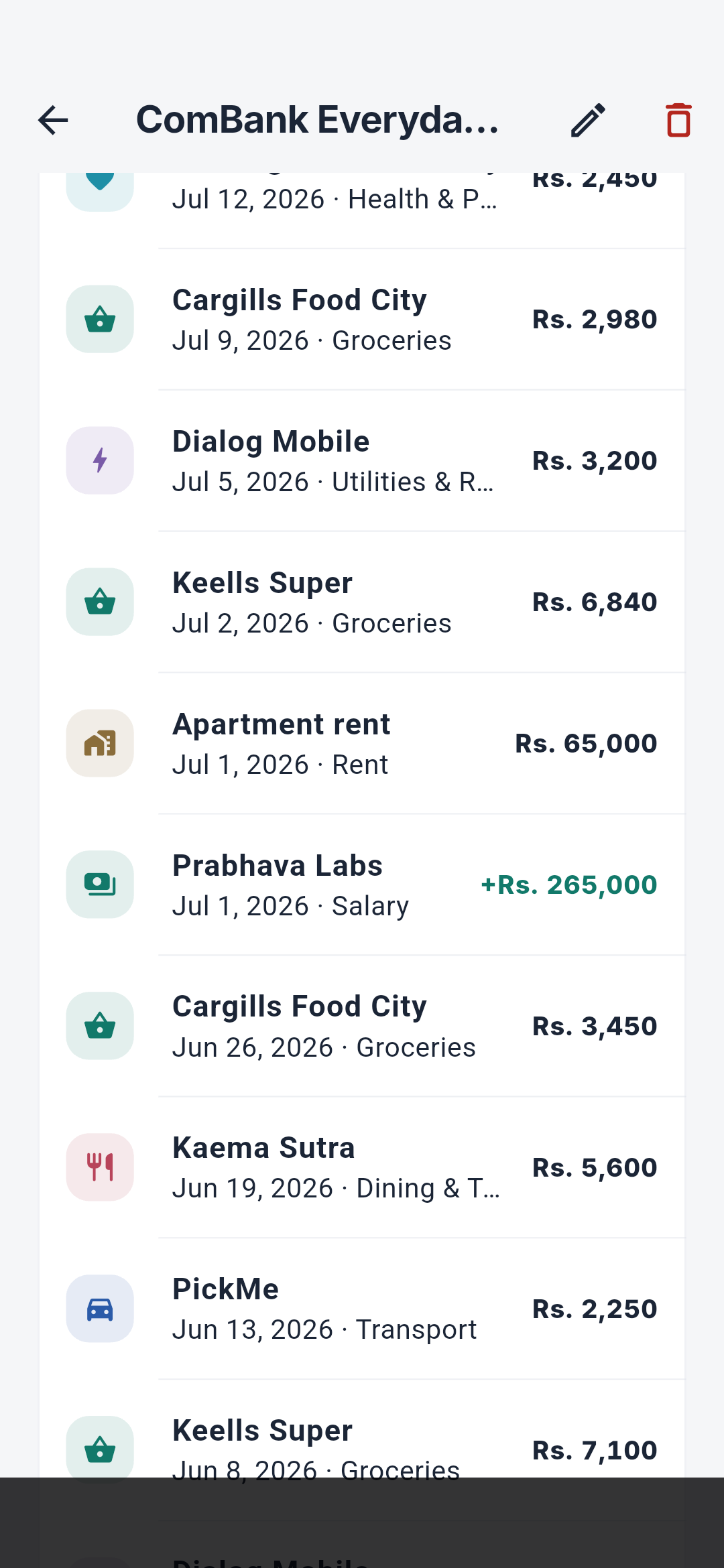
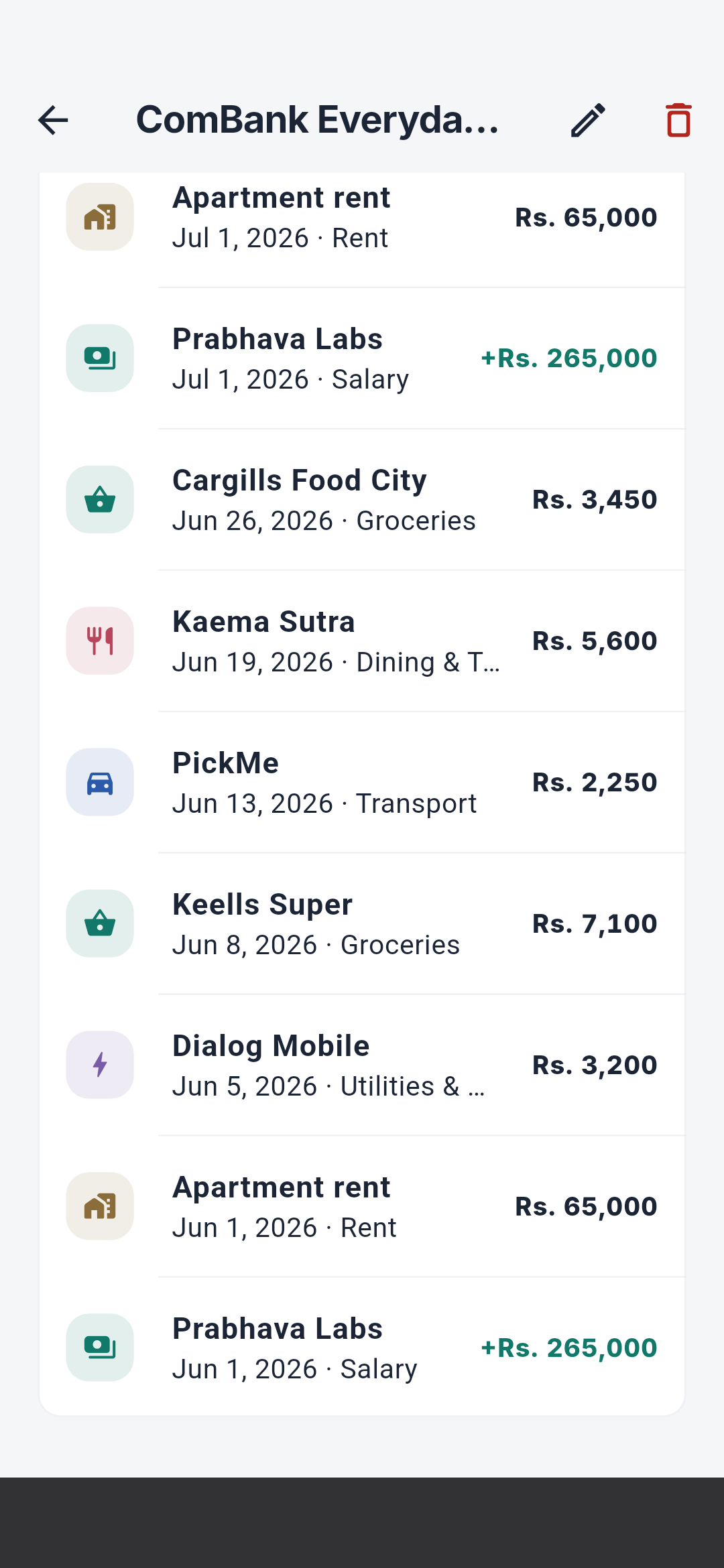
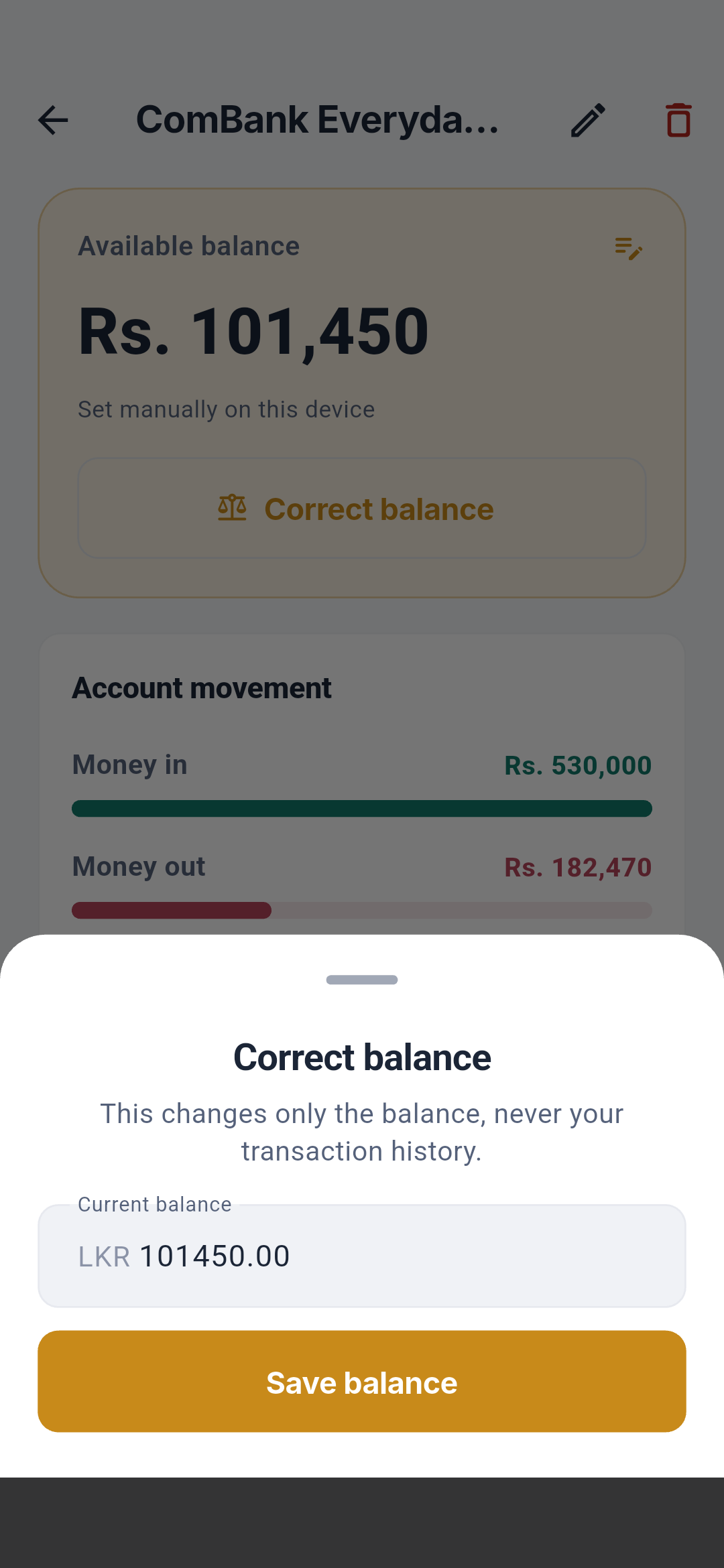
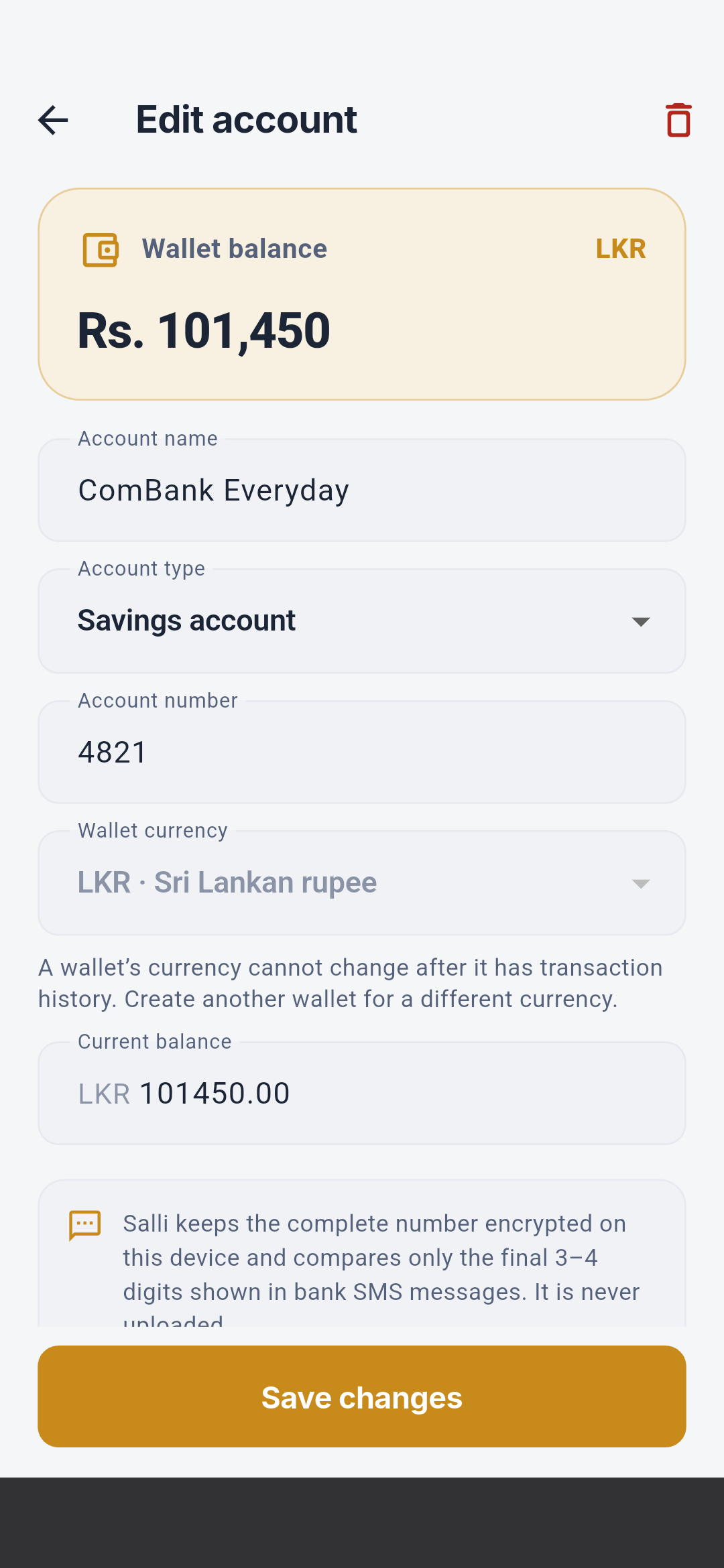
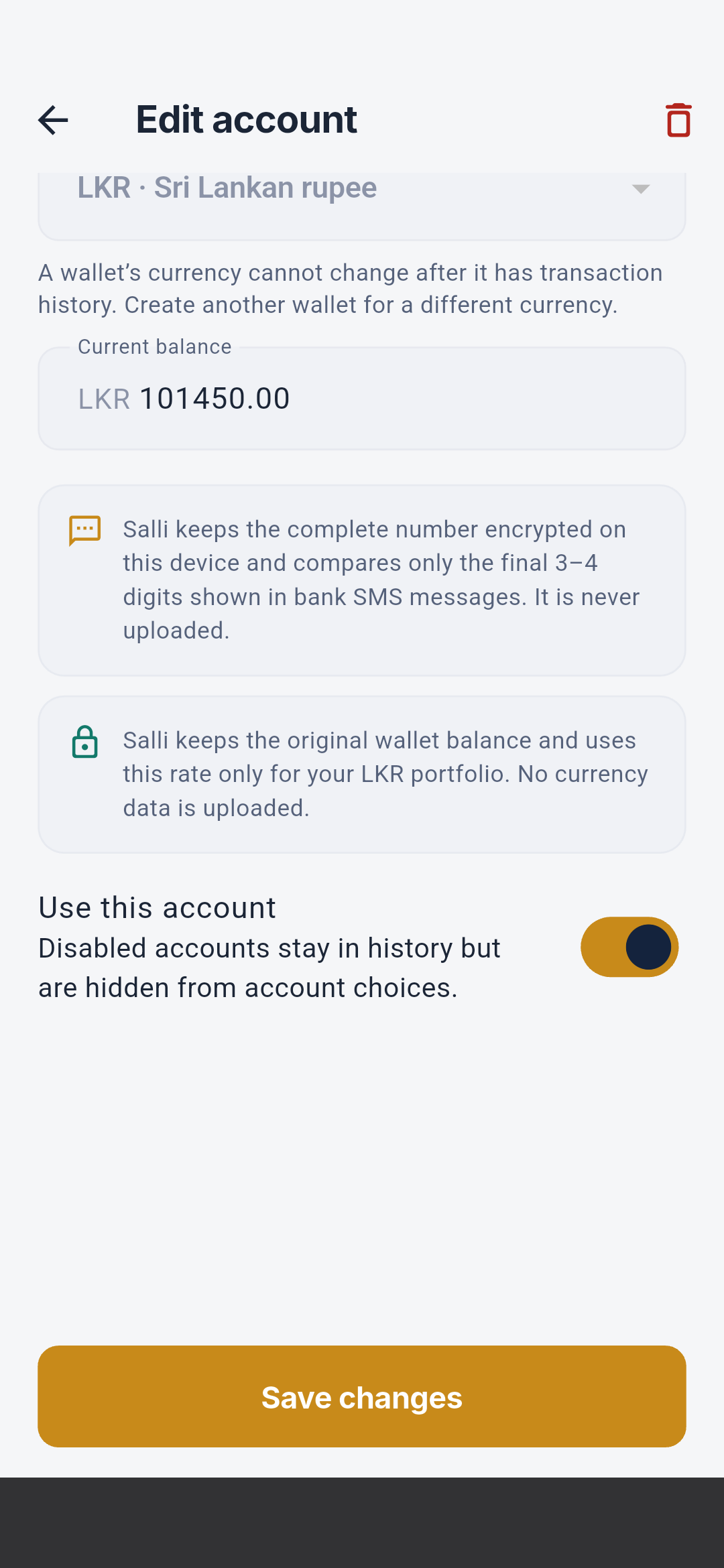
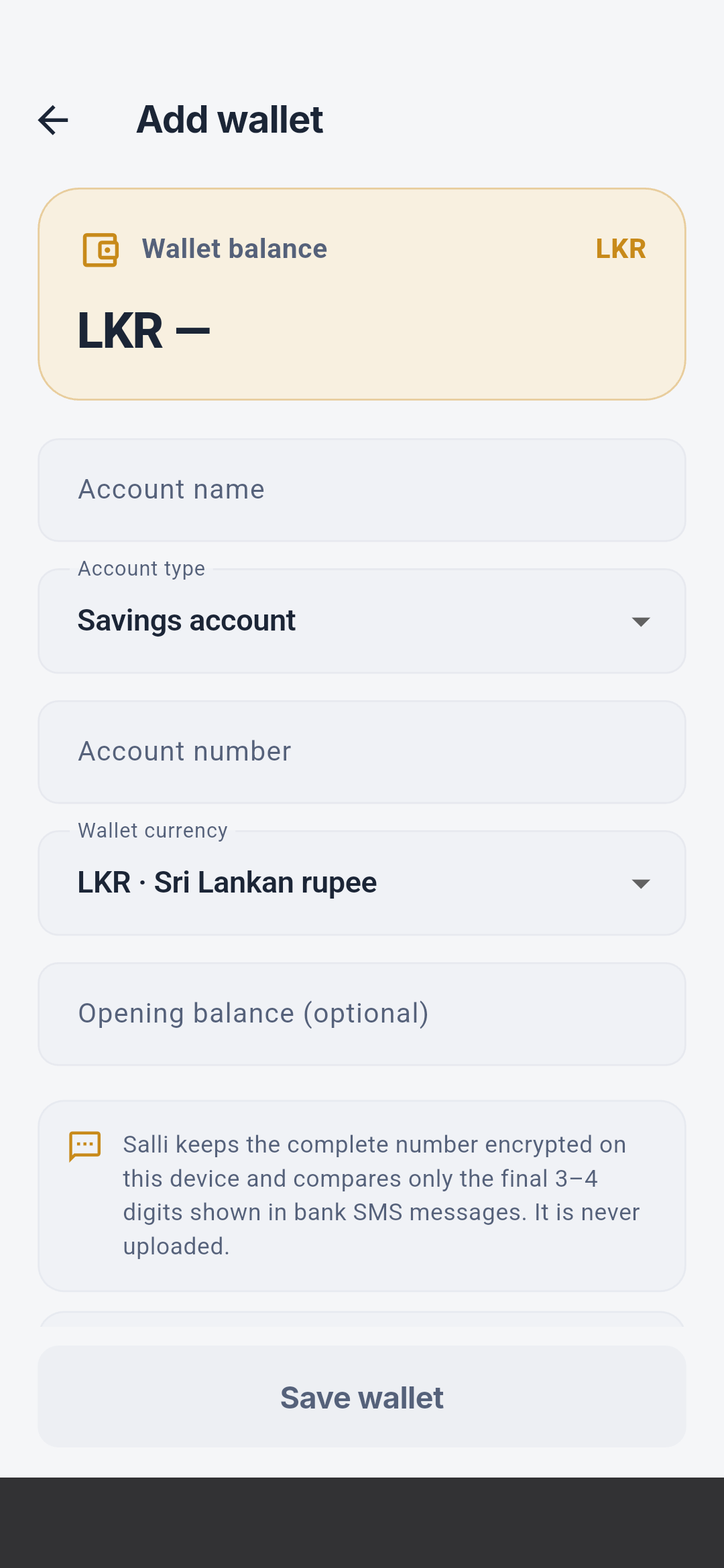
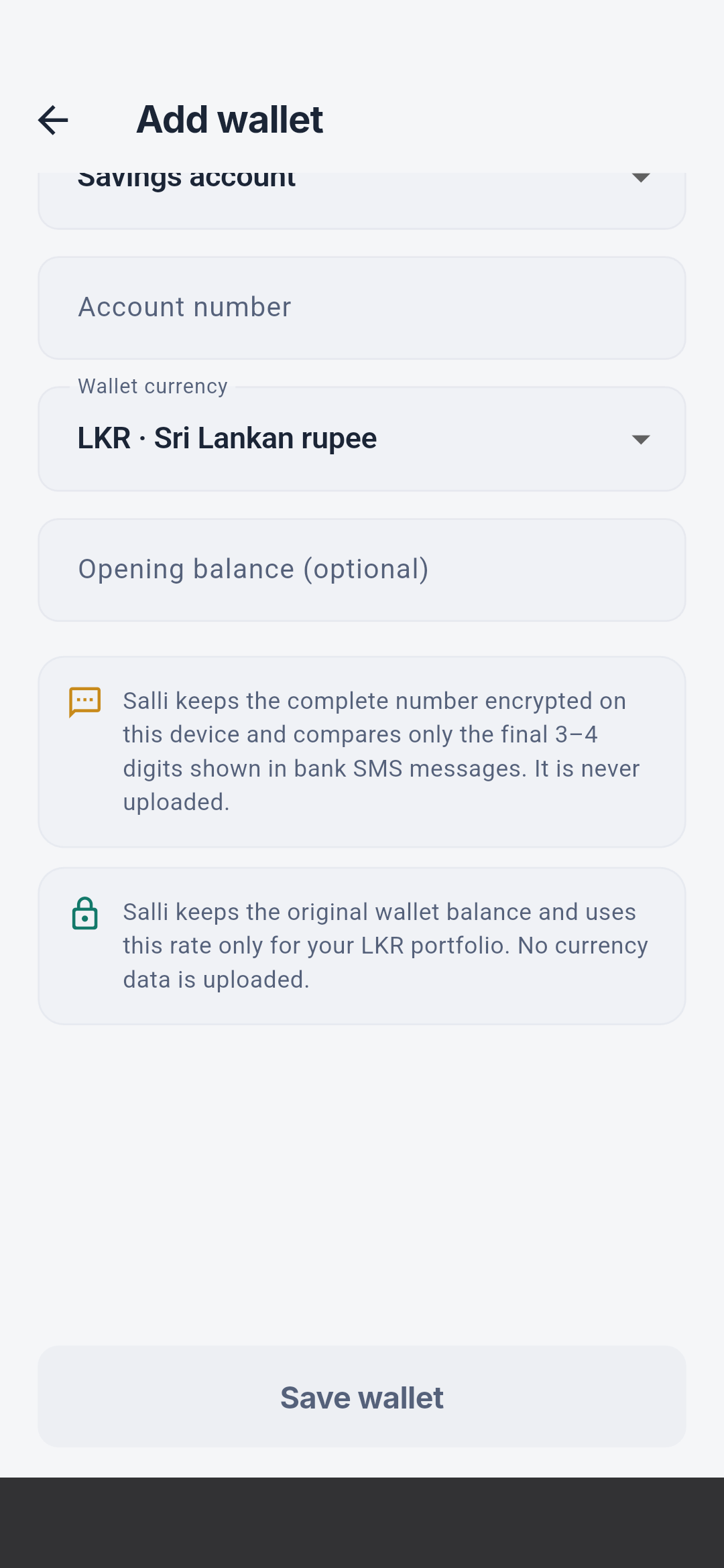 The detail screen explains current balance and provenance, reconciliation
warnings, income/spending/net movement, wallet-filtered Insights, and the exact
transaction history. The balance sheet changes only the balance, never the
ledger. The editor controls name, type, matching digits, currency, LKR
exchange rate, manual balance, active state, save, and safe deletion.
The detail screen explains current balance and provenance, reconciliation
warnings, income/spending/net movement, wallet-filtered Insights, and the exact
transaction history. The balance sheet changes only the balance, never the
ledger. The editor controls name, type, matching digits, currency, LKR
exchange rate, manual balance, active state, save, and safe deletion.
Budget workflows
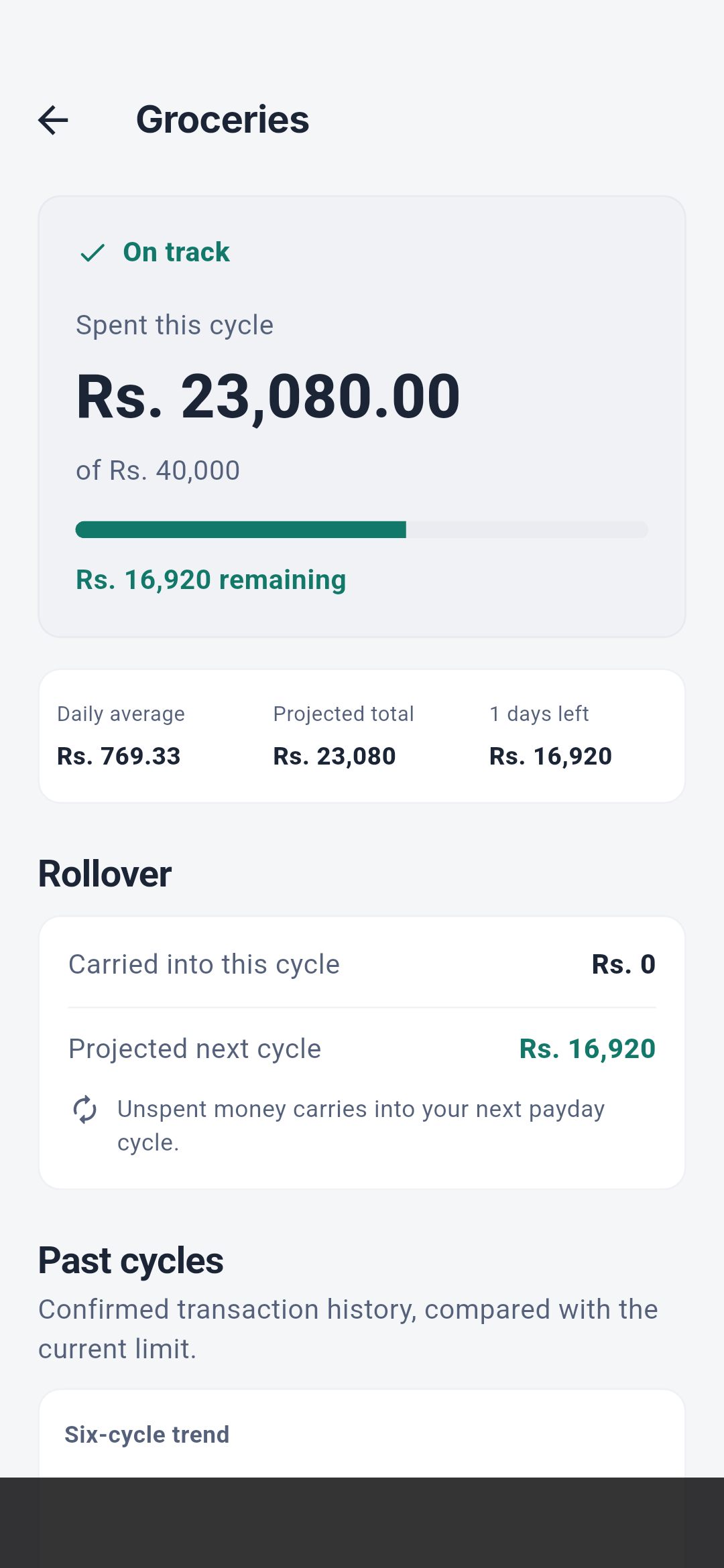
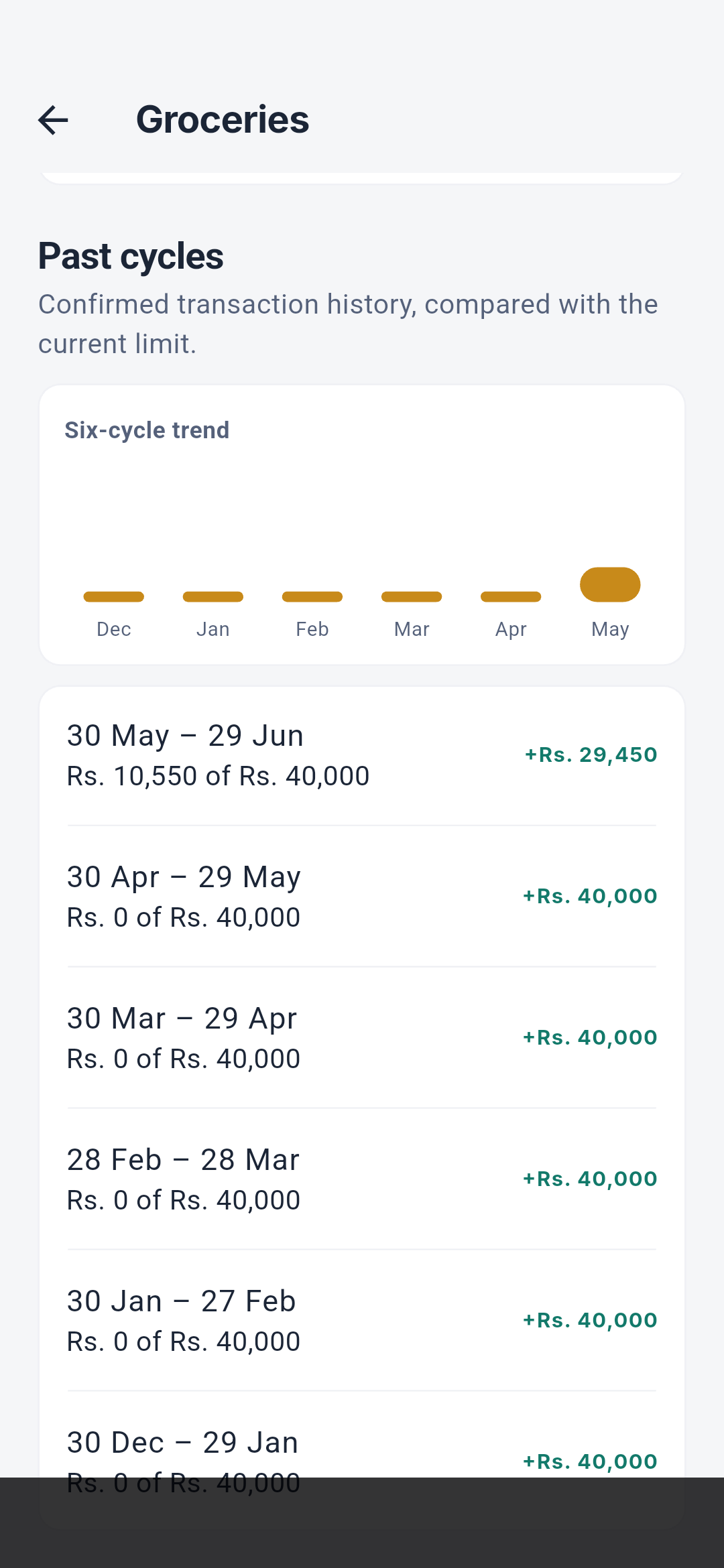
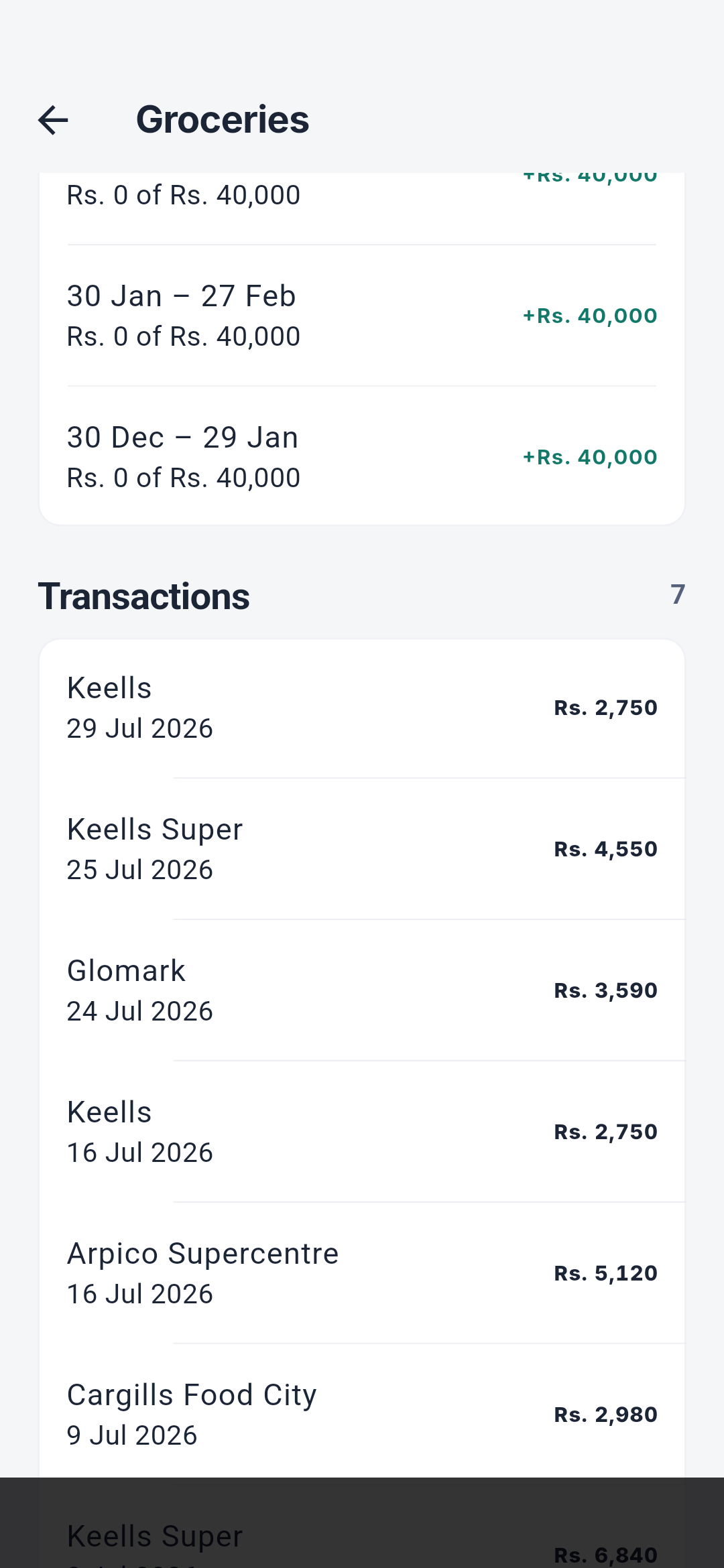
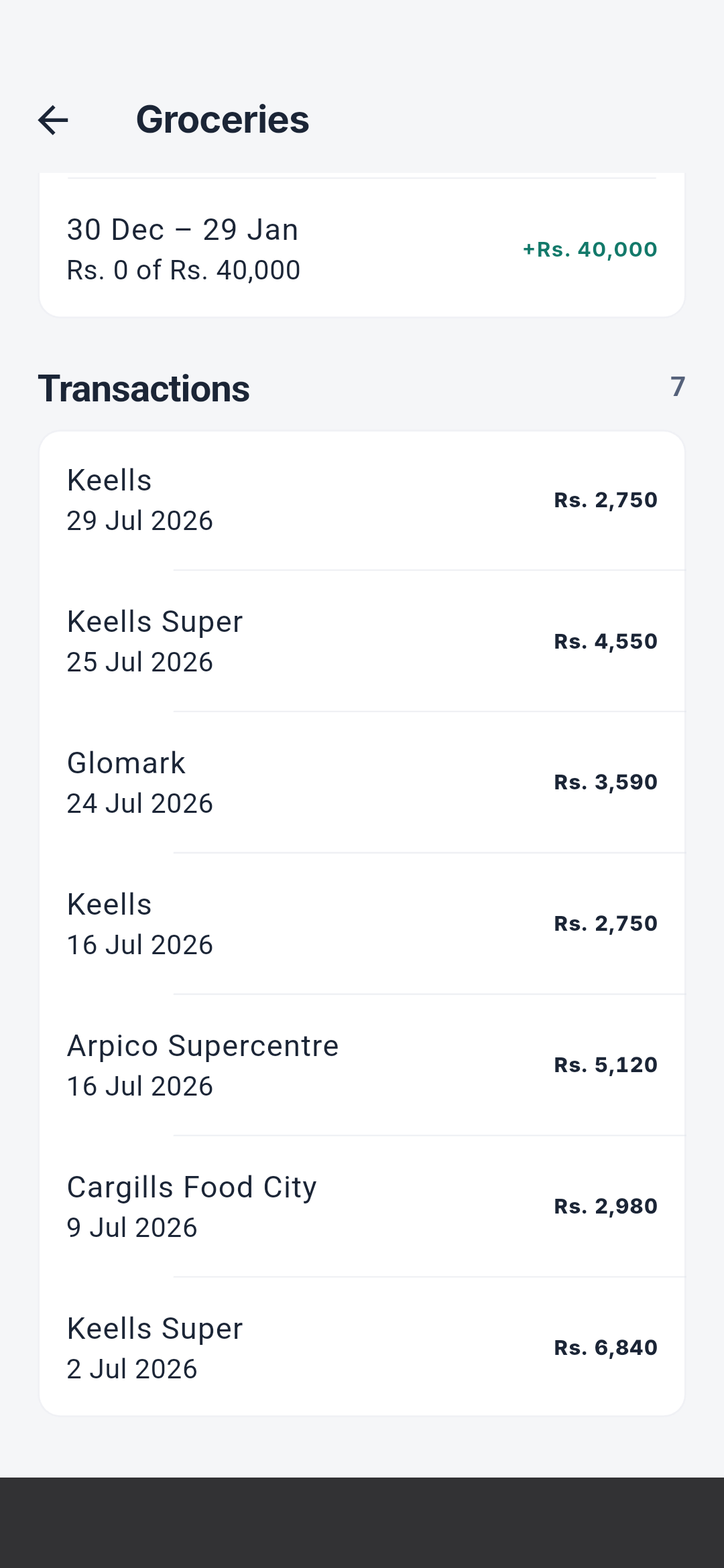
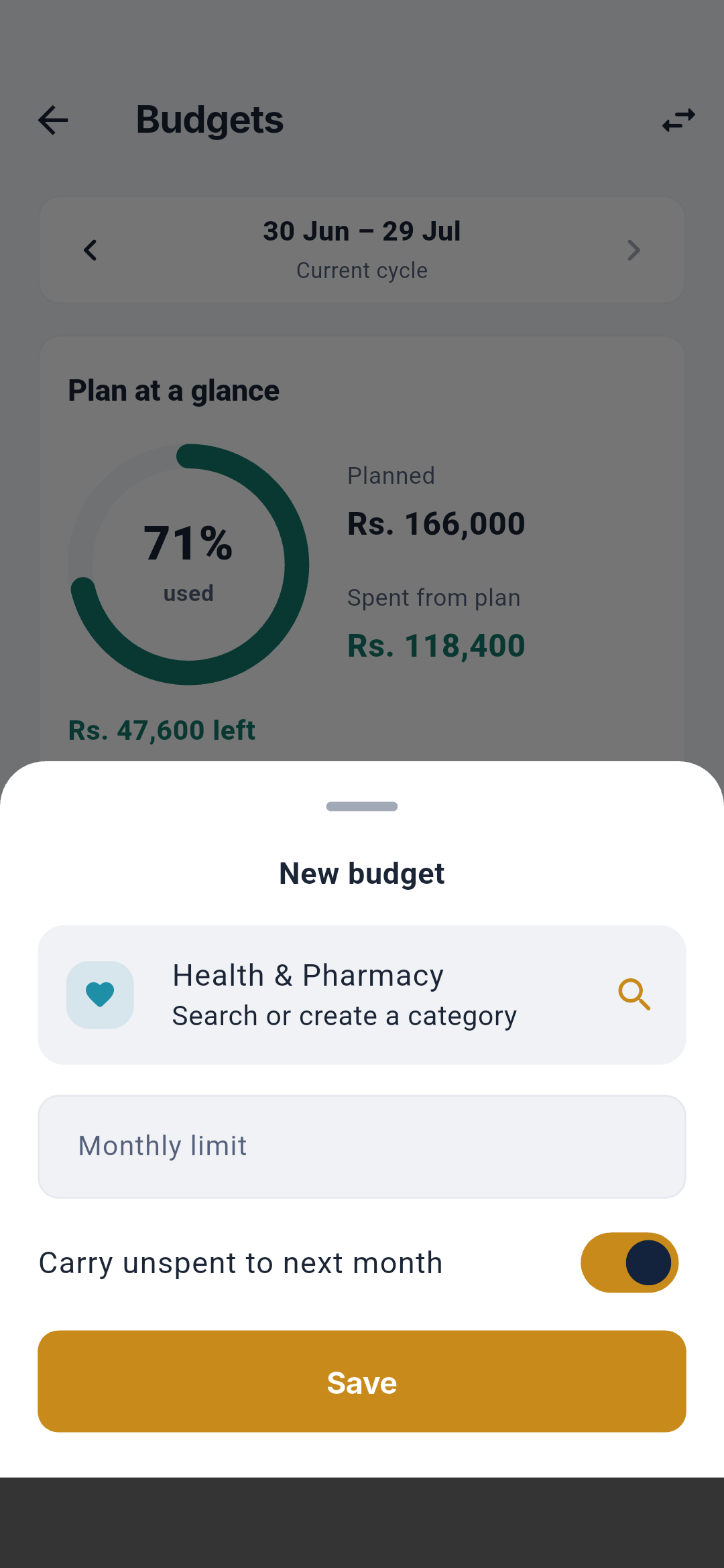
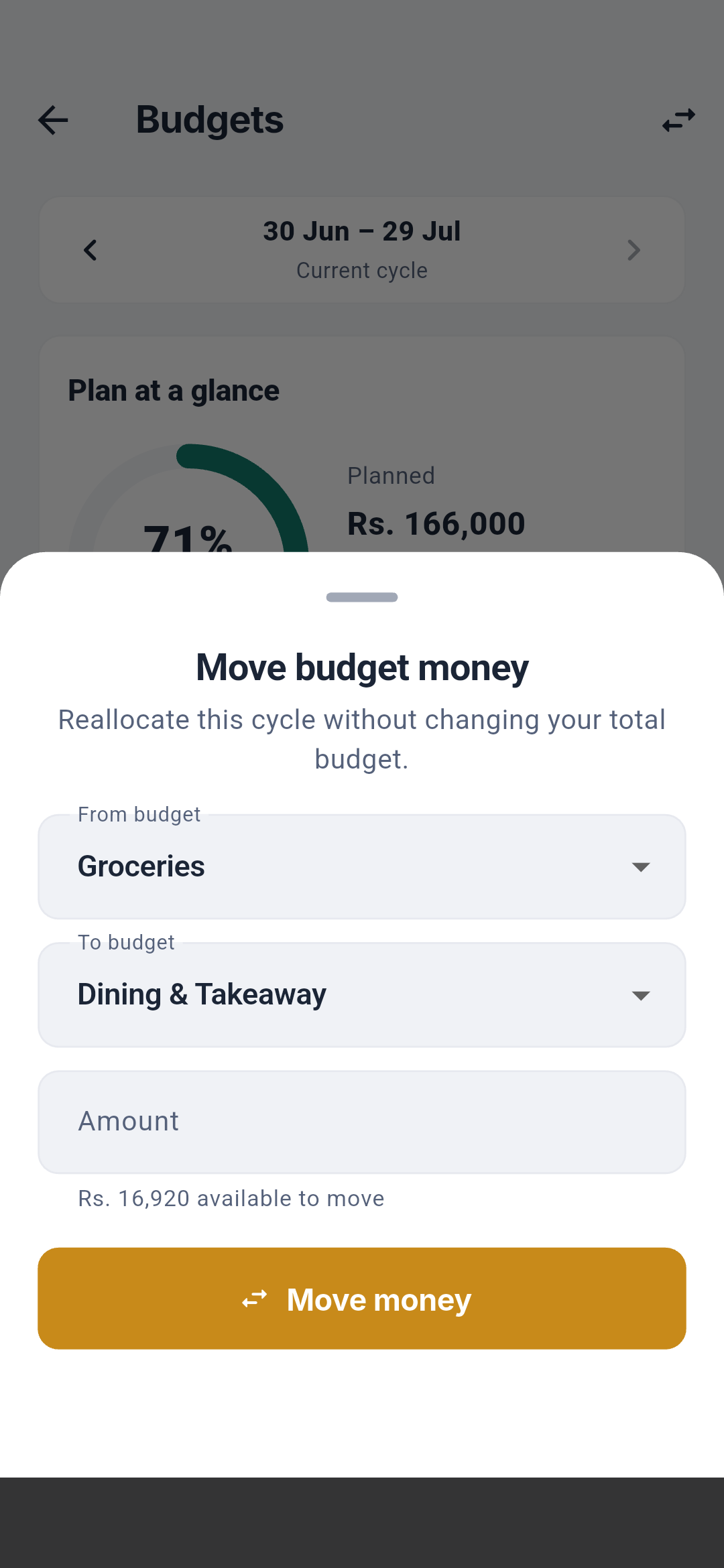 Budget detail contains limit, spent, remaining/over, pace, projection,
rollover, six-cycle history, alerts, and the transactions behind the number.
The editor selects one unbudgeted expense category, a positive monthly limit,
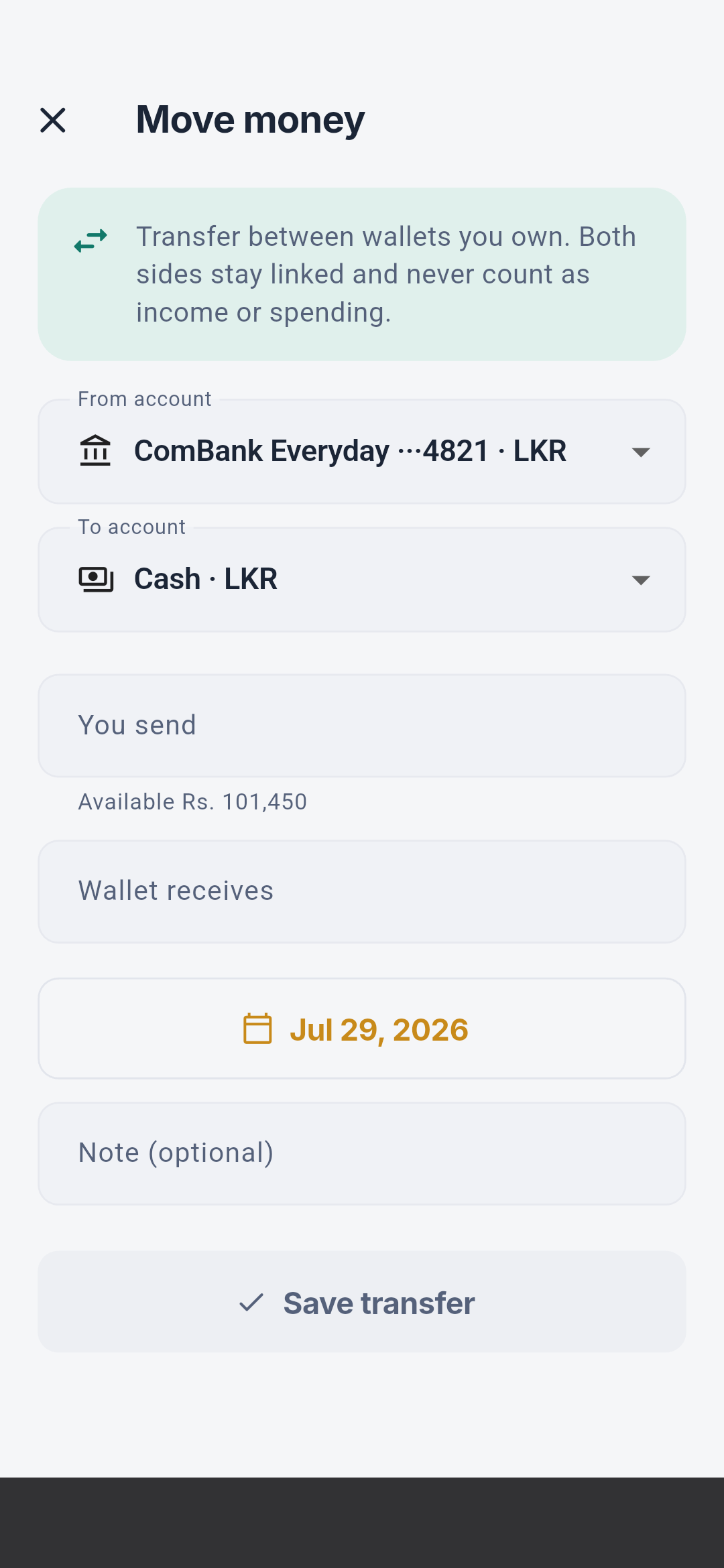
and rollover behavior. Move money selects source, destination, and an amount
that is actually unspent; it does not create income or a transaction.
Budget detail contains limit, spent, remaining/over, pace, projection,
rollover, six-cycle history, alerts, and the transactions behind the number.
The editor selects one unbudgeted expense category, a positive monthly limit,
and rollover behavior. Move money selects source, destination, and an amount
that is actually unspent; it does not create income or a transaction.
Goals
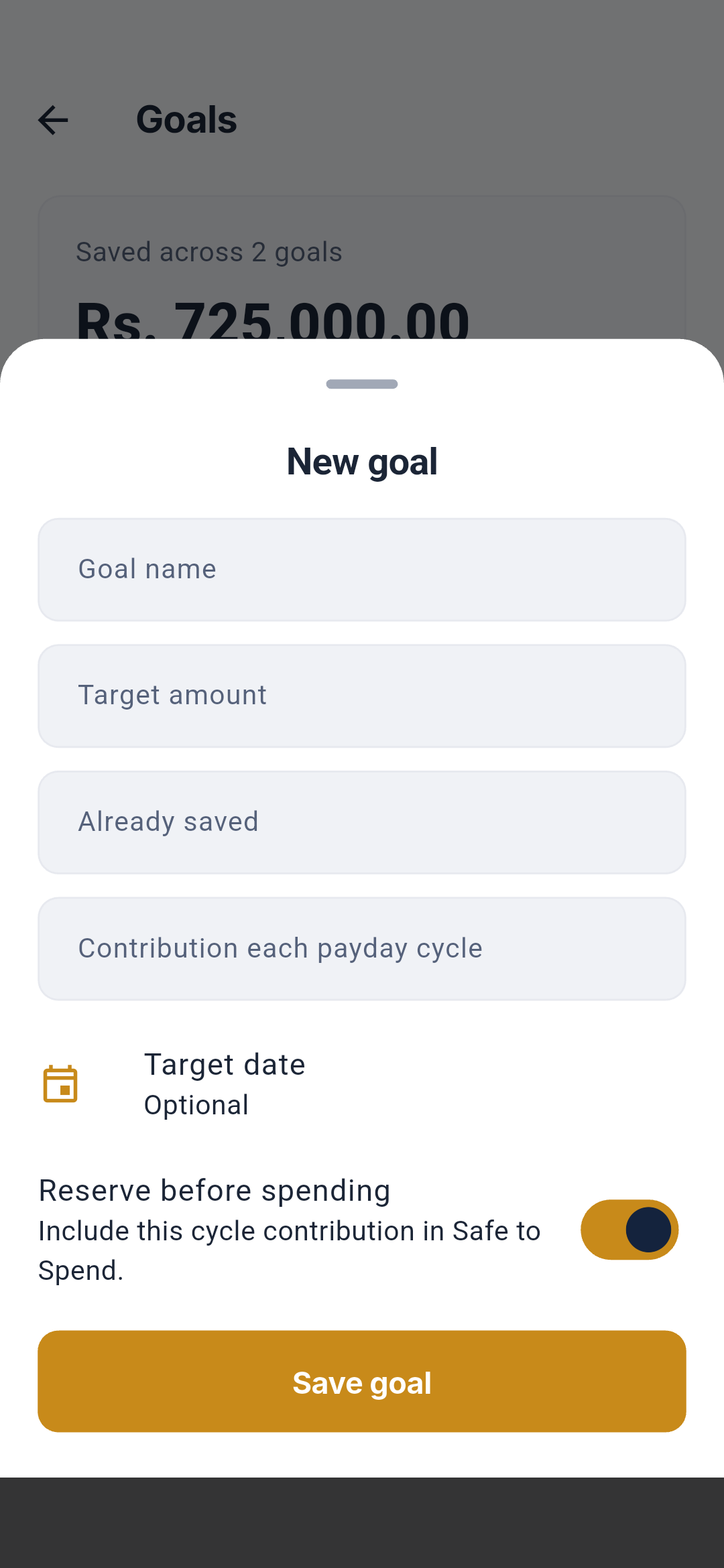
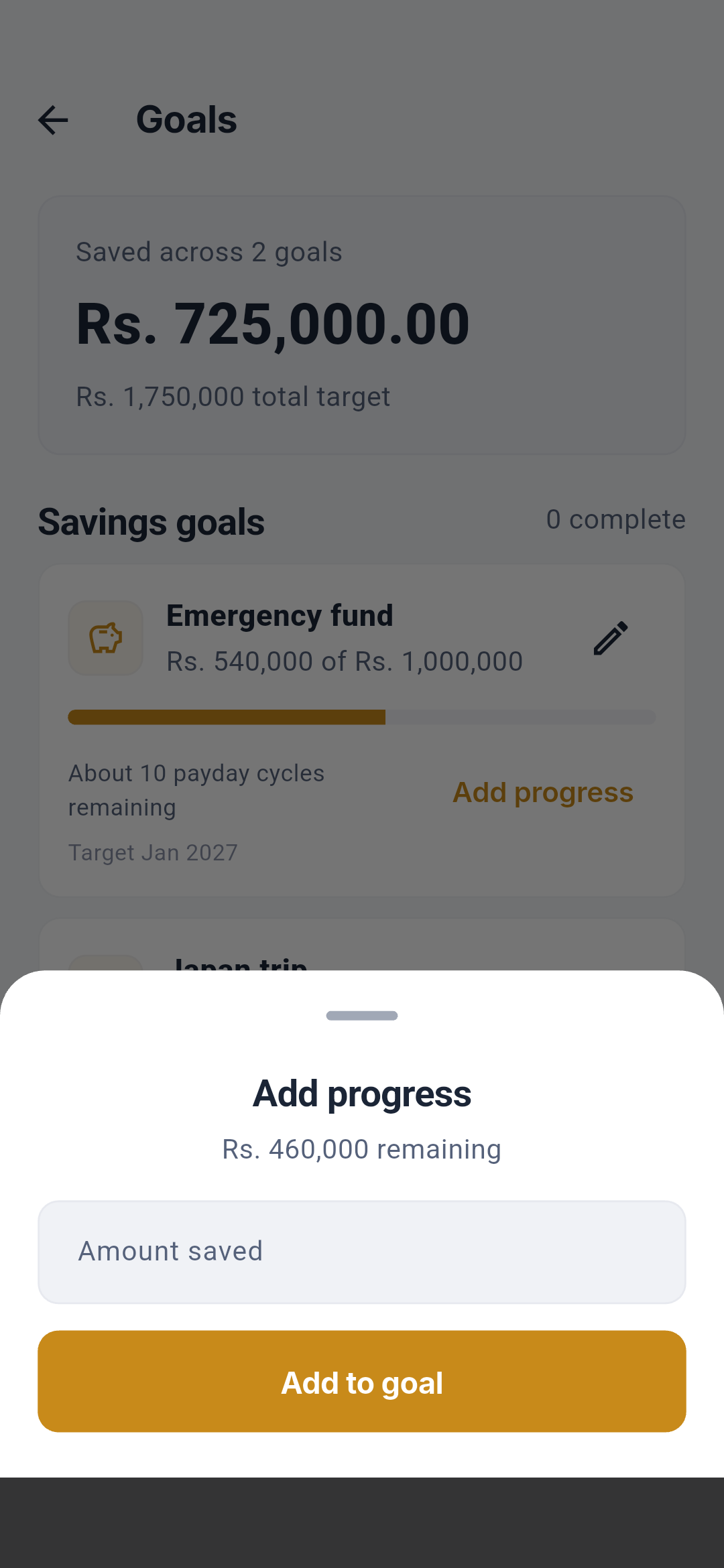 The goal editor controls name, target, already saved amount, target month,
planned amount per payday cycle, and whether the planned contribution is
reserved before Safe to Spend. The contribution sheet changes locally tracked
progress; it does not move bank money.
The goal editor controls name, target, already saved amount, target month,
planned amount per payday cycle, and whether the planned contribution is
reserved before Safe to Spend. The contribution sheet changes locally tracked
progress; it does not move bank money.
Scheduled payments
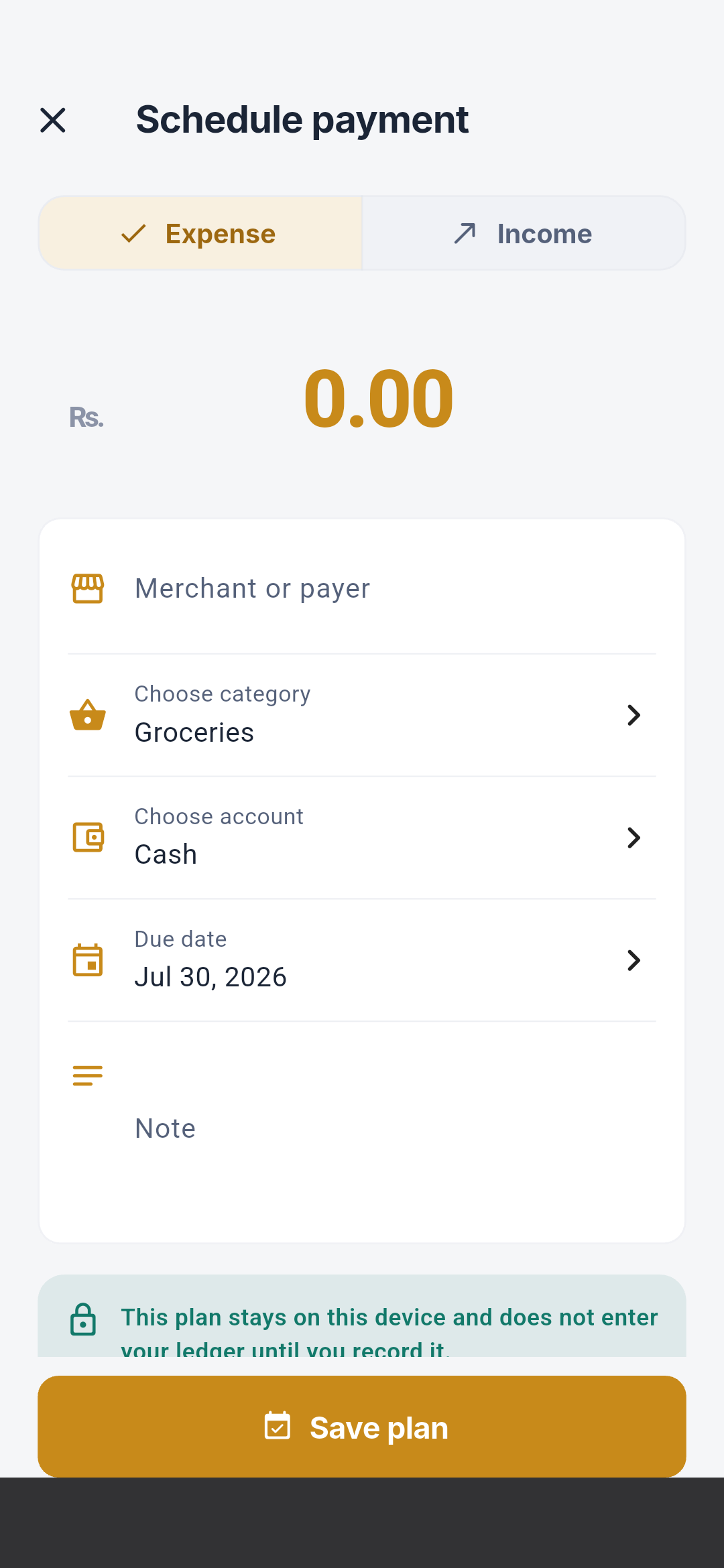
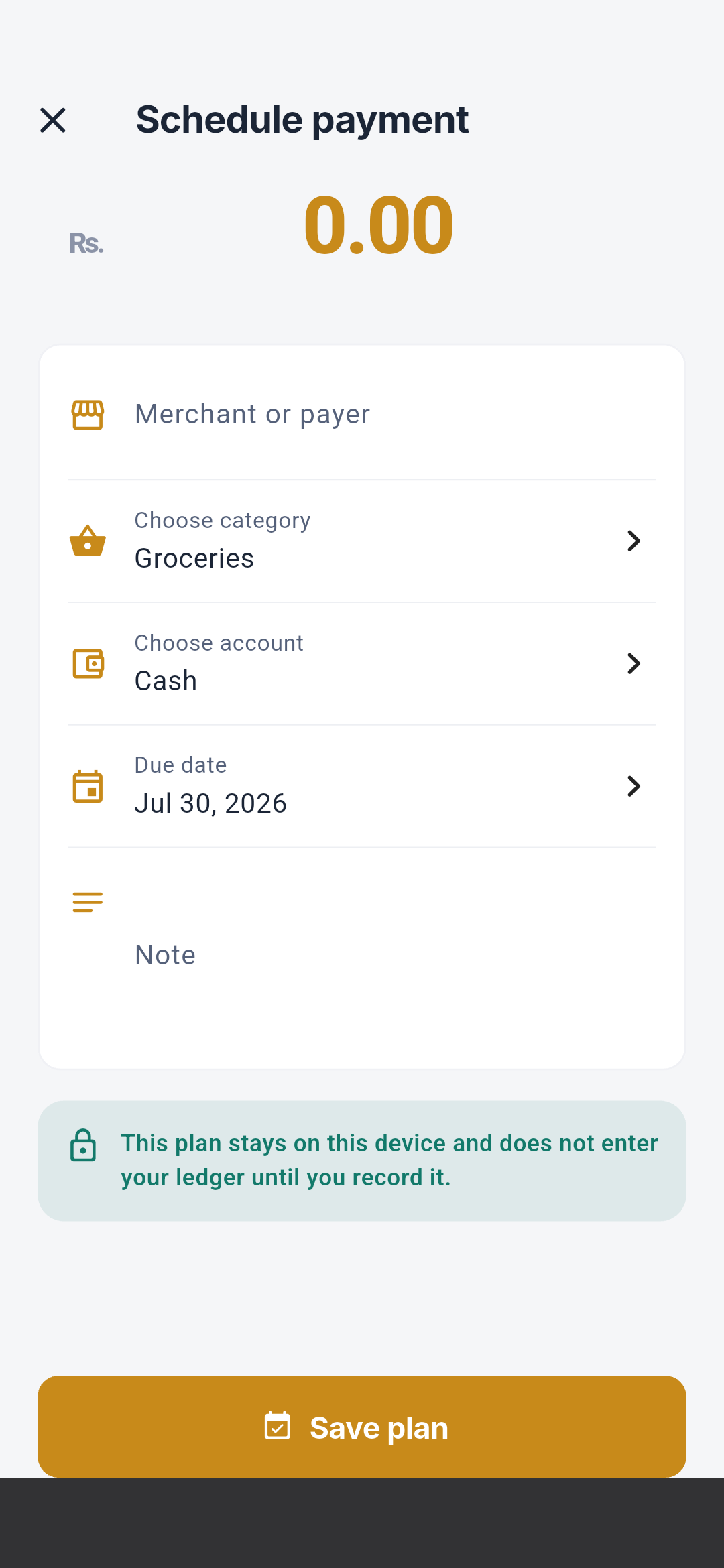
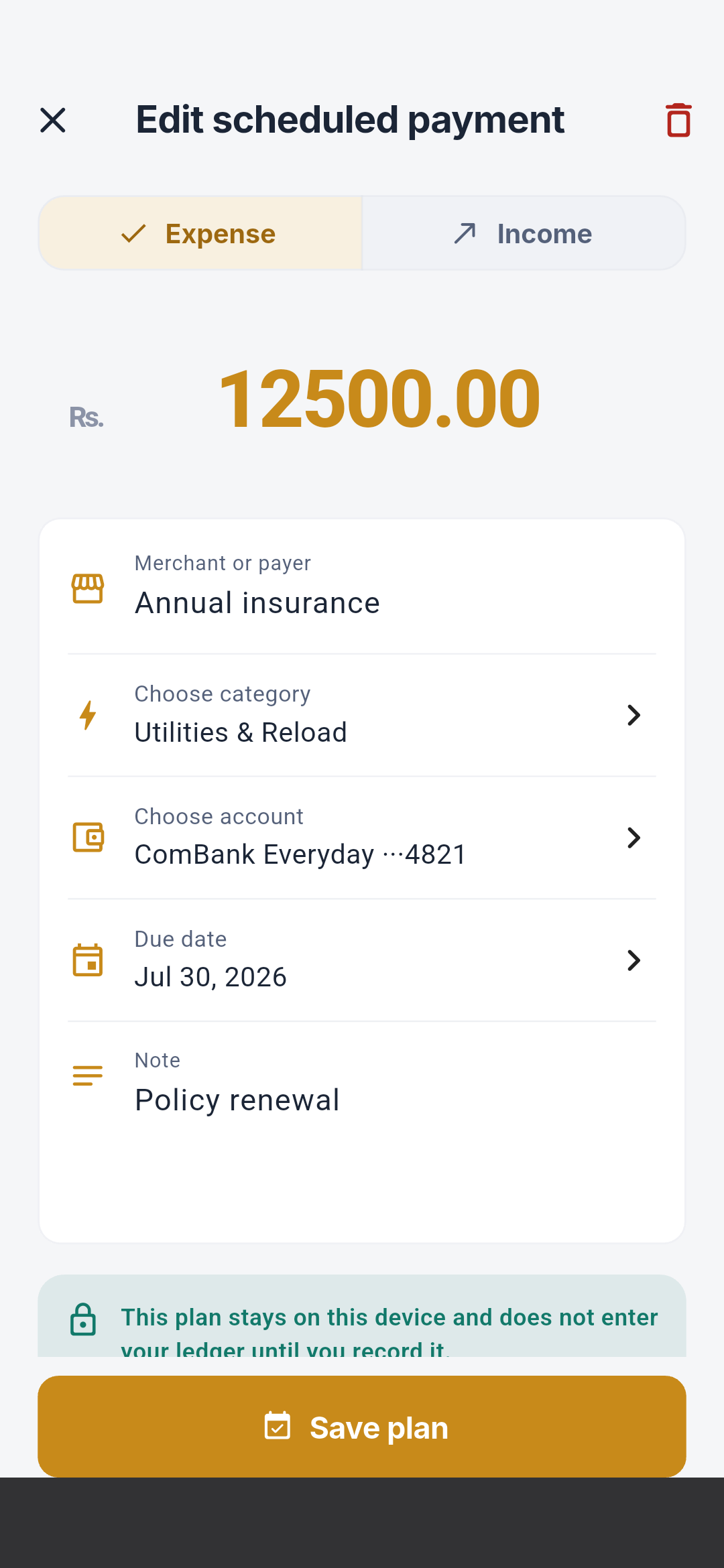
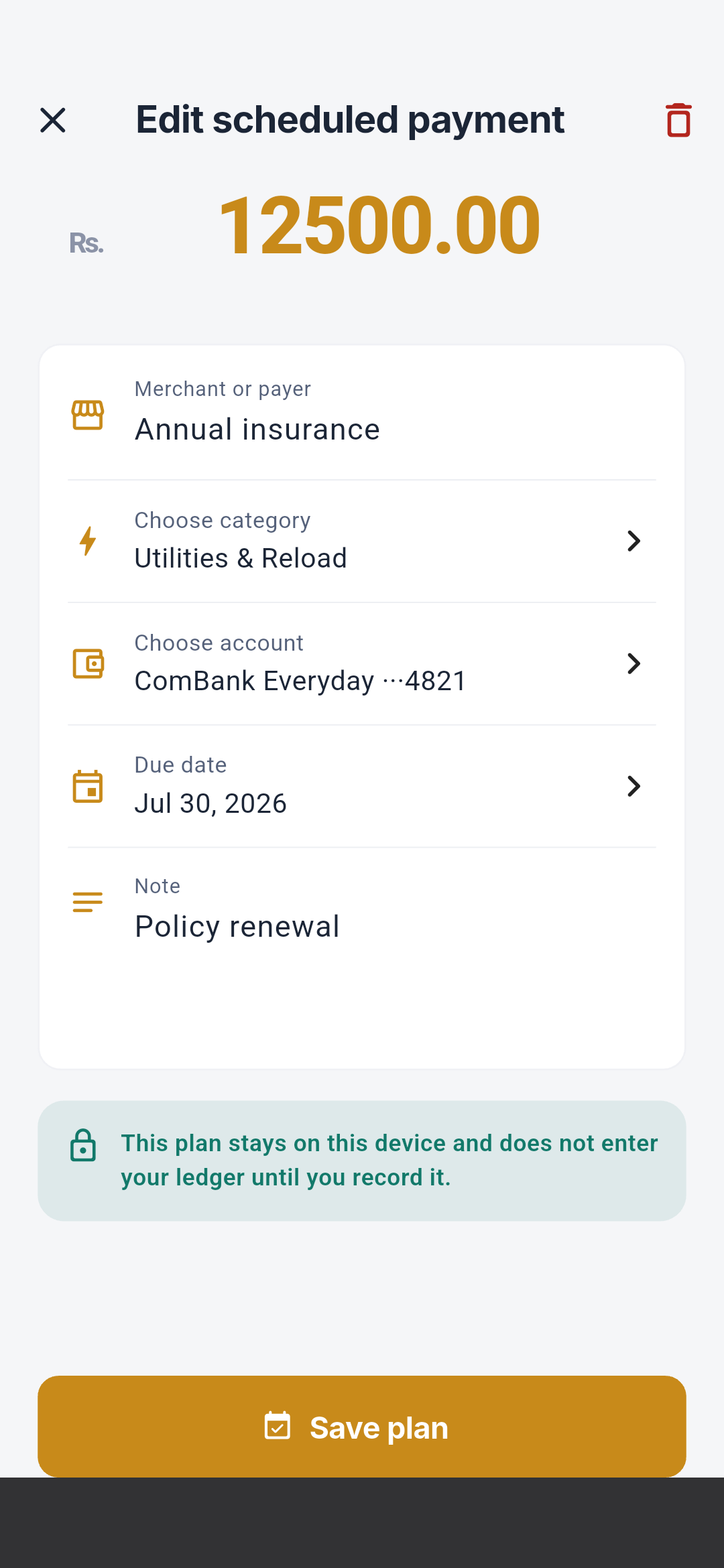 Direction, name, amount, category, wallet, due date, note, and save define a
one-time plan. Editing also exposes deletion. Recording a payment creates a
confirmed transaction only after explicit confirmation.
Direction, name, amount, category, wallet, due date, note, and save define a
one-time plan. Editing also exposes deletion. Recording a payment creates a
confirmed transaction only after explicit confirmation.
Seettu creation and detail
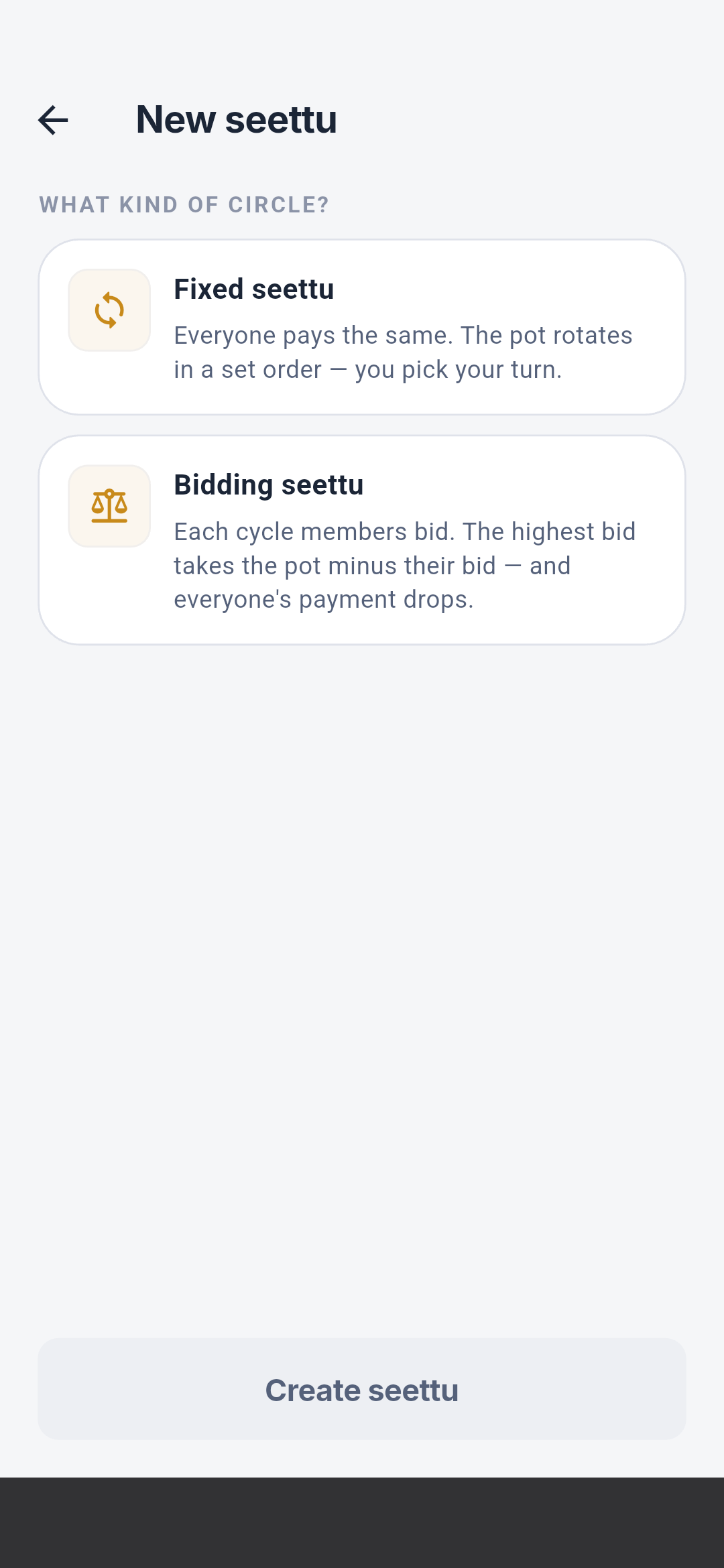
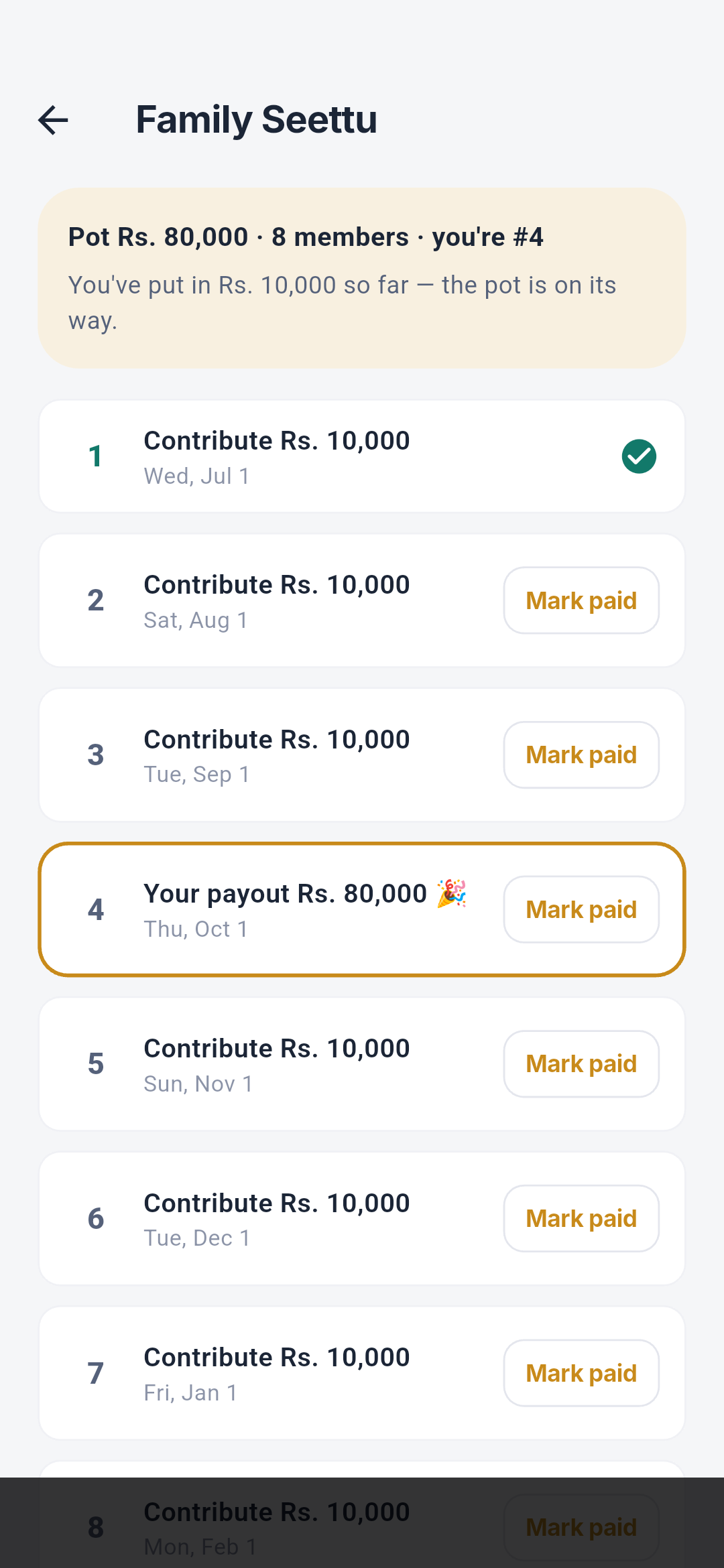
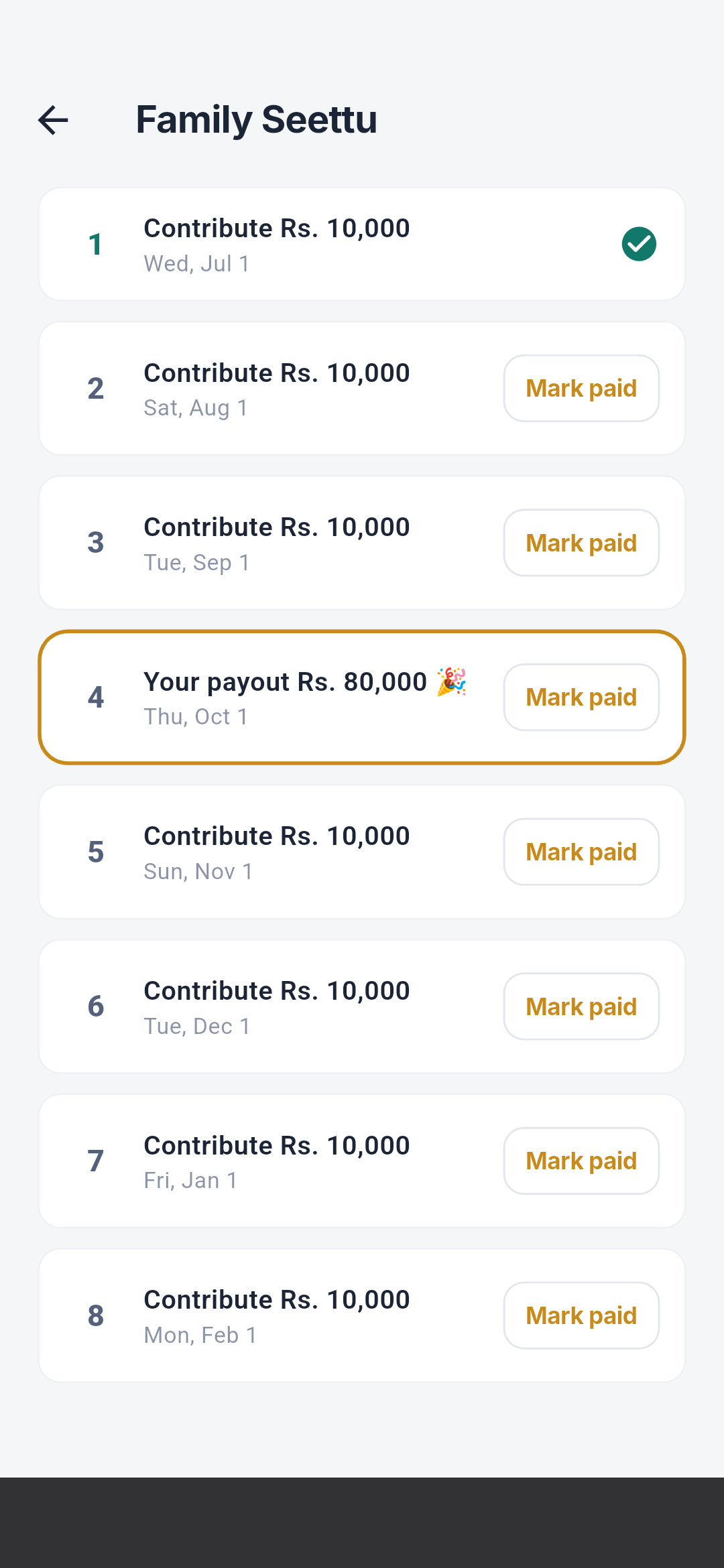
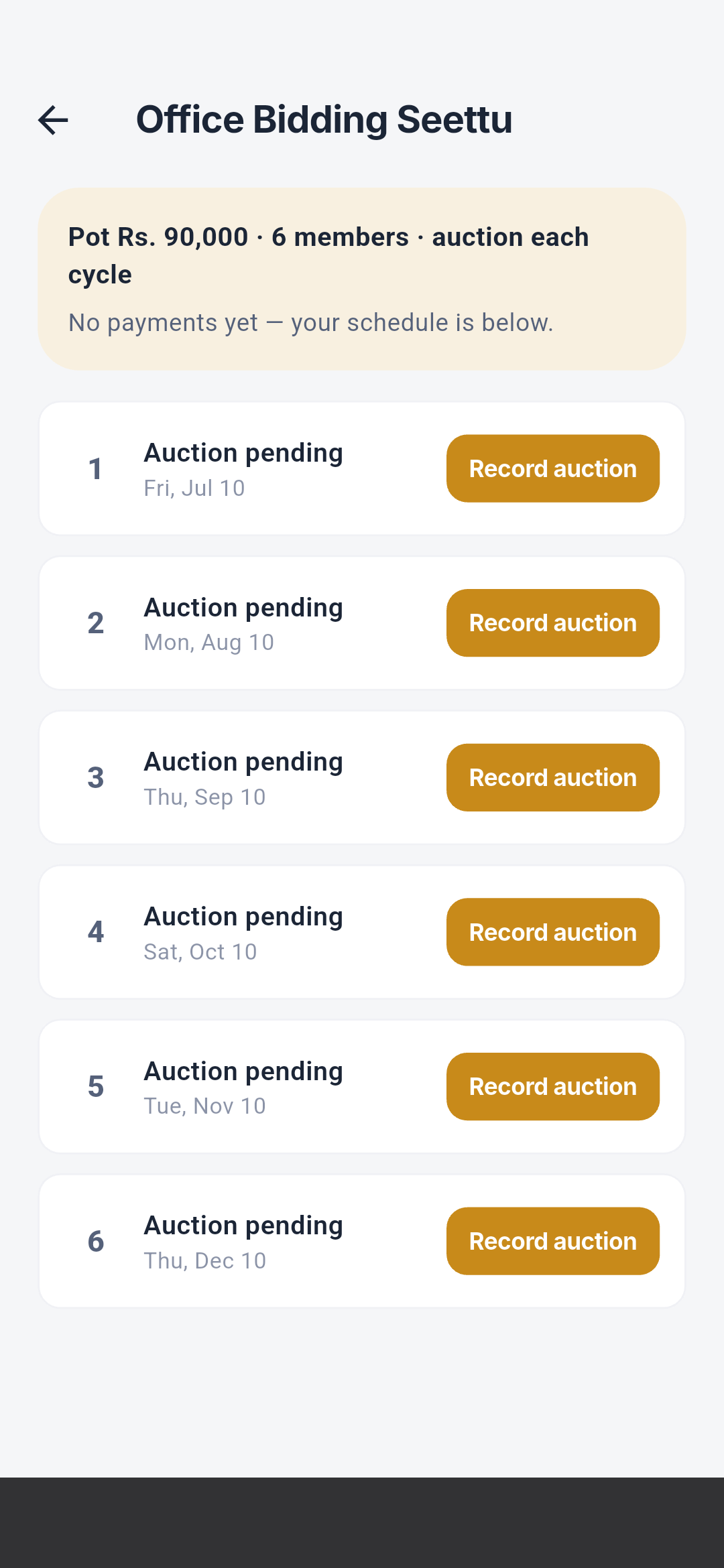
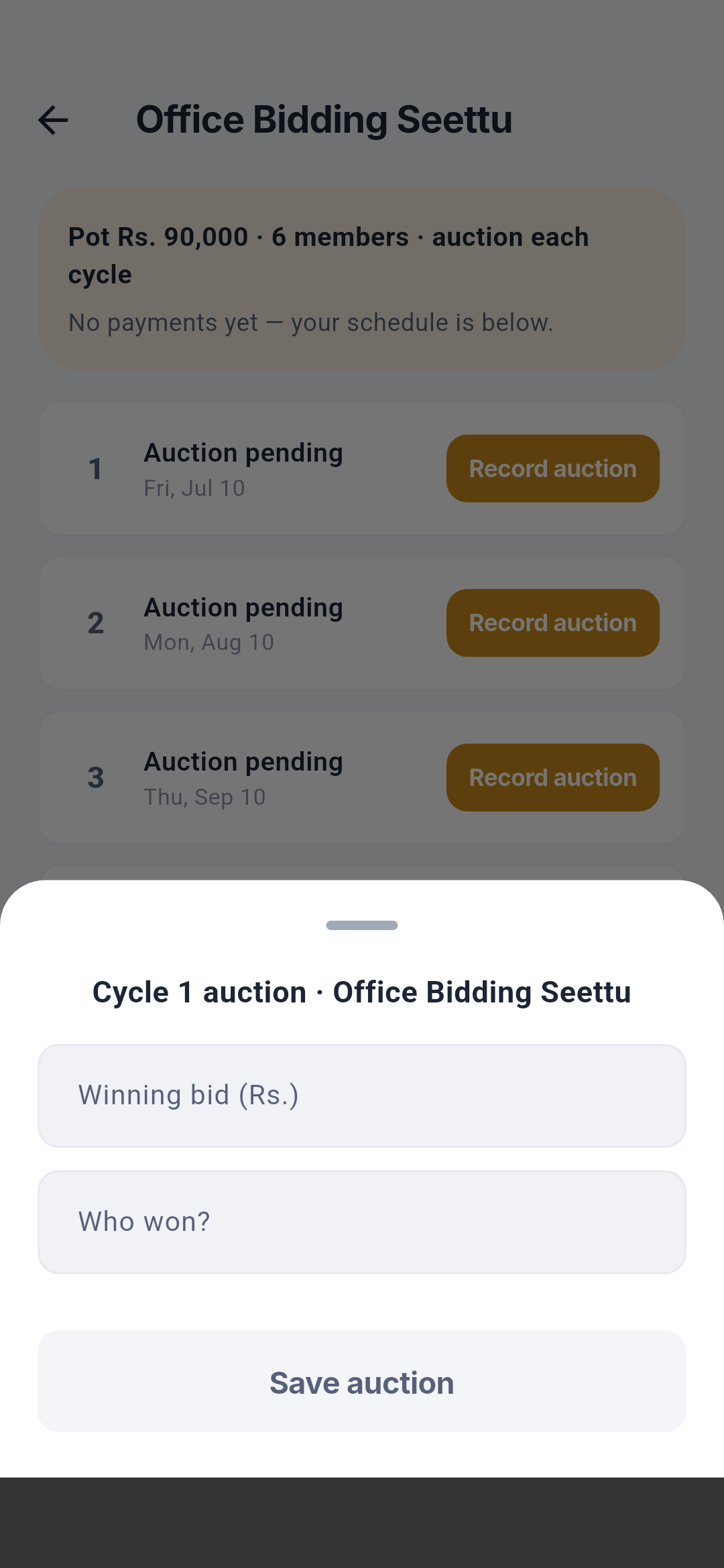 Create controls name, fixed or bidding type, base contribution, cadence,
member count, position, commission, and start date. Detail shows pot, net
position, schedule, payout position, paid state, winner, bid, actual
contribution, and Mark paid. A bidding cycle’s auction sheet records the
winning bid and winner, previews payout and discounted contribution, validates
against the pot, and saves the result locally.
Create controls name, fixed or bidding type, base contribution, cadence,
member count, position, commission, and start date. Detail shows pot, net
position, schedule, payout position, paid state, winner, bid, actual
contribution, and Mark paid. A bidding cycle’s auction sheet records the
winning bid and winner, previews payout and discounted contribution, validates
against the pot, and saves the result locally.
Continue with the More atlas
Every More item
Visit Budgets, Seettu, Categories, Labels, Payday runway, Goals, Accounts,
Scheduled payments, Auto-tracking, Automation rules, Settings, Privacy &
data, Help & feedback, About Salli, SMS Validation Lab, and Quick-fire
sample—each with complete viewport sequences and element explanations.