
Set up Salli
This guide takes you from first launch to a useful local budget. Salli does not require registration.1
Install a current test build
Salli is currently distributed as a development or beta build. Use the
build supplied by Prabhava Labs or run the app from source. Public store
links will be added after release approvals.
2
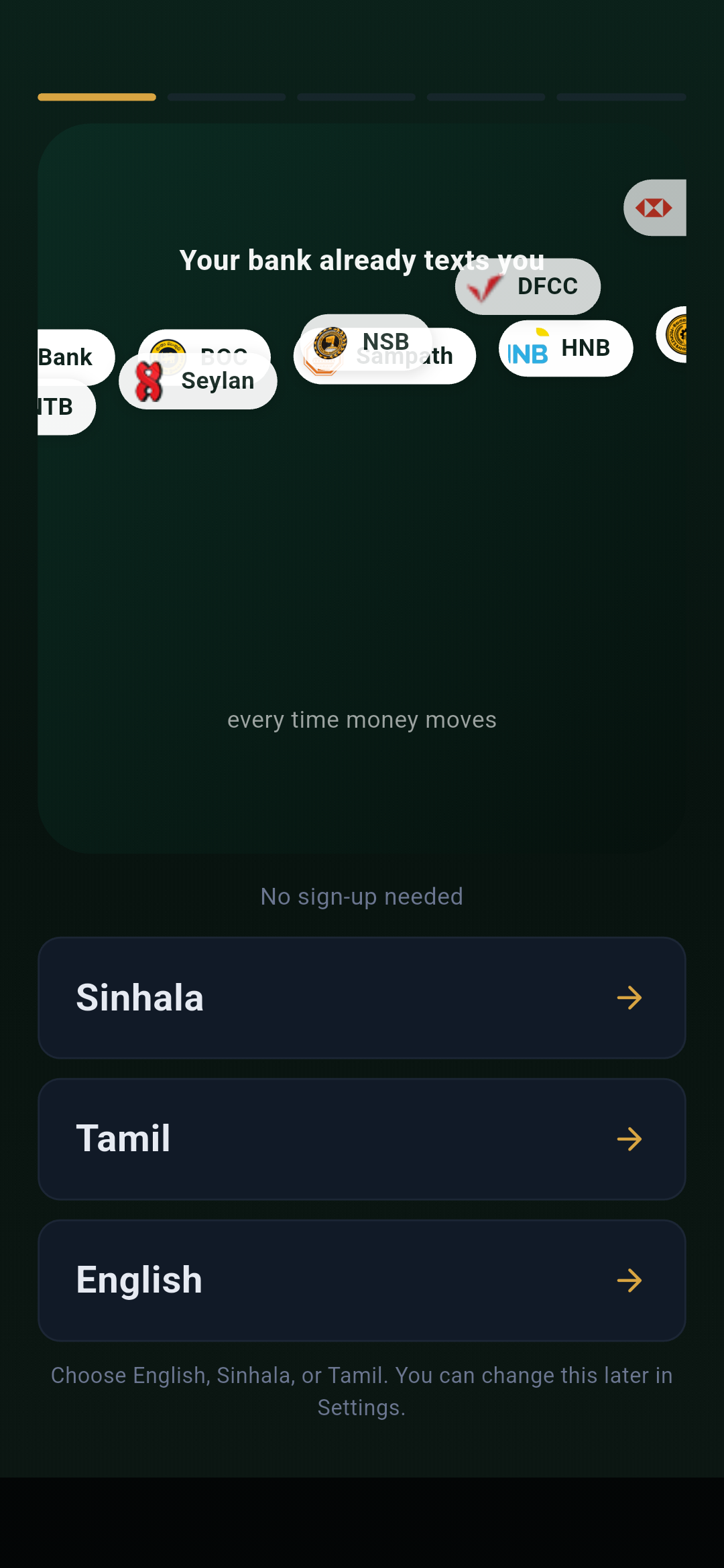
Choose English, Sinhala, or Tamil
Your choice applies immediately and stays on this device. You can change it
later under More → Settings → Language.
3
Review how Salli works
Salli explains that bank alerts are processed on the device, bank logins
are never requested, and supported financial data is stored locally.
4
Set your payday
Choose the day your main income usually arrives. Salli uses payday-to-payday
cycles instead of forcing a calendar month. Expected income is optional.
5
Choose transaction capture
On Android, you can allow bank-SMS auto-tracking or keep it off and enter
transactions manually. On iPhone, manual and receipt entry are the normal
paths because iOS cannot expose the SMS inbox.
6
Start fresh or explore samples
Choose Start fresh for an empty private ledger or Explore with sample
data to see how the main screens work.
Add your first transaction
- Tap the gold + button.
- Choose Expense or Income.
- Enter the amount and merchant or payer.
- Choose Cash or one of your enabled wallets.
- Confirm the category and save.
Add your first wallet
Go to More → Accounts → Add wallet. Choose the institution or wallet type, give it a name, set its currency, and optionally enter an opening balance.Make the home number useful
Go to More → Settings → Customize cycle calculation and review:- payday;
- expected income;
- savings reserve;
- committed spending; and
- any category budgets or upcoming approved payments.
Verify your setup
You are ready when:- Home shows the expected budget-cycle dates;
- your first entry appears in Activity;
- the correct account and category are attached;
- Safe to Spend reflects your cycle settings; and
- any optional SMS or reminder permission matches your choice.
Understand the main navigation
Learn what Home, Activity, Insights, More, and the + button contain.